Warm-up, exercises, supersets, finishers and swaps. Checked against build 266.
Fold-out workout sections
Your warm-up, main workout and HIIT finisher are separate sections you can fold and unfold with a tap.
WherePlan›a gym day›section headers
What it is
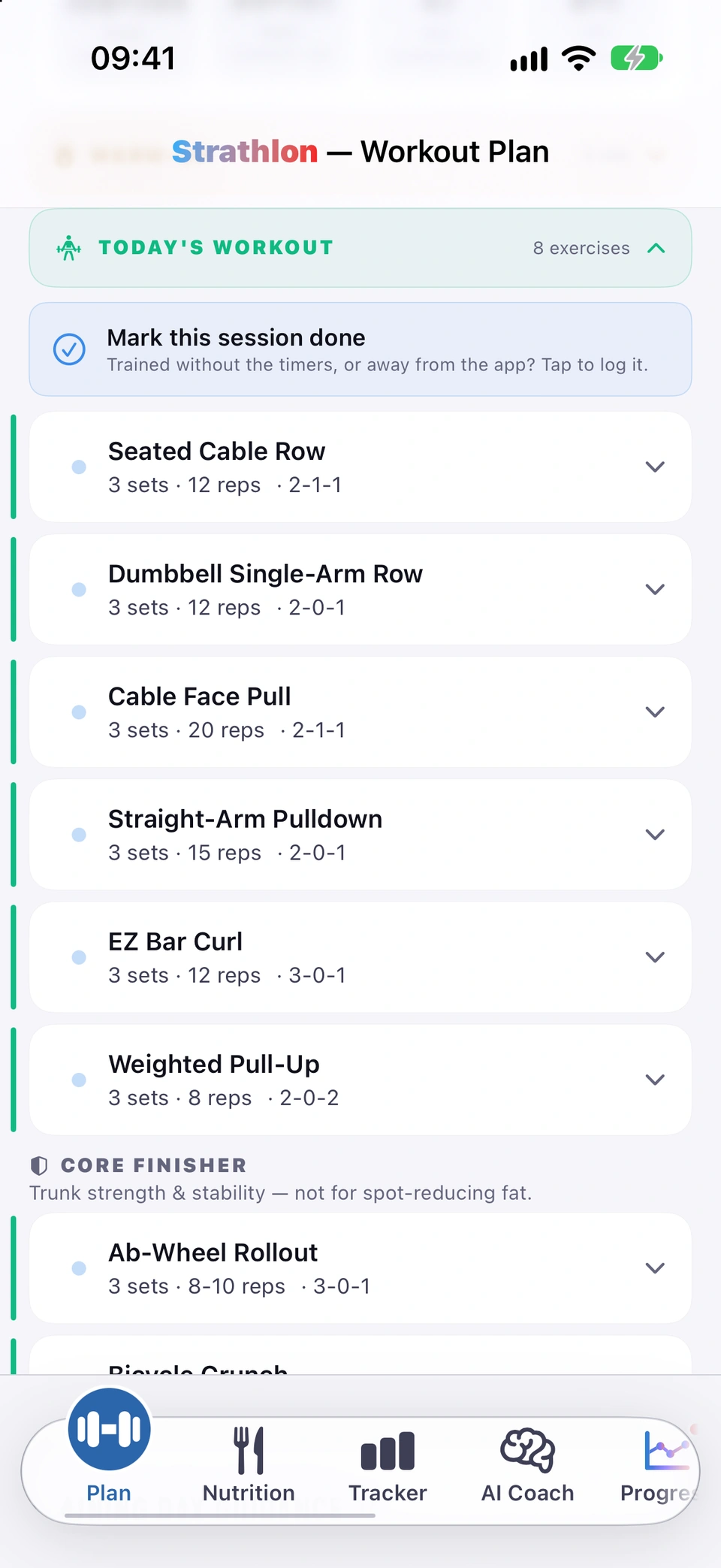
On a gym day the workout is split into sections: WARM-UP, TODAY'S WORKOUT and, from Phase 2, the HIIT FINISHER. The warm-up and HIIT start folded and your main workout starts open, so there's less to scroll.
Why it helps
You see the part of the session you're on, and can fold away what you've finished or haven't reached.
How to use it
The workout's three sections.On the Plan tab, pick a gym day and scroll to the workout.
Tap a section header, such as WARM-UP or TODAY'S WORKOUT, to fold or unfold it.
Tap it again to switch it back.
Tips
On another day of the week, the main header names that day instead of TODAY'S WORKOUT.
Good to know
Phase 1 days have no HIIT finisher, so they show two sections.
A guided warm-up on your chosen equipment, with a duration choice, heart-rate target and spoken cues — skippable.
WherePlan›WARM-UP›Start Warm-up
What it is
The WARM-UP section offers a phase-aware guided warm-up on equipment you choose — treadmill, bike, rower, cross trainer, jump rope, step machine, ski erg, or no equipment/bodyweight — with a duration choice and a target heart-rate range shown as a zone band. It's talked through with spoken cues as it runs.
Why it helps
A proper warm-up lowers injury risk and gets your heart rate into the right range before the harder work starts.
How to use it
On the Plan tab, open the WARM-UP section and choose your equipment.
Choose a duration, then tap Start Warm-up.
Tap Skip in the top corner at any time to skip the warm-up, or Close to hide it while it keeps running in the background.
Tips
If you've flagged a knee injury, high-impact equipment (treadmill, jump rope) is hidden and the card says so.
Start your workout after the warm-up
When the warm-up ends, a banner offers to jump straight into the day's workout.
WherePlan›“Start your <day> workout”
What it is
As soon as a (non-HIIT) warm-up finishes, a banner reading Start your day workout appears at the top of the Plan tab's training area.
Why it helps
You can move straight from warm-up into training without hunting for the first exercise.
How to use it
Finish your warm-up. The banner appears automatically at the top of your workout.
Tap it to start your first not-yet-completed exercise, or tap the ✕ to dismiss it.
Good to know
It hides itself automatically once an exercise is active or every exercise is done.
The screen at the end of the warm-up, with a Continue button so you're never stuck if the automatic hand-off doesn't fire.
WhereWarm-up sheet›“Warm-up complete”›Continue
What it is
When your warm-up timer ends, a Warm-up complete screen shows briefly, then hands off to your first exercise (or the first HIIT round). A Continue button lets you move on by hand if anything interrupts the automatic hand-off.
Why it helps
A phone call or other interruption can't leave you stuck on the warm-up screen.
How to use it
Let your warm-up run to the end. “Warm-up complete” appears automatically.
Each exercise shows its sets, reps, tempo and rest; tap to expand for coaching notes, a demo link and Ask Coach.
WherePlan›STRENGTH EXERCISES›tap an exercise
What it is
Every exercise under STRENGTH EXERCISES shows its sets, reps or time, tempo and rest at a glance. Tap it to expand for a coaching tip, a Tempo chip that opens the training glossary, Watch on YouTube and Ask Coach.
Why it helps
Everything you need to perform the exercise correctly is a tap away, without leaving the workout.
How to use it
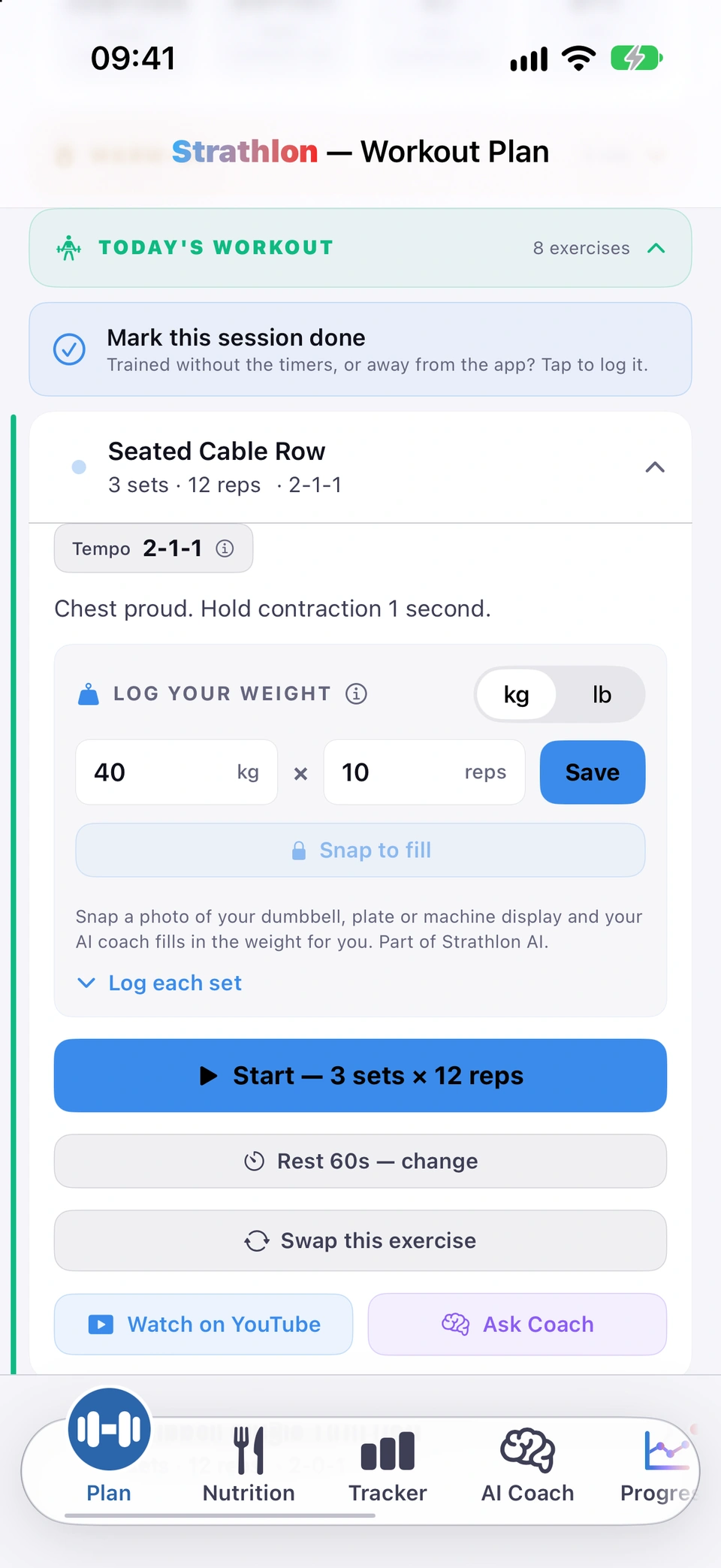
Everything about one exercise, in one card.On the Plan tab, tap any exercise under STRENGTH EXERCISES to expand it.
Tap the Tempo chip to open the training glossary, or Watch on YouTube / Ask Coach for that exercise.
Replace an exercise with another from its category in one tap; your plan keeps using the swap.
WherePlan›expanded exercise›Swap this exercise
What it is
Every exercise card has a Swap this exercise button. It puts another exercise from the same category — matched for environment, phase, equipment and your injuries — in the old one's place.
Why it helps
If a machine is taken or a move doesn't suit you, you can keep your session moving without rebuilding your plan.
How to use it
On the Plan tab, tap an exercise to expand it.
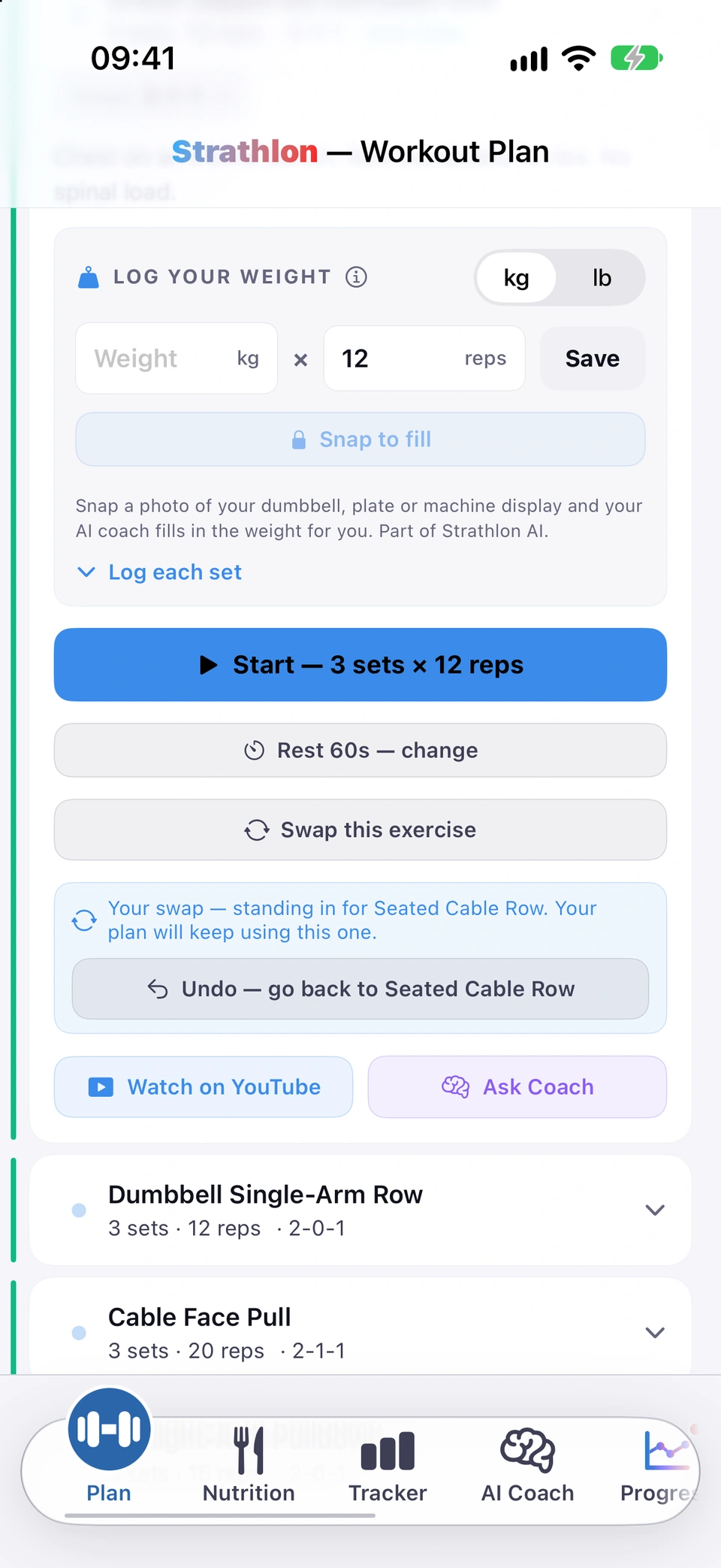
The swapped exercise, with the way back.Tap Swap this exercise. The new exercise takes the old one's place straight away.
Changed your mind? Tap Undo — go back to exercise on the same card.
Tips
Your plan keeps using the swap in later sessions too. See every swap you're using in Remembered swaps.
Good to know
If there's no suitable alternative, the card shows No swap available and says why. A swap only guarantees the same category, environment, phase and safety — not the same movement pattern, so it can occasionally put a pulling exercise in place of a pushing one.
Lists every swap your plan keeps using, with an Undo for each and a Forget-all option.
WhereSettings›ABOUT YOU›Remembered swaps
What it is
Remembered swaps in Settings lists every exercise you've swapped and kept, with Undo for each entry — and, where known, why an entry isn't currently in use — plus a Forget all swaps button.
Why it helps
A remembered swap works by being invisible on the plan itself — this is where you can see and manage the whole list.
How to use it
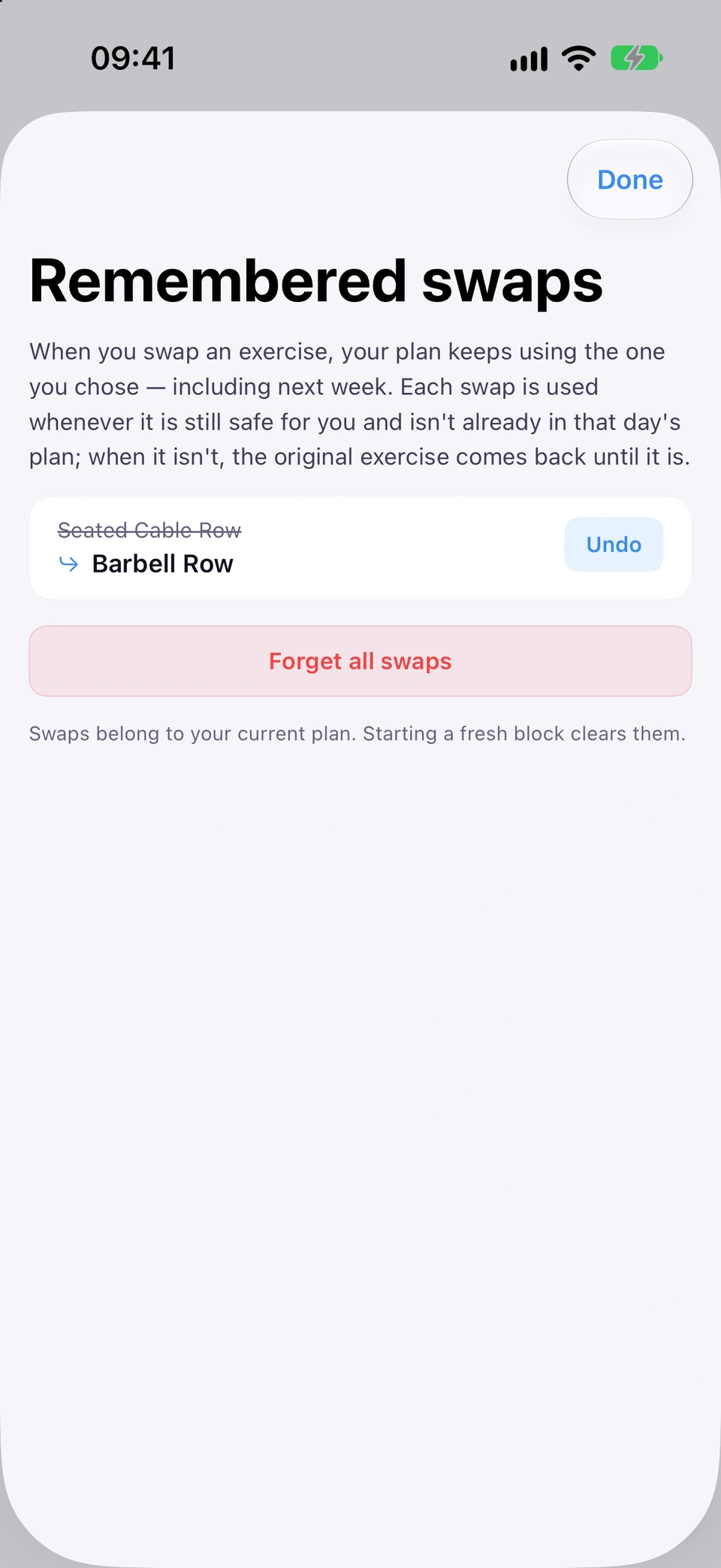
Every swap your plan is keeping, in one list.On Settings, under ABOUT YOU, tap Remembered swaps (it appears once you have at least one).
Tap Undo beside an entry to stop using it, or Forget all swaps to clear the whole list.
Good to know
Swaps belong to your current plan — starting a fresh block clears them.
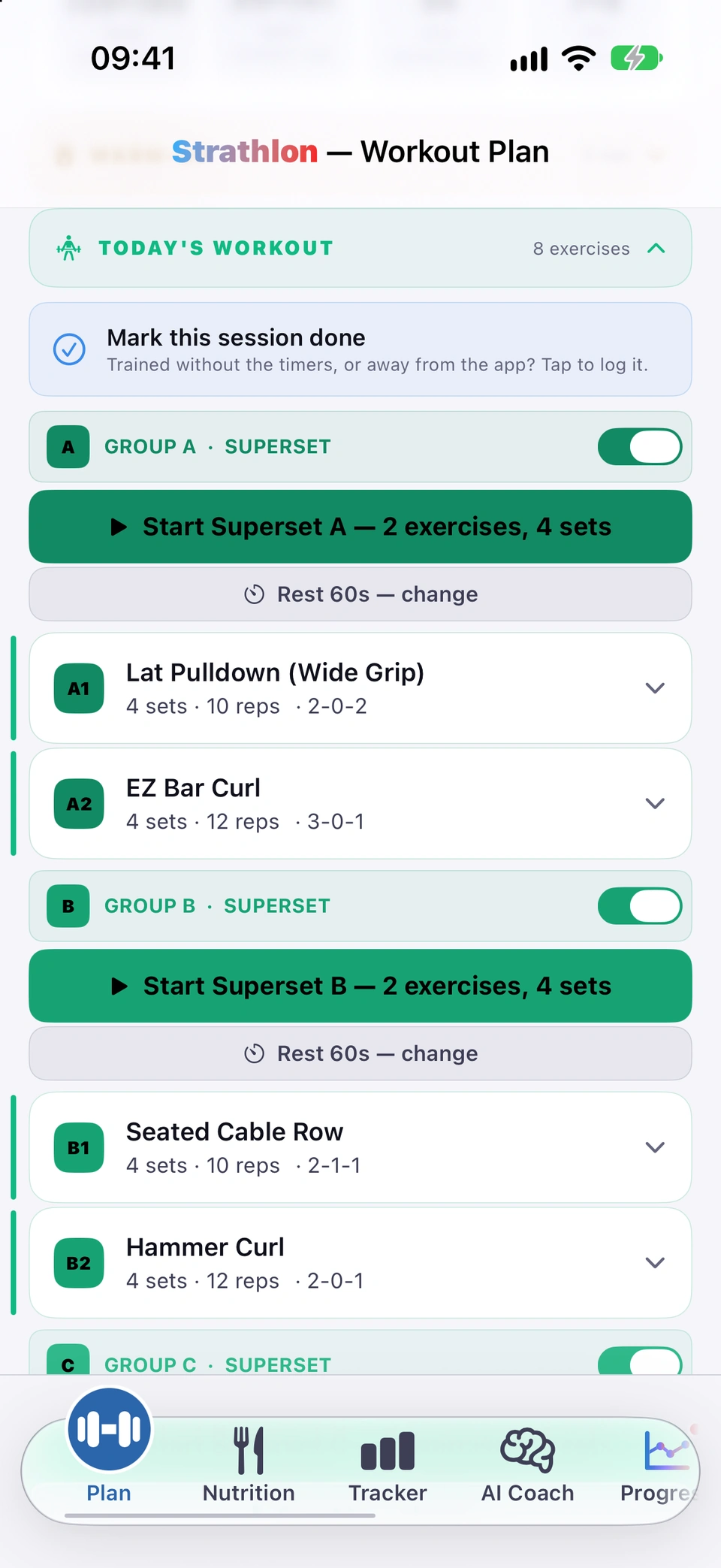
From Phase 2 on, some exercises are grouped — labelled A1/A2 etc. — to run back-to-back as one block: a superset of two in Phase 2, a tri-set of three in Phase 3, with one shared Start button for the whole group.
Why it helps
Pairing exercises with short rest between them keeps your heart rate and training density up, which is part of what drives the phase's results.
How to use it
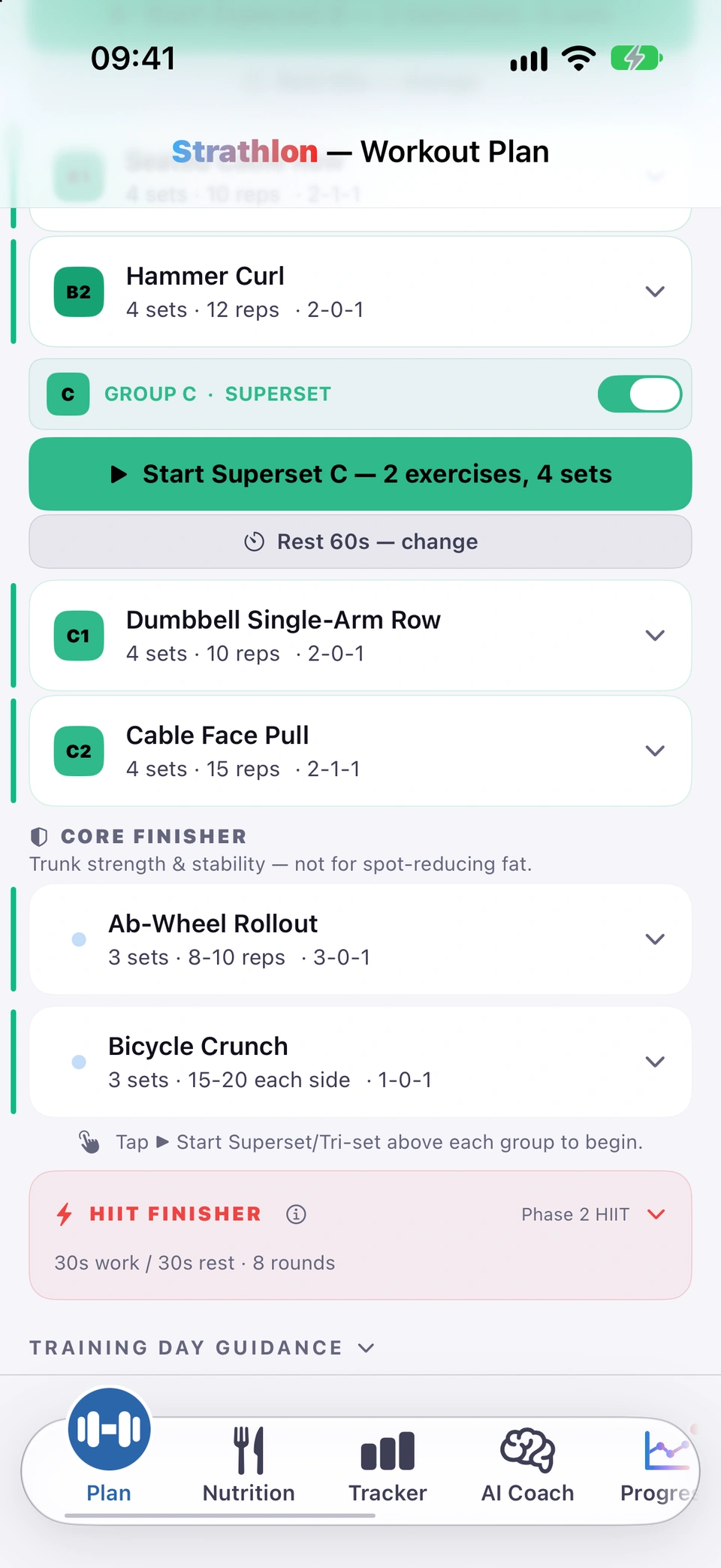
A superset group, ready to start together.On the Plan tab, look for a GROUP header above two or three exercises.
Tap the group's Start button — it reads Start Superset in Phase 2 or Tri-set in Phase 3 — to run the group back-to-back.
“No room to superset?” help
Explains how to get the same training result with straight sets when you can't pair exercises in a busy gym.
WherePlan›GROUP header›ⓘ
What it is
Tap the ⓘ on a GROUP header when its switch is off to open No room to superset? (or No room to tri-set?) — it covers keeping rest short at your own rest setting, keeping your heart rate up between exercises, still training each set hard, and hitting the same total volume.
Why it helps
Supersets need two or three stations free at once, which isn't always possible in a busy gym — this is how to get the same result without them.
How to use it
On a GROUP header, turn its switch off.
Tap the ⓘ that appears to read No room to superset?.
Turn a group's switch off to do its exercises one at a time, resting between every set. Remembered for that pairing.
WherePlan›a Phase 2 or 3 gym day›GROUP header›switch
What it is
Each group of paired exercises has a header, such as GROUP A · SUPERSET, with its own switch. Leave it on to run the group back-to-back as a superset or tri-set. Turn it off and the header reads STRAIGHT SETS: you do those exercises one at a time, with rest between every set.
Why it helps
If the equipment for a pair is never free at the same time in your gym, you still get the session's work done.
How to use it
On the Plan tab, open a Phase 2 or Phase 3 gym day and find a group header above two or three exercises.
Turn the group's switch off. The header changes to STRAIGHT SETS.
Do each exercise in the group on its own, resting between every set.
Turn the switch back on at any time to run the group as a superset or tri-set again.
Tips
Tap the ⓘ on a switched-off group for how to keep the same training effect. See “No room to superset?” help.
Good to know
Strathlon remembers your choice for that pairing of exercises. If the pairing drops out of your plan for a long while, the choice is forgotten and it runs as a group again.
On the Sports Performance goal, moves chosen for your sport get their own labelled block.
WherePlan›SPORT — SPORT WORK header
What it is
If your goal includes Sports Performance, exercises chosen for your sport sit in their own block headed SPORT — SPORT WORK, with an ⓘ explaining why they're there.
Why it helps
So the sport-specific work is clearly labelled as extra, on top of your general strength training, rather than reading as unexplained exercises.
How to use it
On a Sports Performance plan, look for the sport-named block on a training day.
Tap its ⓘ to read why those moves were chosen.
Tips
When a sport move is also a core movement, it counts toward that day's core slots, so the Core Finisher below can be shorter — the sport's version takes priority so you're not doing the same movement twice.
Strength days end with up to two rotating core moves — trunk strength, not spot-reducing fat.
WherePlan›CORE FINISHER
What it is
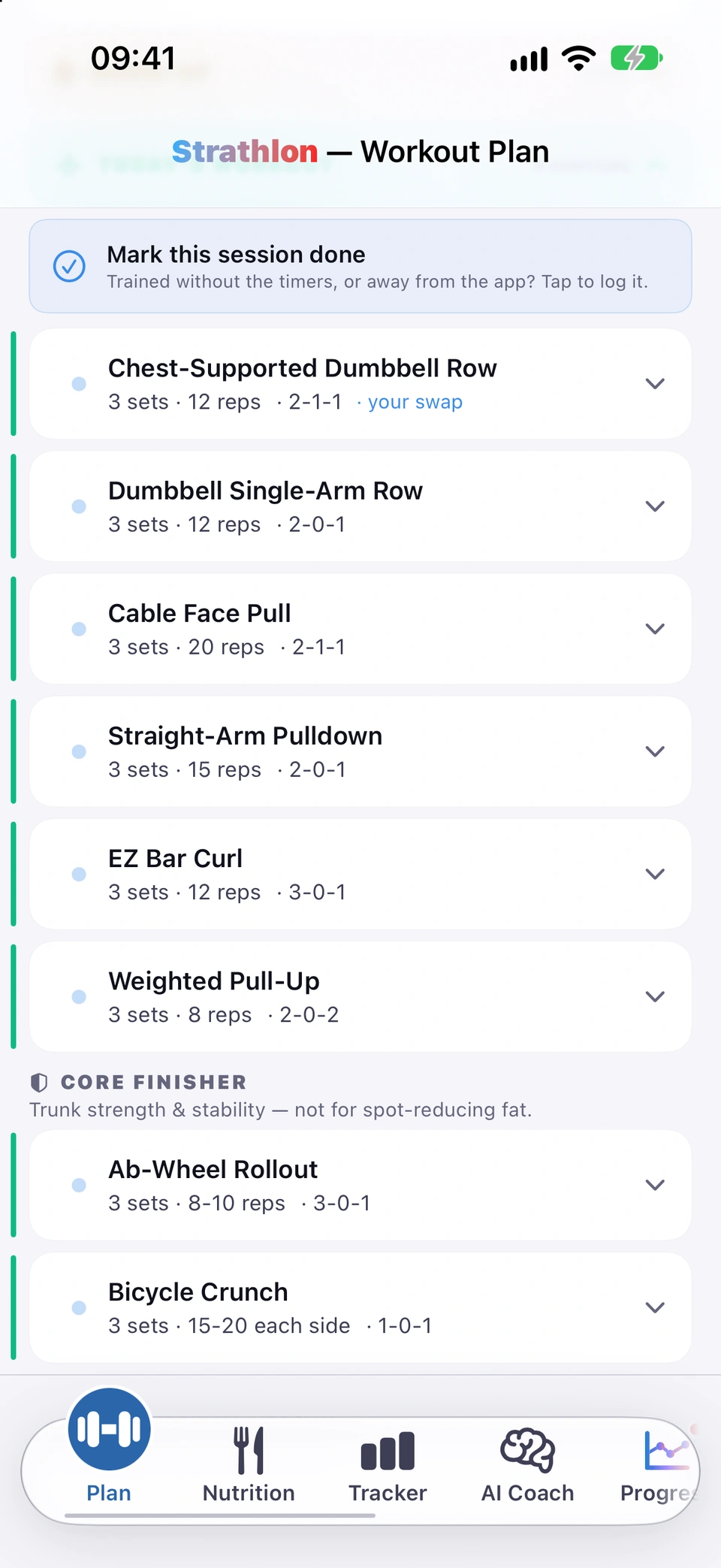
Most strength days end with a CORE FINISHER of up to two core exercises that rotate week to week. If a sport move that day is already core work, it takes one of the two slots instead of adding a third exercise.
Why it helps
Trunk strength and stability support the rest of your training — stated as that, not as a fat-loss claim.
How to use it
Trunk work at the end of the session.On a strength day, scroll to CORE FINISHER at the end of the exercise list.
Good to know
A tight combination of home equipment and injuries can leave only one safe core movement for the day — the card says so when that happens, rather than looking like a row is missing.
From Phase 2 on, a timed interval finisher — pick one exercise, and do it for every round.
WherePlan›HIIT FINISHER›“Start — <exercise>”
What it is
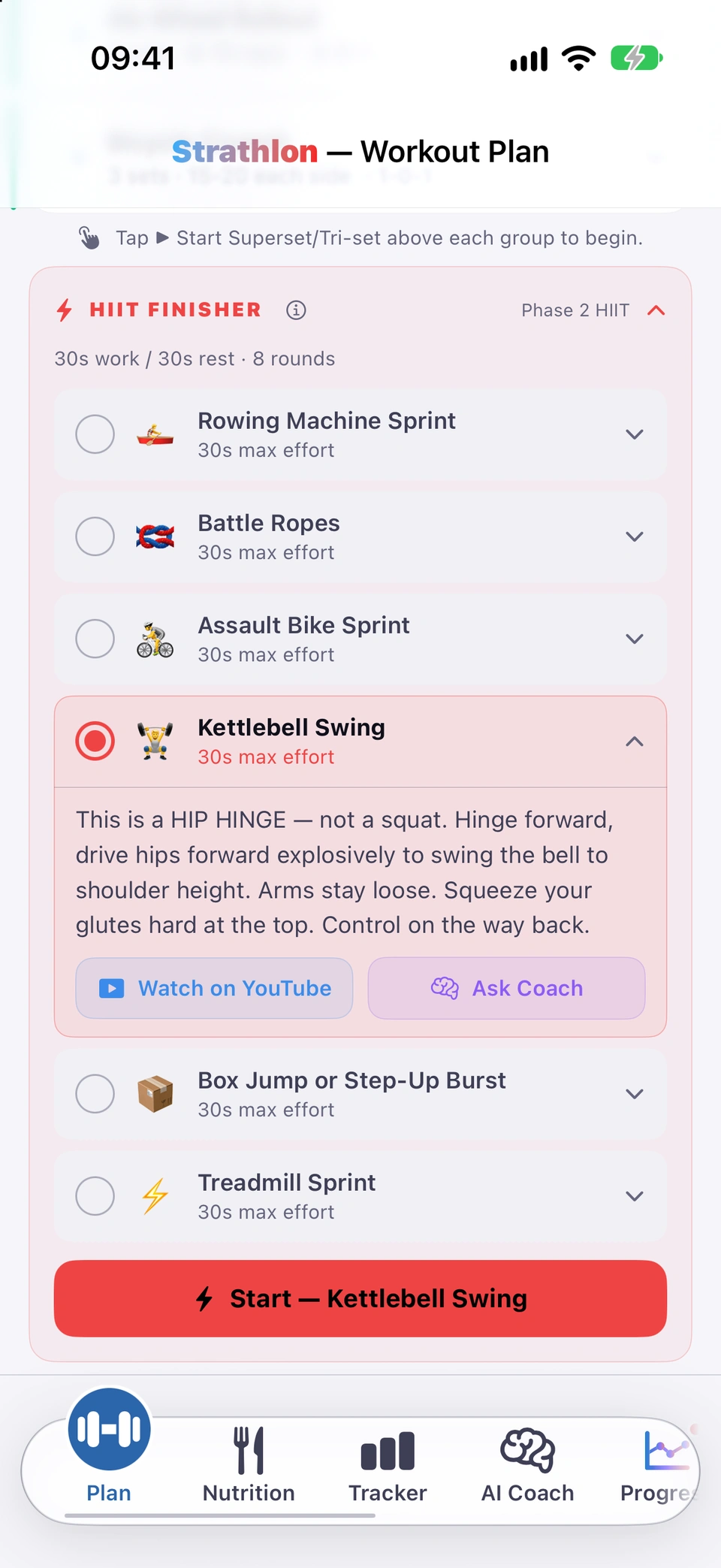
From Phase 2 on, most gym days end with a HIIT FINISHER: pick one exercise from the list and do it for every round shown (work seconds / rest seconds × rounds). Movements are filtered for any injuries you've flagged; tap the card's ⓘ for the run instructions and, if it applies, what's been filtered and why.
Why it helps
A short, timed finisher adds conditioning work on top of your strength session.
How to use it
Pick one move, then start the rounds.On a training day from Phase 2 on, open HIIT FINISHER and tap an exercise to select it.
Tap Start — exercise to begin.
Good to know
The Start button stays disabled until one exercise is selected.
Lighter HIIT before a later session
If you've got sport later the same day, switch the HIIT finisher to fewer rounds in one tap.
WherePlan›HIIT FINISHER›“Tap for a lighter HIIT”
What it is
On a day with sport later, a button offers Tap for a lighter HIIT — fewer rounds, so you're not too fatigued for the later session. Tap it again to undo.
Why it helps
Keeps you from burning out your legs on HIIT before a match or practice that needs them too.
How to use it
On a double-session day, open HIIT FINISHER.
Tap Tap for a lighter HIIT (N rounds) to switch to fewer rounds, or tap again to undo.
Tick the kit you have at home and your home days use it, alongside bodyweight moves. Tick nothing for bodyweight only.
WhereSettings›Training›HOME EQUIPMENT
What it is
If you train at home, set Equipment to Home or Both and tick what you own under HOME EQUIPMENT. Your home days then draw on moves that use that kit, alongside bodyweight moves. With nothing ticked you get a full bodyweight session.
Why it helps
You aren't handed exercises for equipment you don't have, and adding a piece of kit brings its moves into your plan.
How to use it
On Settings, under ABOUT YOU, tap Training.
Set Equipment to Home or Both. The HOME EQUIPMENT list appears.
Tap each item you own, such as Dumbbells / Free Weights, Resistance Bands or Pull-Up Bar. Tap it again to untick it.
Check the line under the list. With nothing ticked it reads Nothing selected — bodyweight exercises only.
Open a home day on the Plan tab to see the moves your kit allows.
Tips
If a move needs something you don't have, use Swap this exercise on its card.
Good to know
This list only changes your home days. Your gym days are not affected.
Trained without the timers or away from the app? One tap logs the session toward your phase; a second tap undoes it.
WherePlan›a gym day›top of the workout›Mark this session done
What it is
At the top of a gym day's workout, Mark this session done logs that day's session as trained. It then reads Session logged manually and counts toward your phase progression only, not your streaks or charts. A session recorded by a guided workout or your Apple Watch shows Session logged automatically instead.
Why it helps
Training you did without the app still moves you through your plan, while your charts only show sessions that were measured.
How to use it
On the Plan tab, pick the gym day you trained. It works for today and for earlier days.
Logging a session you did away from the app.Just under the workout's header, tap Mark this session done.
Plain-English meanings of the training terms in your plan, from tempo and RPE to supersets and EPOC.
WherePlan›STRENGTH EXERCISES›Glossary
What it is
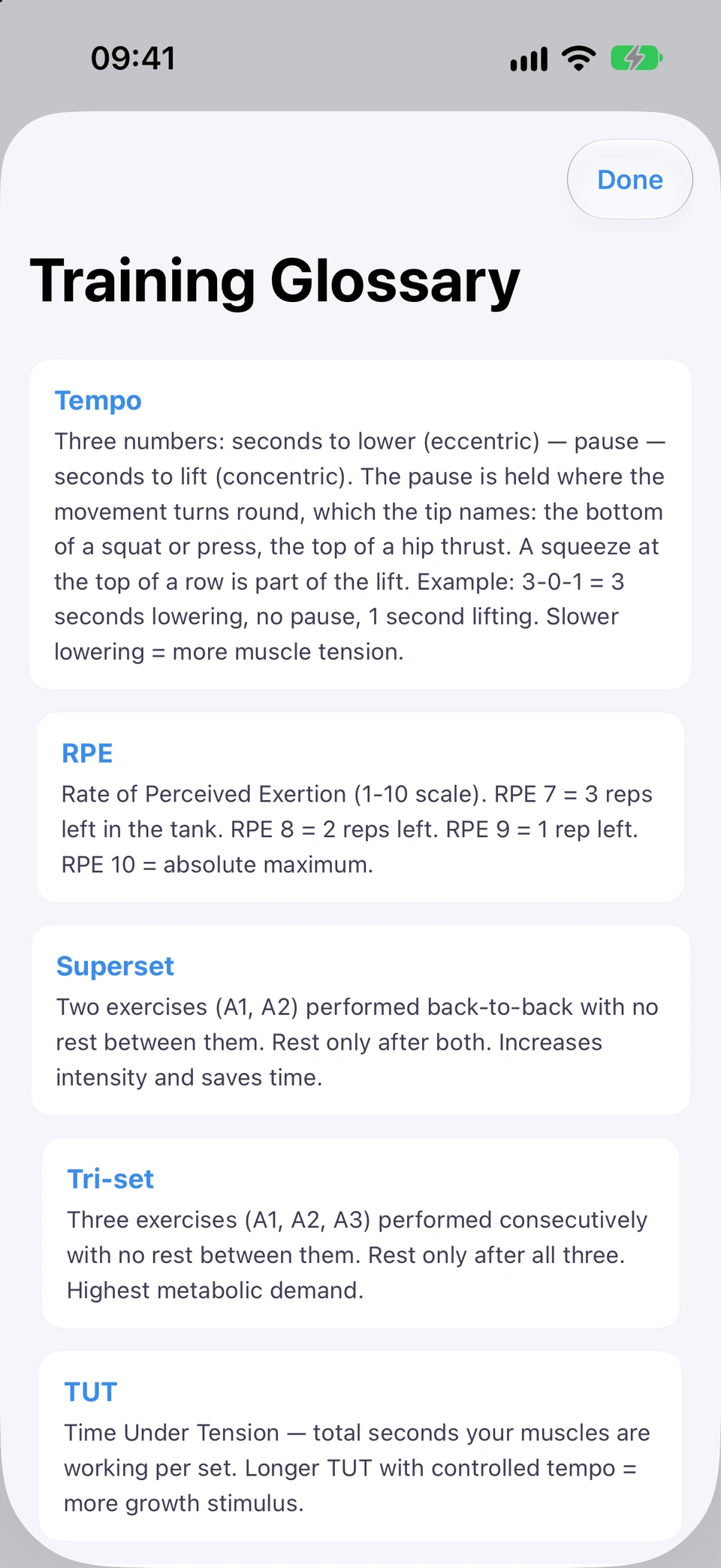
The Training Glossary explains the terms your workout uses: Tempo first, then RPE, Superset, Tri-set, TUT, RDL, Eccentric, Concentric, Progressive Overload and EPOC.
Why it helps
When a card says 3-0-1 or RPE 8, you can find out what it means where you are, even mid-set.
How to use it
The training glossary.On the Plan tab, on a gym day, tap Glossary beside STRENGTH EXERCISES.
Or tap the Tempo chip on an expanded exercise card, or the tempo label on the live set panel. Both open the glossary.
Tap Done to close it.
Tips
Tempo is three numbers: seconds to lower, the pause, then seconds to lift. So 3-0-1 means 3 seconds lowering, no pause and 1 second lifting.