
- Home
- User guide
- Tracker & food logging
Tracker & food logging
Checked against build 266.
Today card
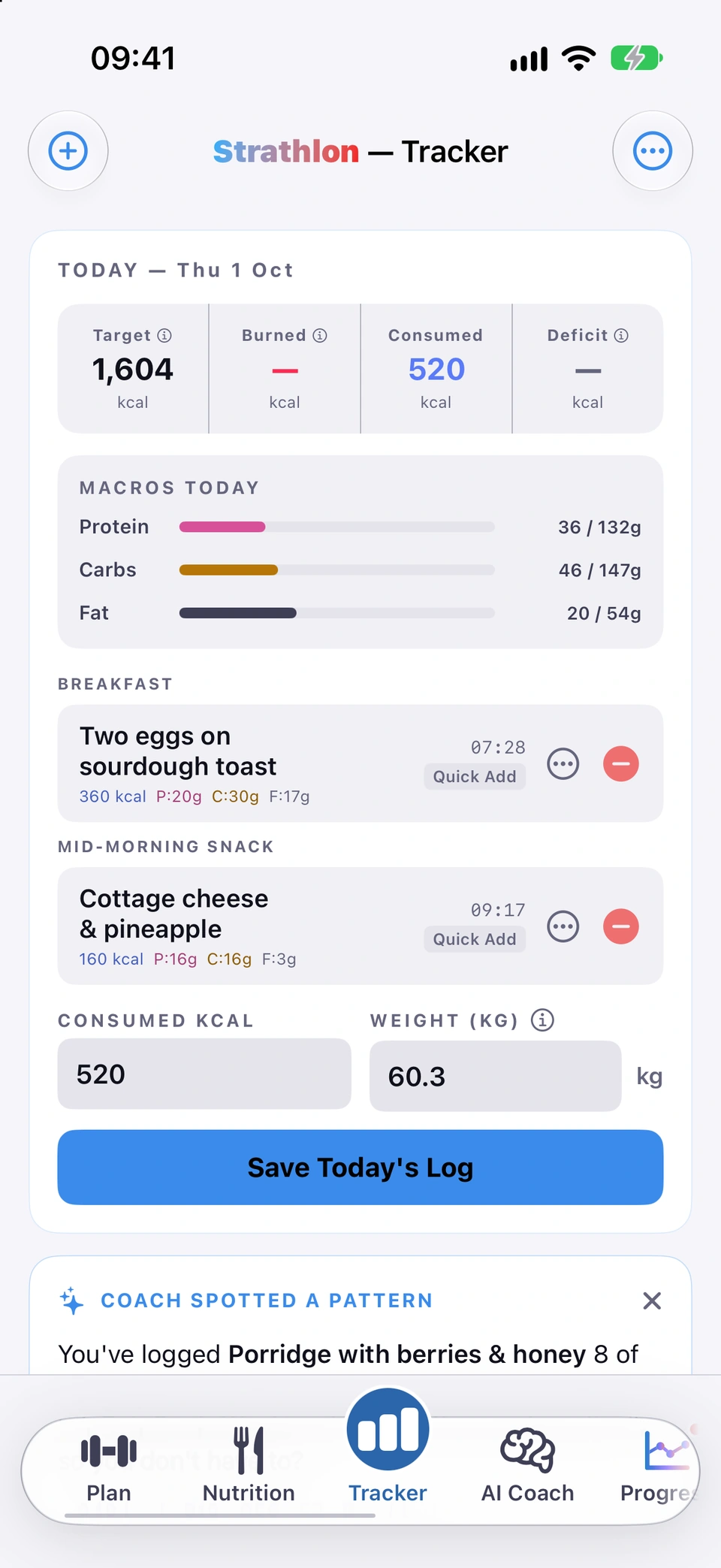
The Tracker tab's top card: today's four stats, macro bars, logged food, and typed fields for calories and weight.
WhereTrackerTODAY — date
What it is
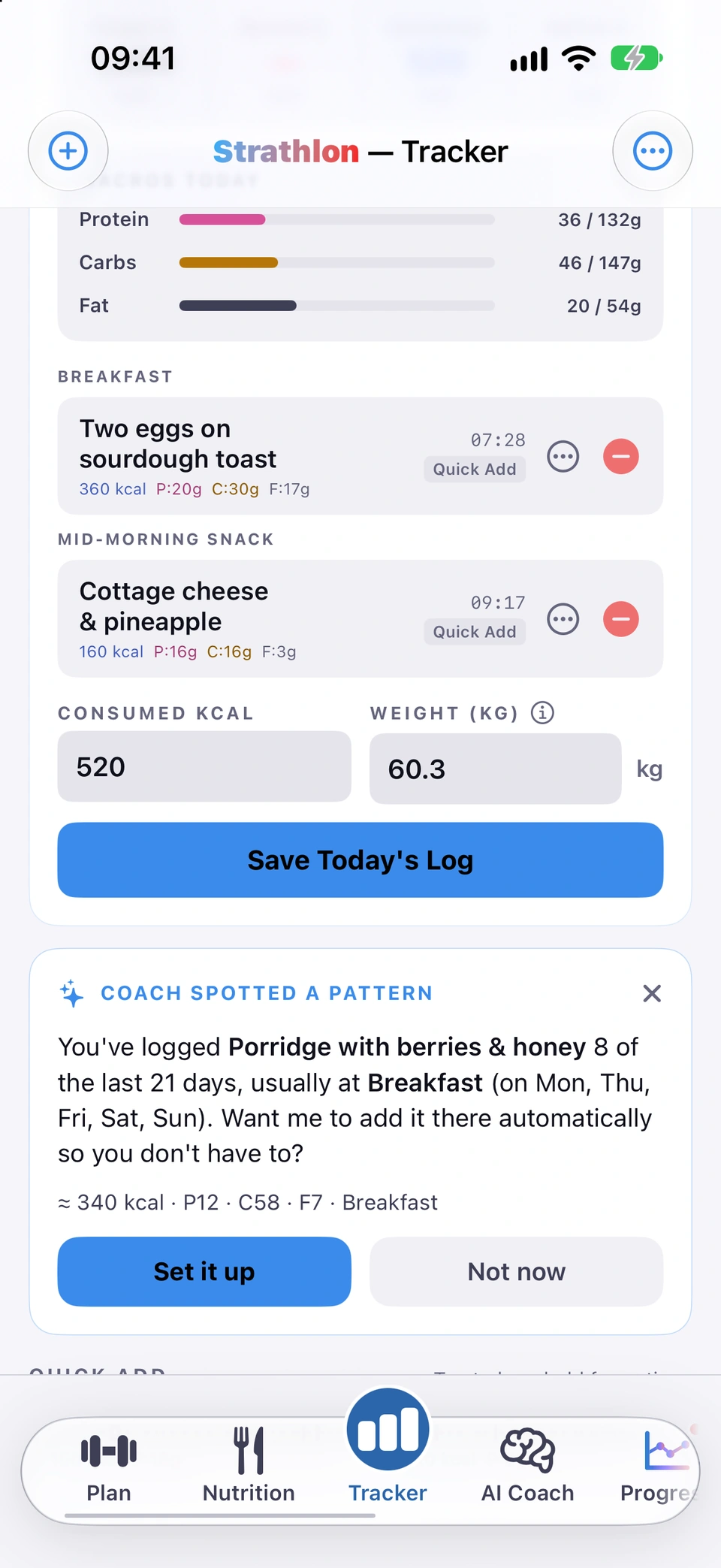
The card headed TODAY — date sits at the top of the Tracker tab. It shows your four stat tiles, protein/carbs/fat bars, everything you've logged today by meal, and two typed fields: CONSUMED KCAL and your weight.
Why it helps
It's the one place you see today's whole picture — targets, what you've burned and eaten, and your food log — and you can log or correct figures by typing, with no subscription and no AI Coach needed.
How to use it
- Open the Tracker tab. Today's card is the first thing on screen.
- Check your four stats, macro bars and today's logged food (grouped by meal).
- Type a number into CONSUMED KCAL to log your calories eaten directly — no subscription or AI Coach needed.
- Type your weight into the WEIGHT field if it isn't already filled in from Apple Health.
- Tap Save Today's Log to save.
Tips
- You can also log food by photo or by describing it to the AI Coach — either way, it lands on this same card under the right meal.
- Food names are shown in full: a long name wraps onto more lines at any text size instead of being cut off, here, on a past day's detail and in the edit sheet.
Good to know
- Typing into CONSUMED KCAL sets the day's eaten total directly; it doesn't add a food item to the log below it.
Updated in build 266 · What's new
↑ Back to topFour top tiles
Target, Burned, Consumed and a fourth tile (Deficit, Surplus or Balance) — a dash, not a false zero, when unknown.
WhereTrackertop tiles
What it is
Across the top of the Today card sit four tiles: Target, Burned, Consumed, and a fourth that reads Deficit, Surplus or Balance depending on your goal. Target, Burned and the fourth tile each carry an info button; Consumed has none.
Why it helps
One glance tells you today's target, what you've burned, what you've eaten and whether you're on plan — and each figure says clearly where it came from.
How to use it
- Open the Tracker tab and look at the row of tiles above today's food log.
- Tap the ⓘ on Target, Burned or the fourth tile to see how that figure was worked out.
Tips
- Which word the fourth tile uses depends on your goal — Fat Loss shows Deficit, Muscle Gain or Sports Performance shows Surplus, and General Fitness or Maintenance shows Balance.
Good to know
- If Apple Health has no burn figure for today, Burned and the fourth tile show a dash rather than a confident zero.
- While a pregnancy or breastfeeding is declared, or for a 16–17-year-old, Strathlon sets no calorie target and the Target tile is removed rather than shown empty.
Added in build 49 · What's new
↑ Back to topCalories burned breakdown
Tap the Burned tile to see today's burn split into resting and moving, plus what your steps and activity added.
WhereTrackerBurned tileⓘ
What it is
Tapping the ⓘ on the Burned tile opens a sheet headed Calories burned that splits today's total into Just being alive (resting) and Moving about (active), then shows what drove the moving half — steps, workouts and activity.
Why it helps
It shows your working rather than just a number, so you can see whether a low or high burn figure makes sense for the day you've had.
How to use it
- Open the Tracker tab.
- Tap the ⓘ on the Burned tile.
- Read WHERE TODAY'S BURN COMES FROM for the resting/active split, and WHAT DROVE THE MOVING HALF for the activity behind it.
Good to know
- When the resting half is Strathlon's own estimate rather than a measured figure, the row says so and the Burned tile carries a small "· est." flag under the number.
Updated in build 248 · What's new
↑ Back to topWeight from Apple Health
Your latest Apple Health weigh-in is adopted automatically and badged; type your own and it stands until Health is newer.
WhereTrackerWEIGHT field
What it is
The WEIGHT field on the Today card adopts your latest Apple Health weigh-in automatically. A small 📍 Today or 📍 Health badge above the field shows when the figure came from Health.
Why it helps
Your weight everywhere in the app — the Tracker, your calorie and protein targets, and the coach — reads the same figure, so there's no separate step to keep it current.
How to use it
- Open the Tracker tab.
- Check the WEIGHT field on the Today card — if Apple Health has a reading, it's already filled in and marked 📍 Today or 📍 Health.
- Type your own weight if you'd rather log it by hand — it stands until Apple Health has something newer.
Good to know
- This uses your Apple Health read permission, which is separate from Share my health data with the AI coach.
Updated in build 254 · What's new
↑ Back to topFood item actions
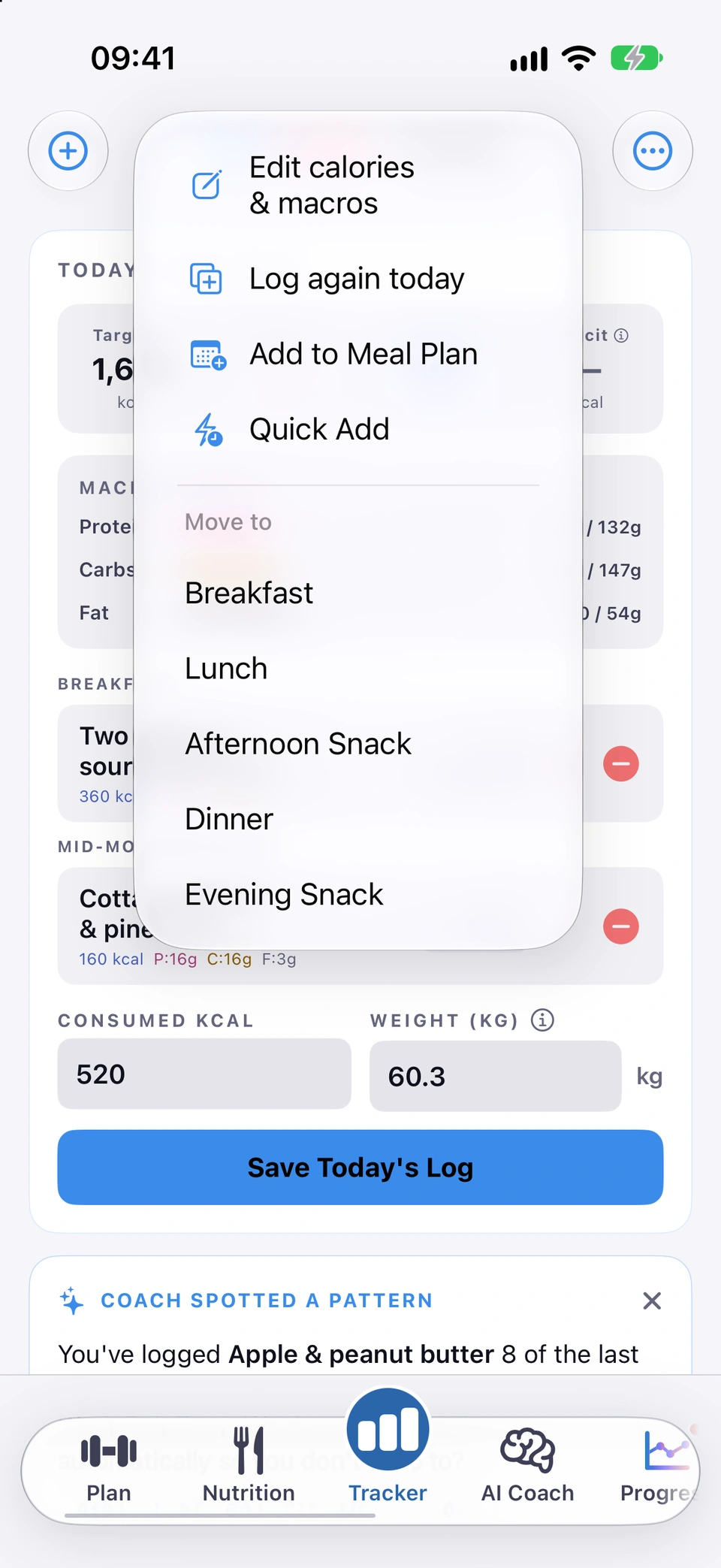
Tap the … on a logged item to edit it, log it again, save it to a meal plan or Quick Add, or move it to another slot.
WhereTrackerfood item…
What it is
Every logged food item carries a … menu with Edit calories & macros, Log again today, Add to Meal Plan, Quick Add, and a Move to list of the other meal slots. A separate minus-circle button deletes the row.
Why it helps
One menu covers the corrections and shortcuts you're most likely to want on something you've already logged, without deleting and re-typing it.
How to use it
- Open the Tracker tab and find the item in today's (or a past day's) food log.
- Tap the … next to it.
- Choose Edit calories & macros to correct its figures, Log again today to add another copy, Add to Meal Plan or Quick Add to save it for later, or Move to and a slot name to re-file it.
- To remove it instead, tap the minus-circle button beside the item.
Added in build 184 · Updated in build 247 · What's new
↑ Back to topCorrect an entry
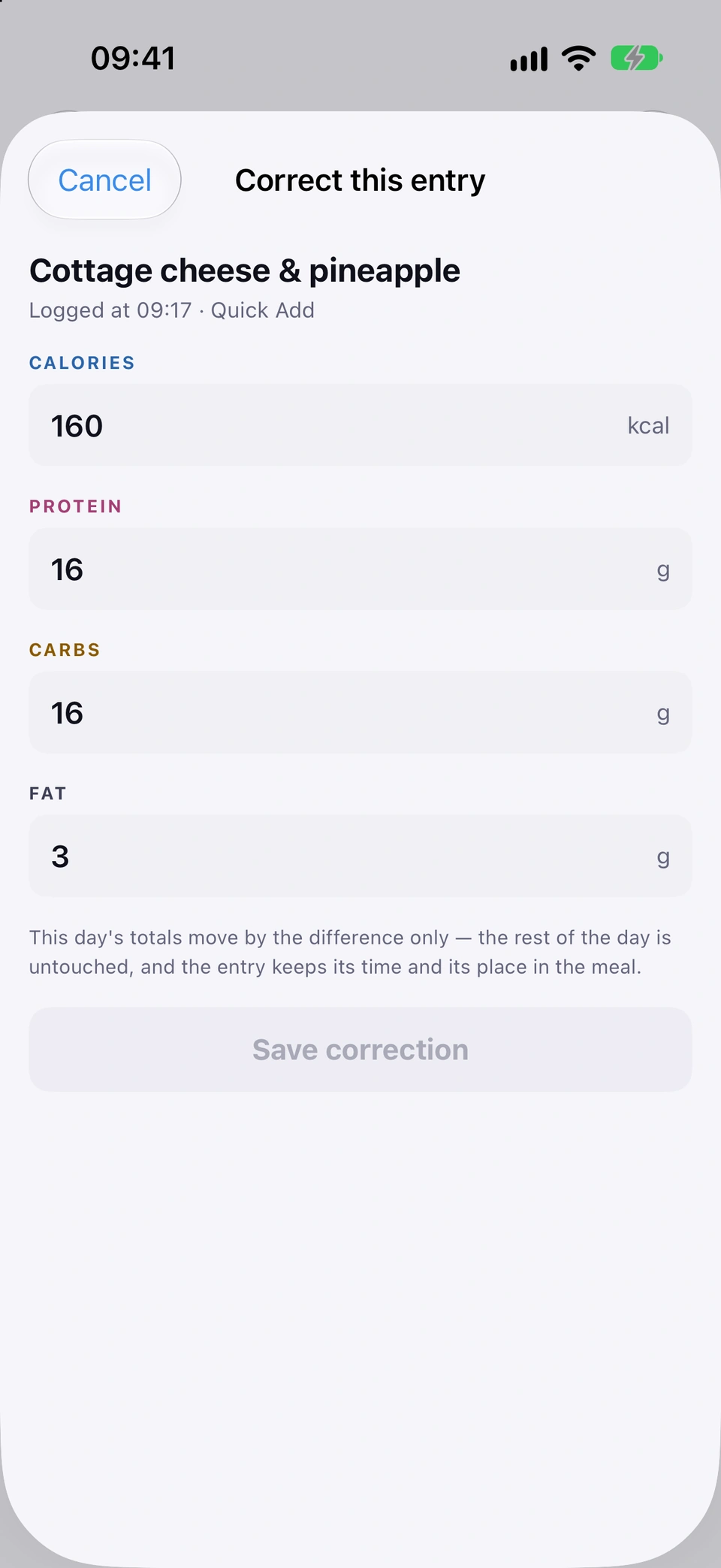
Change a logged item's calories or macros — the day's totals move by the difference only, keeping its time and meal.
WhereTrackerfood item…Edit calories & macros
What it is
Edit calories & macros opens a Correct this entry screen with four fields — Calories, Protein, Carbs, Fat — pre-filled with the item's current figures.
Why it helps
If the AI's estimate was off, or you typed the wrong number, you can fix just that item without disturbing anything else you logged that day.
How to use it
- Open the Tracker tab and tap … on the item you want to fix.
- Tap Edit calories & macros.
- Change any of Calories, Protein, Carbs or Fat.
- Tap Save correction.
Good to know
- This day's totals move by the difference only — the rest of the day is untouched, and the entry keeps its logged time and its place in the meal.
Added in build 212 · What's new
↑ Back to topMeals with several parts
A meal logged from the AI Coach with more than one component shows an "N items" disclosure that reveals each part's own figures.
WhereTrackerfood itemN items
What it is
A logged item with more than one component (for example a meal the coach logged from several foods at once) carries an N items chevron under it; tapping it shows each component with its own calories and macros under the total.
Why it helps
You can see what a multi-food meal was actually made of, not just its combined total.
How to use it
- Open the Tracker tab and find a logged meal that shows an N items line under it.
- Tap it to reveal each component and its own figures.
- Tap it again to collapse the list.
Good to know
- This only appears on items logged with several components at once — an ordinary single food shows no chevron.
Added in build 225 · What's new
↑ Back to topQuick Add
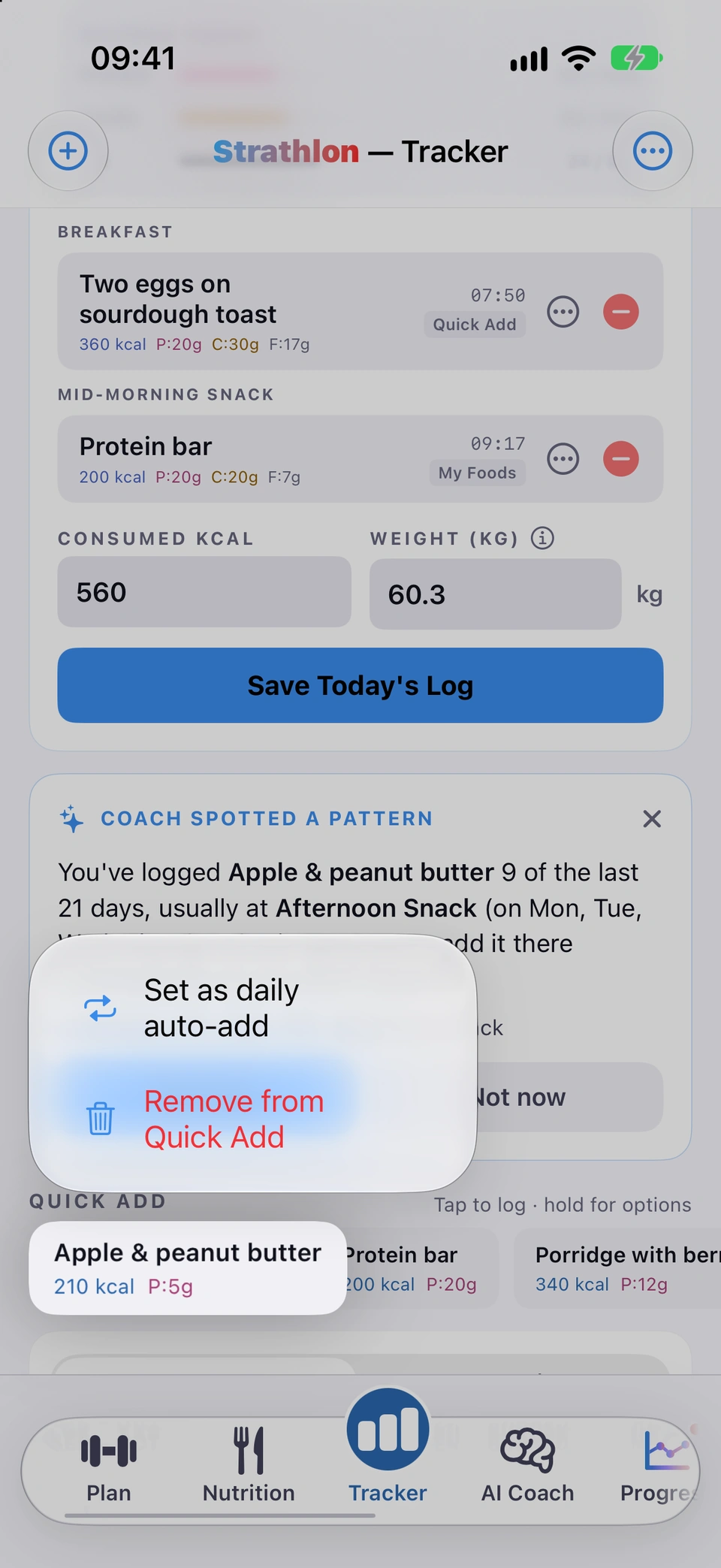
A strip of the foods you log most often — tap one, pick a meal slot and a date, and it's logged.
WhereTrackerQUICK ADD
What it is
The QUICK ADD strip on the Tracker tab lists the foods you've logged most often recently. Tapping one opens a Quick Add sheet where you pick the meal slot and, if you like, a date up to 14 days back.
Why it helps
It's the fastest way to log something you eat regularly, without typing or photographing it again.
How to use it
- Open the Tracker tab and scroll to QUICK ADD.
- Tap a food chip.
- Check the date under Log to: — it defaults to today; tap it to log to an earlier date instead (up to 14 days back).
- Tap a meal slot to log it.
Tips
- Hold a chip for more options, including Remove from Quick Add.
Good to know
- A food you've just saved to Quick Add sits at the front for a while, then returns to being ranked by how often you eat it.
Daily auto-add
Have a regular food logged for you automatically on the days you choose, with no daily tap needed.
WhereTrackerQUICK ADDhold a foodSet as daily auto-add
What it is
Set as daily auto-add (from holding a Quick Add food) schedules that food to be logged on the weekdays you pick, in the meal slot you choose. A Daily (N) chip on the Quick Add strip opens the Daily auto-adds screen, where each rule can be switched on or off, or deleted.
Why it helps
For something you eat most days — a regular coffee, a protein shake — you don't have to remember to log it at all.
How to use it
- On the Tracker tab, hold a food chip in QUICK ADD.
- Tap Set as daily auto-add.
- Pick the days and the meal slot, then tap Set as daily auto-add to save.
- To manage existing rules, tap the Daily (N) chip above the strip — toggle a rule on or off, or delete it.
Good to know
- Auto-added items are logged on each scheduled day and can be deleted in the Tracker like any item.
Added in build 28 · What's new
↑ Back to topCoach spotted a pattern
When you log the same food regularly, a card offers to turn it into a daily auto-add for you.
WhereTrackerCOACH SPOTTED A PATTERNSet it up
What it is
A card headed COACH SPOTTED A PATTERN can appear at the top of the Tracker, naming a food you've logged often, how many of the last few days it appeared, and the meal slot you usually log it at.
Why it helps
It saves you setting up a daily auto-add yourself — the app notices the pattern and offers to do it in one tap.
How to use it
- When the card appears at the top of the Tracker tab, read what it noticed.
- Tap Set it up to open a pre-filled daily auto-add rule for that food — adjust the days or slot if you like, then save.
- Tap Not now to dismiss it; it won't ask about that same food again.
Good to know
- This runs entirely on your device — nothing about the pattern is sent anywhere to produce the suggestion.
Added in build 29 · What's new
↑ Back to topCalendar: Days view
The last seven days, today included, each with what you ate, burned and the net between them, plus one line per activity.
WhereTrackerCALENDARDays
What it is
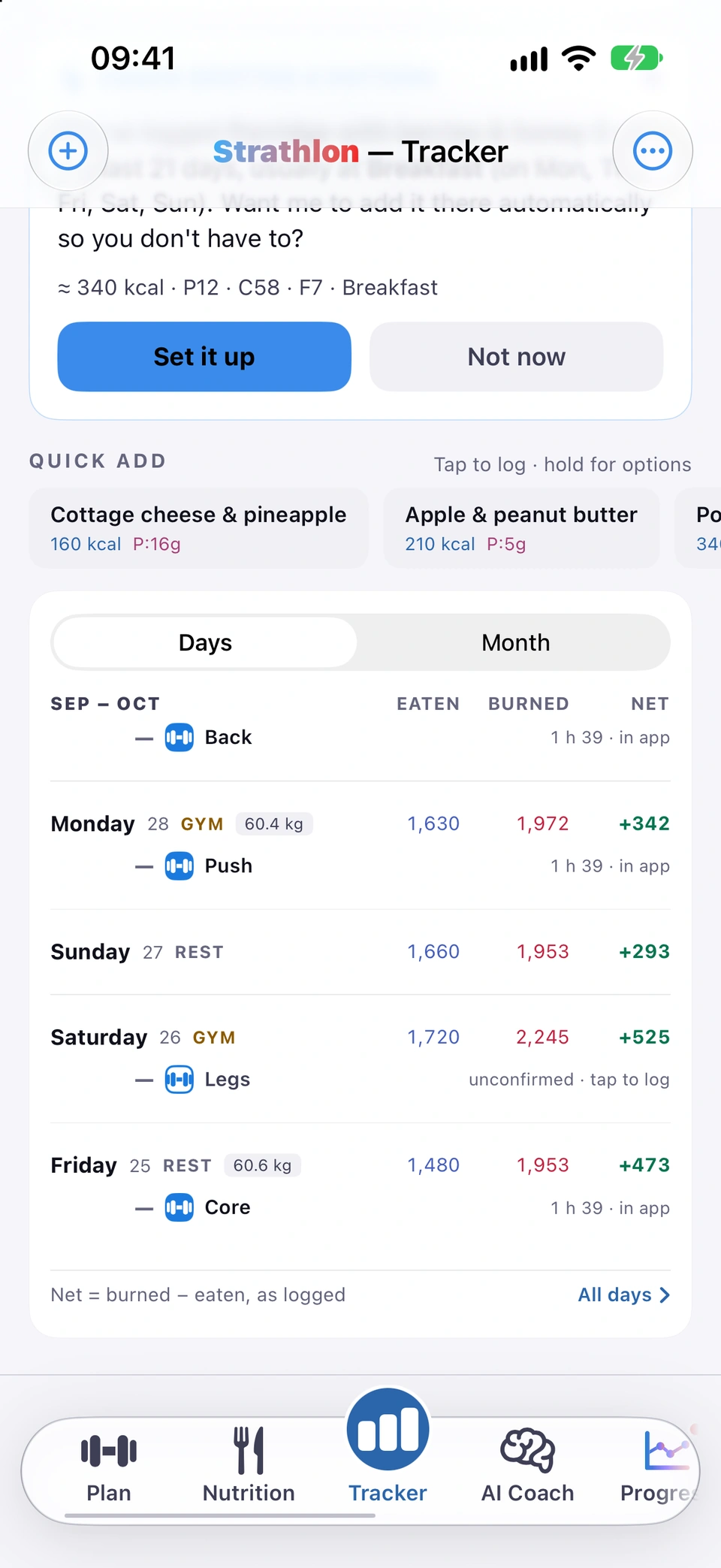
The Tracker's CALENDAR tile opens on Days: the last seven days, newest (today) at the top, each showing eaten, burned and the net figure, with one line per recorded activity.
Why it helps
It's a quick week-at-a-glance view of your logging and training, without opening every day individually.
How to use it
- Open the Tracker tab and scroll to the CALENDAR tile — it opens on Days by default.
- Read EATEN, BURNED and NET for each of the last seven days.
- Tap any day to open it.
Good to know
- Returning to the Tracker tab always resets the calendar to Days, scrolled to the top.
Updated in build 241 · What's new
↑ Back to topCalendar: Month view
A whole calendar month as a grid: ahead of today, your plan in sport colours; behind today, dots for what actually happened.
WhereTrackerCALENDARMonth
What it is
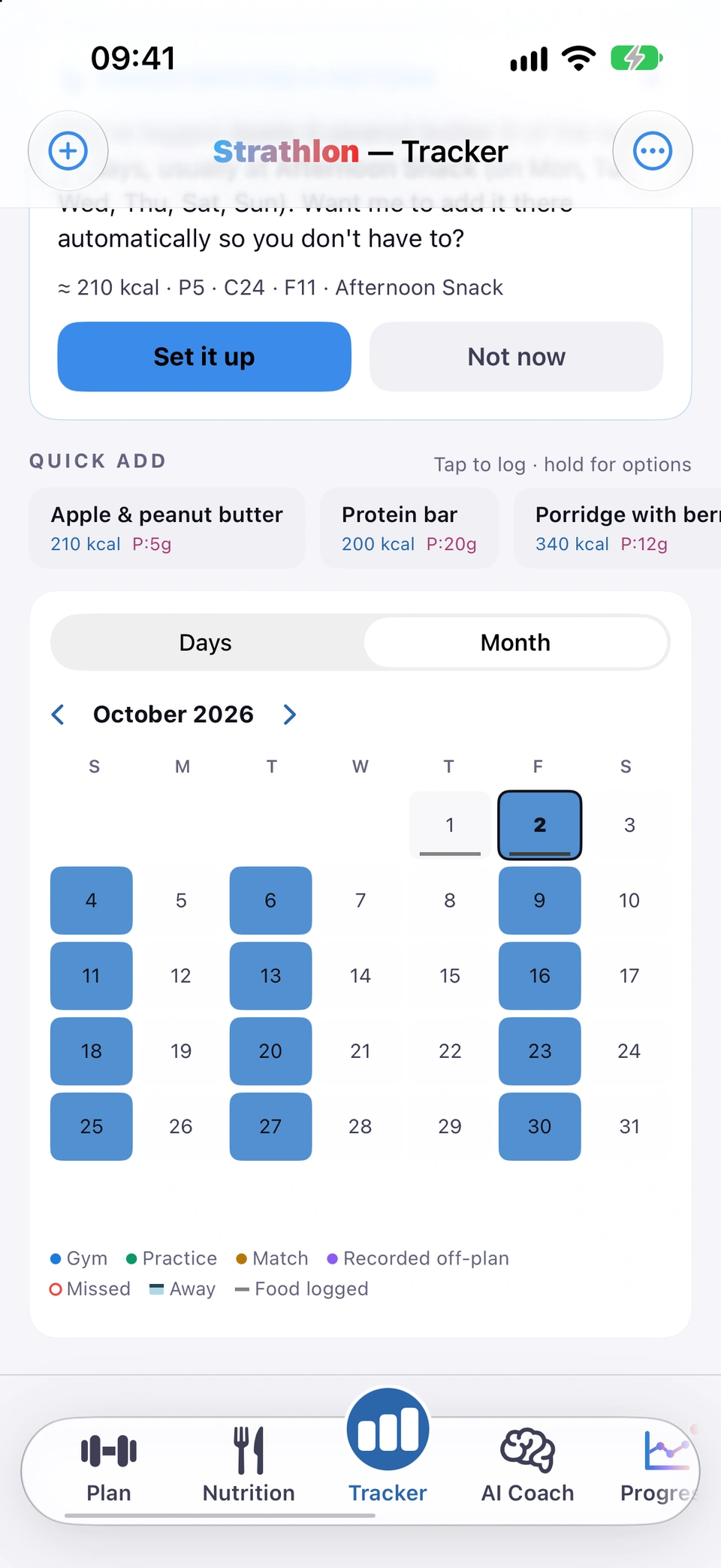
Switching the CALENDAR tile to Month shows a full month grid, pageable with the ← → buttons. Days ahead of today show your plan; days behind today show a dot per recorded thing, a hollow ring for a missed gym day, and an underline where food was logged.
Why it helps
It's a wider view than the seven-day Days list — useful for seeing a whole month's training and logging pattern at a glance.
How to use it
- Open the Tracker tab and scroll to the CALENDAR tile.
- Tap Month on the segmented control.
- Use the ← and → buttons to page between months.
- Tap any day to open it.
Good to know
- Today's own dots show immediately rather than waiting for the day to end.
Updated in build 246 · What's new
↑ Back to topOpen a day
Tap any day, in Days or Month, to see what happened: recorded activities, nutrition and weight, and a button to add activity to that day.
WhereTrackerCALENDARtap a day
What it is
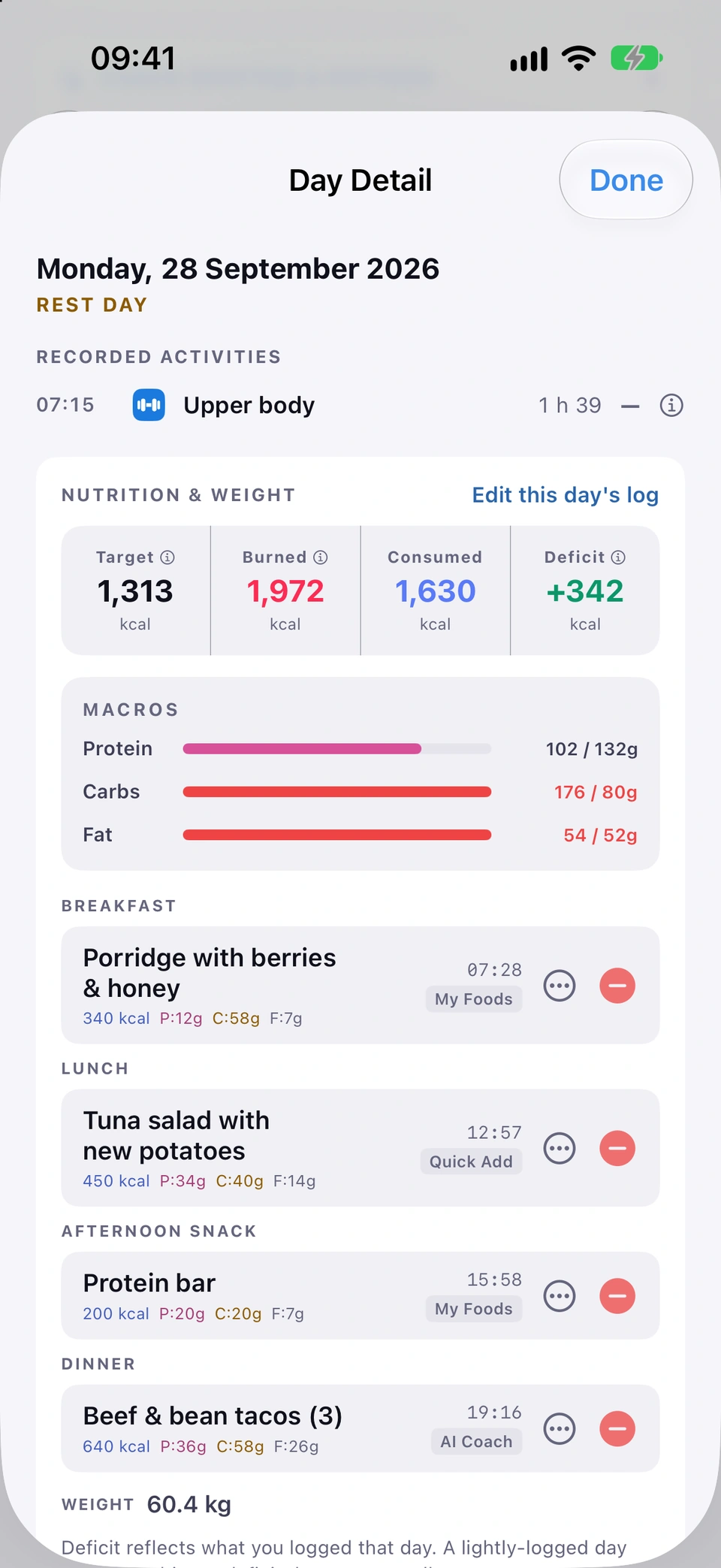
Tapping a day opens Day Detail — the date, recorded activities, nutrition & weight for that day, its scheduled gym or sport sessions, and an Add activity button.
Why it helps
It's the single place to see and correct everything about one day, rather than piecing it together from the calendar tile.
How to use it
- Open the Tracker tab and tap any day in the Days or Month view.
- Read what's recorded, or tap Edit this day's log or Add activity to change it.
- Tap Done to close it.
Good to know
- If Apple Health couldn't be read for the day, a notice appears at the top rather than the app treating an unreadable day as an empty one — see Apple Health read warning.
- On a day with more than one sport session, each session after the biggest says how much it adds to the day's target, so the rows add up to the target.
Day burn and target explainers
Tap the ⓘ beside a day's Target, Burned or Deficit/Surplus/Balance figure for a plain explanation of that number.
WhereTrackerCALENDARtap a dayⓘ next to a figure
What it is
In Day Detail, an ⓘ beside the Target, Burned and Deficit/Surplus/Balance figures opens a short sheet explaining how that day's figure was worked out.
Why it helps
A past day's target is rebuilt rather than stored, so this makes clear which figures are measured and which are reconstructed.
How to use it
- Open a day in Day Detail.
- Tap the ⓘ beside Target, Burned or the Deficit/Surplus/Balance figure.
Good to know
- Strathlon doesn't store the target it showed you on a past day — the sheet rebuilds it from your current profile and that day's plan, so it may not exactly match what you saw at the time if your weight, goal or plan has changed since.
Apple Health read warning
If Strathlon couldn't read Apple Health for a day, Day Detail says so at the top rather than showing an empty record.
WhereTrackerCALENDARtap a dayCouldn't read Apple Health
What it is
When Apple Health can't be read for the day being viewed, Day Detail shows a notice: Couldn't read Apple Health, explaining the day's record may be incomplete.
Why it helps
An unreadable day and a genuinely empty day are different things, and showing the wrong one as the other would misstate what actually happened.
When it happens
Automatically, at the top of Day Detail, whenever Strathlon's read of Apple Health for that date failed or has not been granted.
Good to know
- Anything your Apple Watch recorded is still there — check Health › Sharing › Apps › Strathlon to confirm sharing is on.
Updated in build 268 · What's new
↑ Back to topEdit this day's log
Change a day's calories consumed, burned and weight — empty boxes leave that value as it is, and your logged food is kept.
WhereDay DetailEdit this day's log
What it is
Edit this day's log, on the Today card or in Day Detail, lets you change a day's consumed calories, burned calories and weight.
Why it helps
It's how you correct a day's totals directly, whether you're fixing a typo or filling in a day you didn't log at the time.
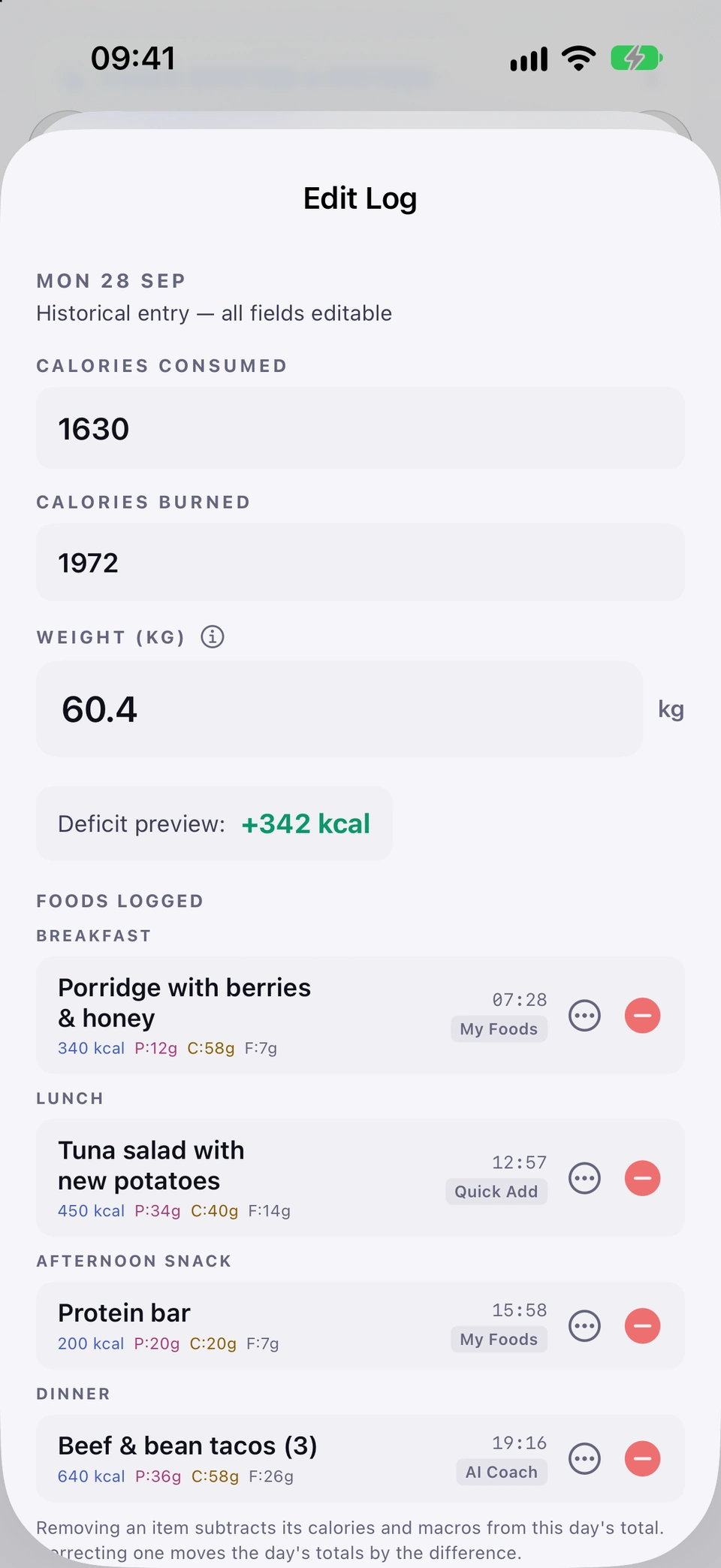
How to use it
- Open the day in Day Detail (or use today's card directly).
- Tap Edit this day's log.
- Change Consumed, Burned or Weight — leave a box empty to leave that value as it is.
- Tap Save Entry.
Tips
- Picking a day you've already logged is safe — the entry keeps your logged food items and macros; only the boxes you change move.
Good to know
- Today's Burned figure is read-only here — it comes live from Apple Health.
- This screen isn't offered for a day that hasn't happened yet, only for today and past days.
Updated in build 241 · What's new
↑ Back to topTrained on this day?
Mark a past gym day as trained if you trained without your watch or phone — counts toward your next phase, reversible.
WhereDay DetailTrained on this day?
What it is
On a past scheduled gym day with nothing measured, Trained on this day? lets you mark it as trained yourself.
Why it helps
If you trained away from the app, this still lets that session count toward moving up to your next training phase.
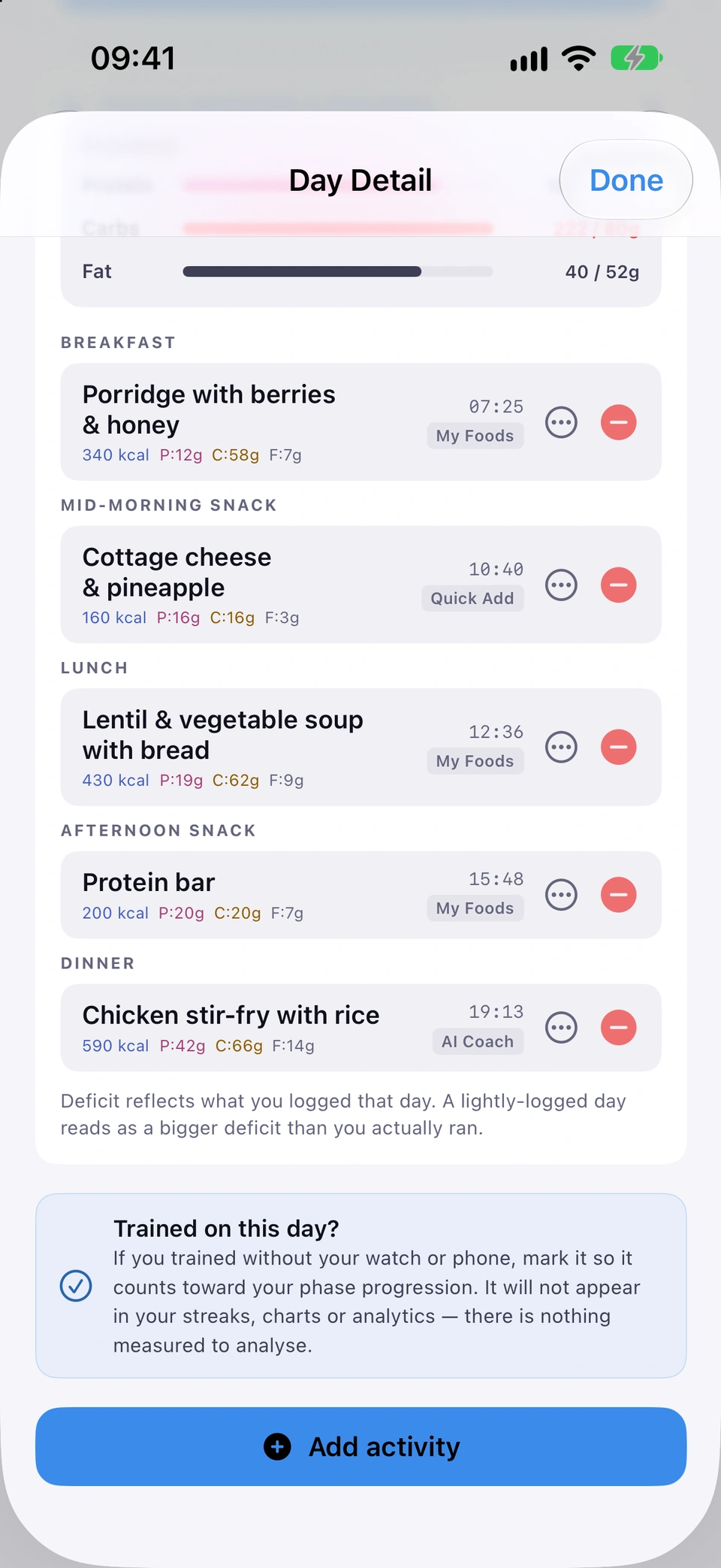
How to use it
- Open a past, scheduled gym day in Day Detail.
- Tap Trained on this day? to mark it as trained.
- Tap again to undo — it reads You marked yourself as trained once set.
Good to know
- It counts toward your phase progression only, not your streaks, charts or analytics — there's nothing measured to analyse.
- It's only offered on a past day with nothing already measuring it; a day a guided session or Apple Watch workout already recorded doesn't show it, and today and future days don't either.
Added in build 248 · What's new
↑ Back to topAdd or fix a day
Pick any date from today back through your history and open it to edit its log — the picker warns if it's already logged.
WhereTracker+
What it is
The + button in the Tracker's top bar opens Add or fix a day — a date picker (today back through the last two years, or further if your history goes back further) with an Open this day button.
Why it helps
It's how you reach and correct a day you didn't open from the calendar — for example one from months ago.
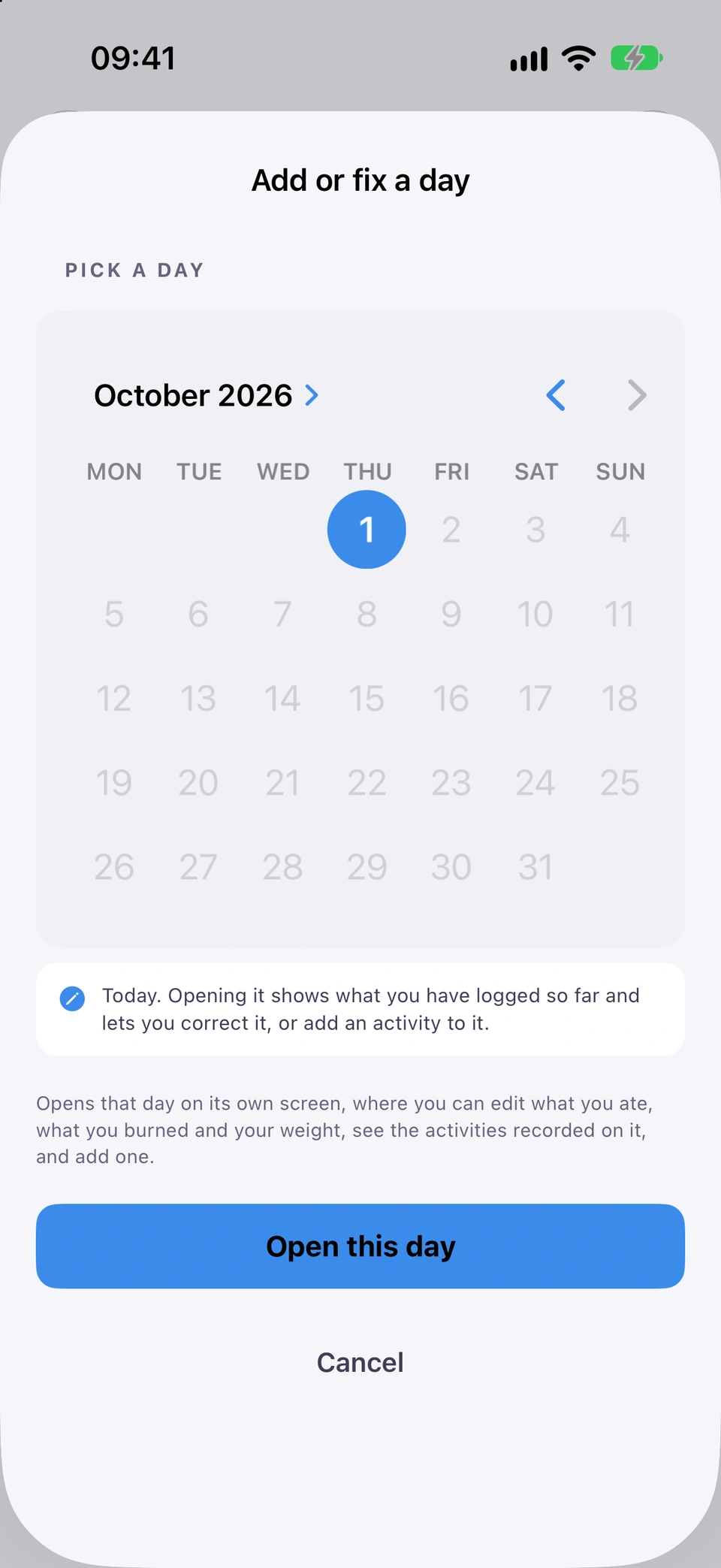
How to use it
- On the Tracker tab, tap the + button at the top.
- Pick a date on the calendar.
- Tap Open this day.
Tips
- Picking a date you've already logged is safe — the picker tells you before you open it.
Added in build 242 · What's new
↑ Back to topAll days journal
Your whole logging history, newest first, with calories in, calories out and weight for each day.
WhereTrackerCALENDARAll days
What it is
All days, at the foot of the CALENDAR tile, opens your full history month by month, newest first, with each day's calories in, out and weight.
Why it helps
It's the complete record behind the seven-day Days view — useful for looking back further than a week.
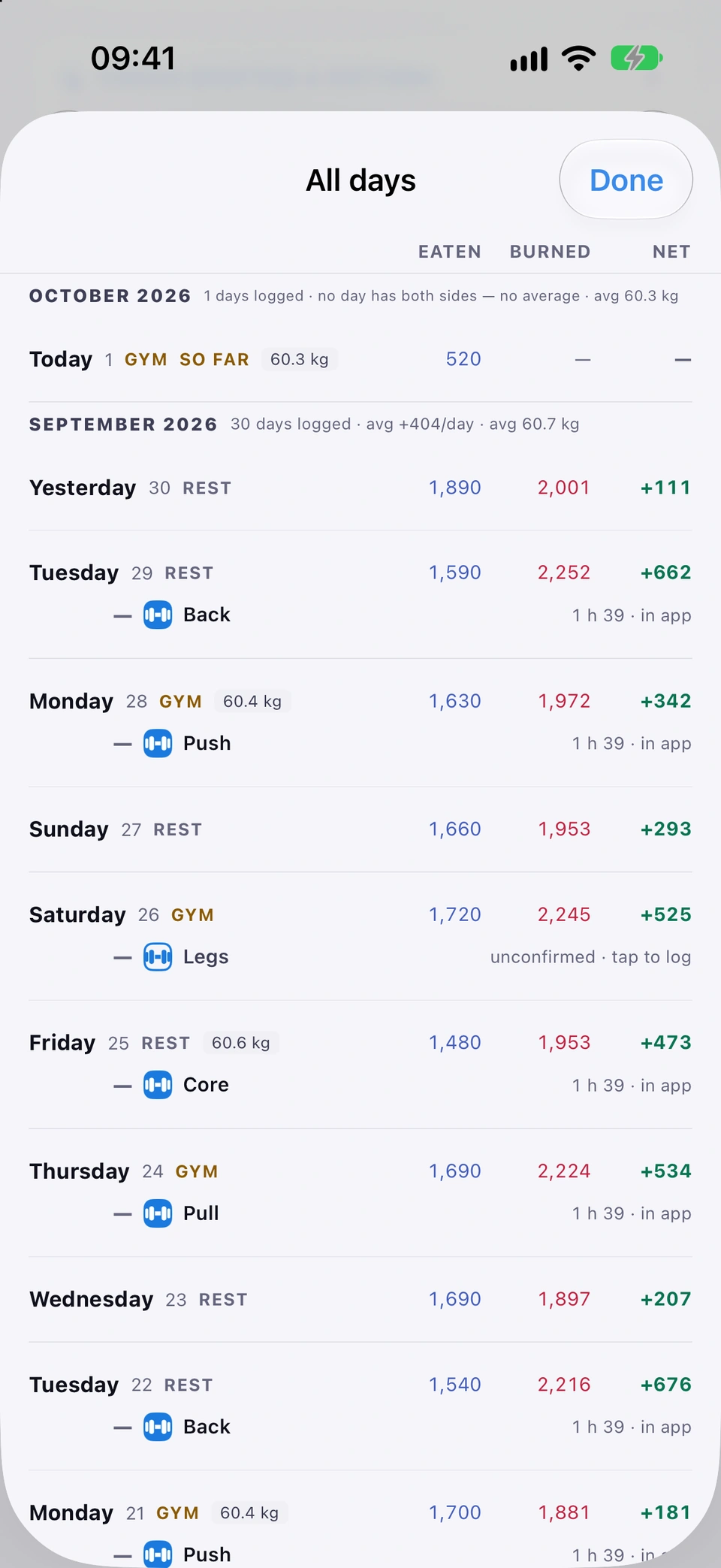
How to use it
- Open the Tracker tab and scroll to the foot of the CALENDAR tile.
- Tap All days.
- Tap any day to open it.
Updated in build 242 · What's new
↑ Back to topImport / Export logs (CSV)
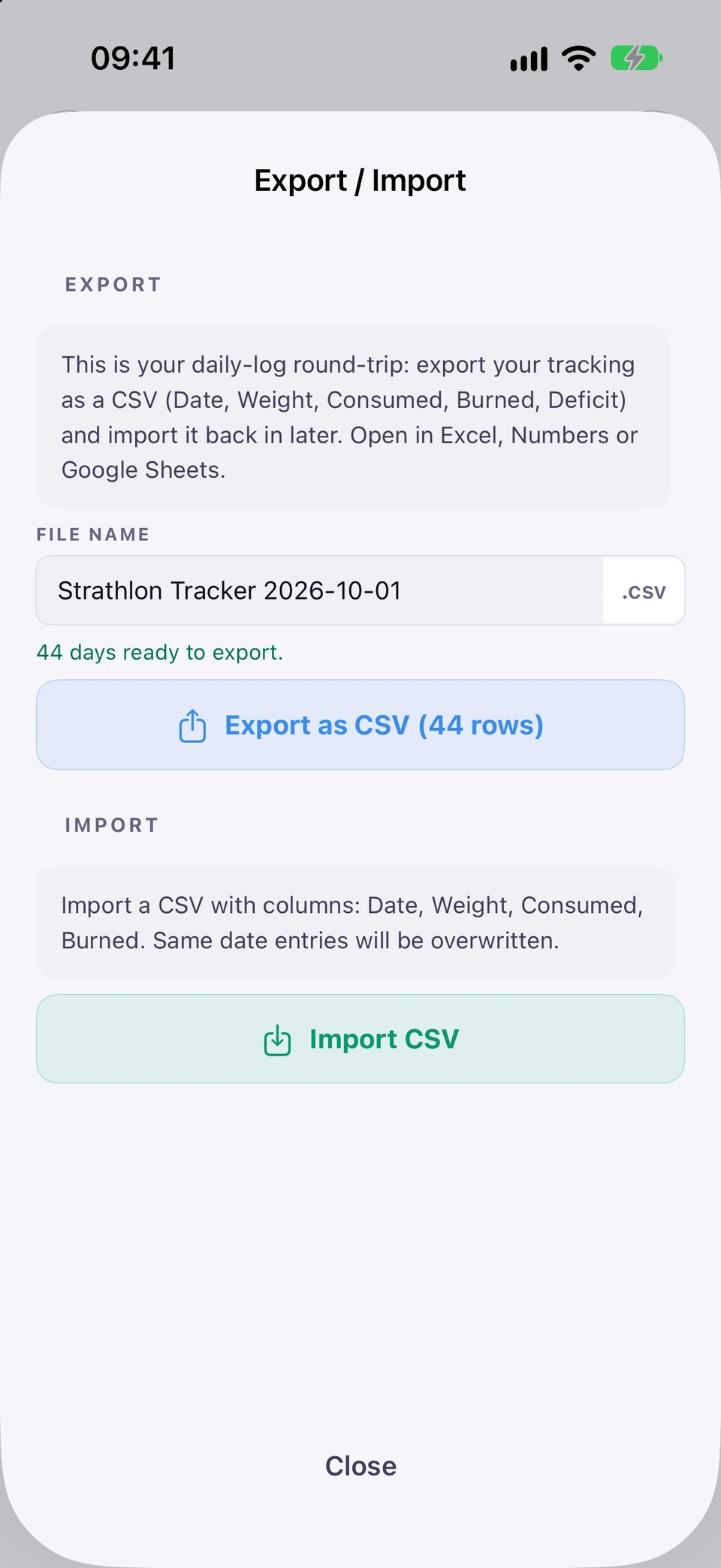
Export your daily log as CSV, or import one with Date/Weight/Consumed/Burned columns — matching dates are merged in.
WhereTracker⋯Import / Export logs
What it is
Import / Export logs, in the Tracker's ⋯ menu, exports your daily log as a CSV file, or imports one with Date, Weight, Consumed, Burned columns.
Why it helps
It makes your logged data portable — a backup you hold yourself, or a way to bring data in from elsewhere.
How to use it
- On the Tracker tab, tap the ⋯ button at the top.
- Tap Import / Export logs.
- Tap Export as CSV (N rows) to share a copy, or Import CSV to bring one in.
Good to know
- Importing a day that already has data merges in — only Weight, Consumed and Burned are overwritten from the file, and your logged food items and macros are kept.
Updated in build 241 · What's new
↑ Back to topCopy summary
Copy a plain-text table of your logged days — date, weight, eaten, burned and your Deficit/Surplus/Balance figure — to the clipboard.
WhereTracker⋯Copy summary to clipboard
What it is
Copy summary to clipboard, in the Tracker's ⋯ menu, copies a plain-text table of your recent days to the clipboard.
Why it helps
A quick way to paste your figures somewhere else — a note, a message, anywhere text goes.
How to use it
- On the Tracker tab, tap the ⋯ button at the top.
- Tap Copy summary to clipboard.
- Paste it wherever you like.
Good to know
- Which word the fifth column uses (Deficit, Surplus or Balance) follows your own goal, the same as the Tracker's fourth tile.
Updated in build 241 · What's new
↑ Back to top