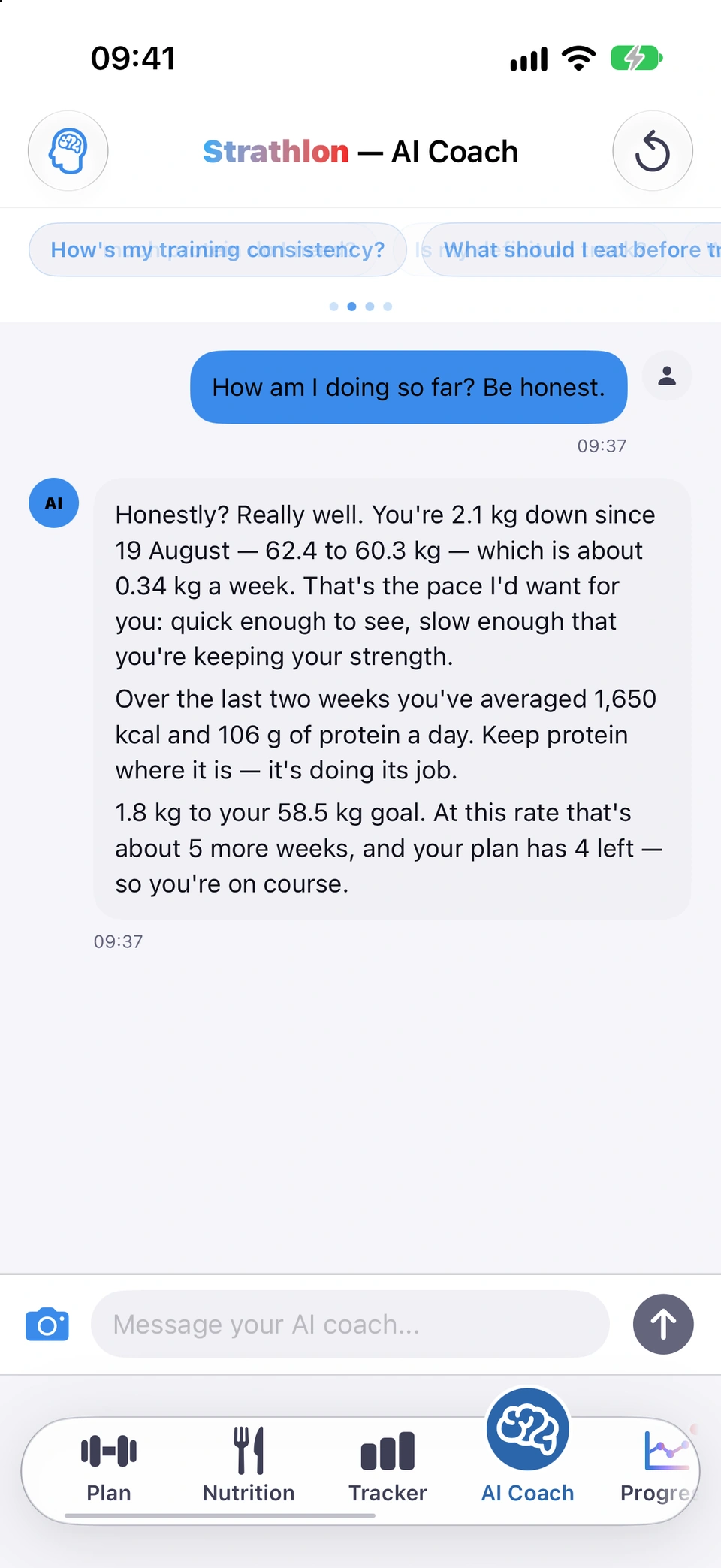
Ask your AI coach anything in plain language — it already knows your plan, today's targets and what you've logged.
With the subscription
WhereAI Coach›Message your AI coach...\
What it is
The AI Coach tab is a chat with an AI trained to coach you. It already has your workout plan, today's session, your logged food and your profile, so you can ask a question without explaining the background first.
Why it helps
You get an answer built from your own numbers instead of generic advice, and you don't have to remember or retype anything the app already knows.
Ask in plain language and get an answer built from your own numbers.
How to use it
Open the AI Coach tab.
Type your question in Message your AI coach...\ and tap the send arrow, or tap one of the quick-question chips above it.
Read the reply. It can carry a card — logged food, a meal plan, a meal suggestion — that you act on with its own buttons.
Tips
Your conversation clears itself every morning, so you always start the day with a clean chat. What it has learned about you longer-term lives separately in What your coach remembers.
Turning on Share my health data with the AI coach (Settings > App settings > PRIVACY & YOUR DATA) lets it reason from your Apple Health figures too, not just what you've typed and logged.
A banner warns you before your coach's memory of this chat fills up and starts dropping the oldest messages.
With the subscription
WhereAI Coach›above the message box›ⓘ›About Coach Memory
What it is
Your coach keeps a window of the most recent exchanges in this conversation in memory. As it fills, a banner reading Coach memory filling up (.../... exchanges)\ appears above the message box, changing to Coach memory full (.../... exchanges)\ once it's at capacity.
Why it helps
It tells you why the coach might stop referring back to something you said earlier in a long chat, without you having to guess.
When it happens
As the conversation approaches, then reaches, the size of the window the coach keeps in memory for this chat.
Tips
Tap the ⓘ beside the banner for About Coach Memory, which explains the window, why it exists, how to get the most from it, and that clearing the conversation starts a fresh one.
Good to know
This is separate from your daily message allowance — the window filling up does not stop you sending more messages.
Once the window is full, the oldest exchange drops automatically each time you send a new one; nothing is deleted for you to review.
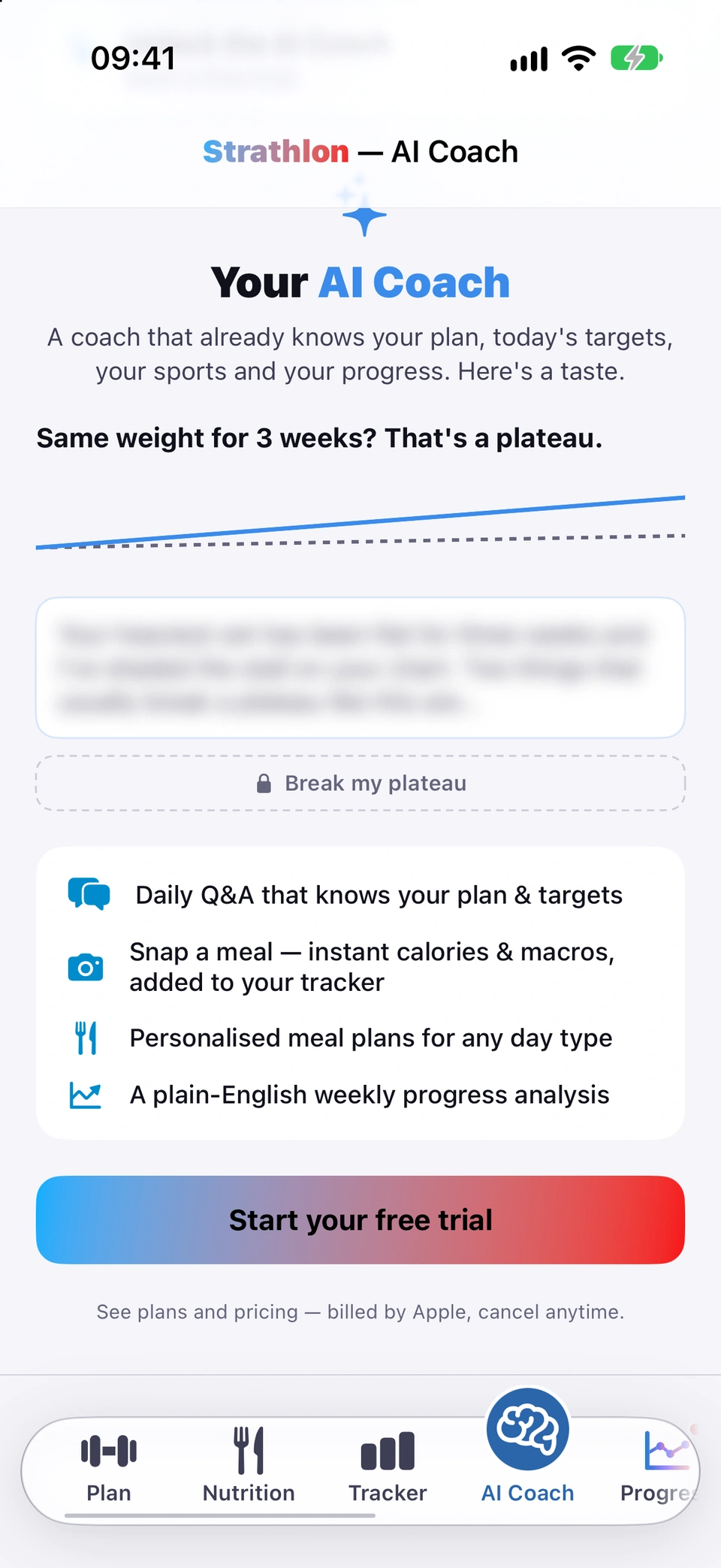
Without the subscription, the AI Coach tab shows what the coach can do with a personalised sample answer, instead of a bare paywall.
WhereAI Coach›Unlock the AI Coach
What it is
Open the AI Coach tab without the subscription and you see a sample exchange built from your own real targets, four rows of what you'd unlock, and a button to see plans. The sample's opening line is real and its specifics are blurred.
Why it helps
It shows the coach actually working with your numbers, rather than only a price screen, before asking you to subscribe.
A taste of the coach, built from your own numbers, before you subscribe.
How to use it
Open the AI Coach tab without a subscription.
Read the sample exchange and the four rows underneath it — daily Q&A, photo food logging, meal plans and a weekly progress analysis.
Tap the button under the sample, or the dismissible Unlock the AI Coach card above it, to see plans.
Good to know
The Unlock the AI Coach card can be dismissed and stays hidden for a while afterwards; the sample exchange and the rows beneath it stay on screen either way.
One-tap starter questions above the message box send straight away — no typing needed.
With the subscription
WhereAI Coach›chips above the message box
What it is
A row of chips above the message box cycles through ready-made questions, three at a time, changing every few seconds. Tapping one sends it immediately.
Why it helps
It shows you what the coach can be asked and gets you an answer without typing anything.
How to use it
Open the AI Coach tab.
Tap any chip, for example Analyse my progress or Am I recovering well?. It sends straight away, as if you had typed and sent it yourself.
Tips
The chips keep cycling on their own, so if the one you want scrolls past, wait a few seconds for it to come back round, or swipe the row.
Good to know
The chips are hidden while the coach is replying, and stop cycling if you have Reduce Motion on (they still work, as one row you scroll).
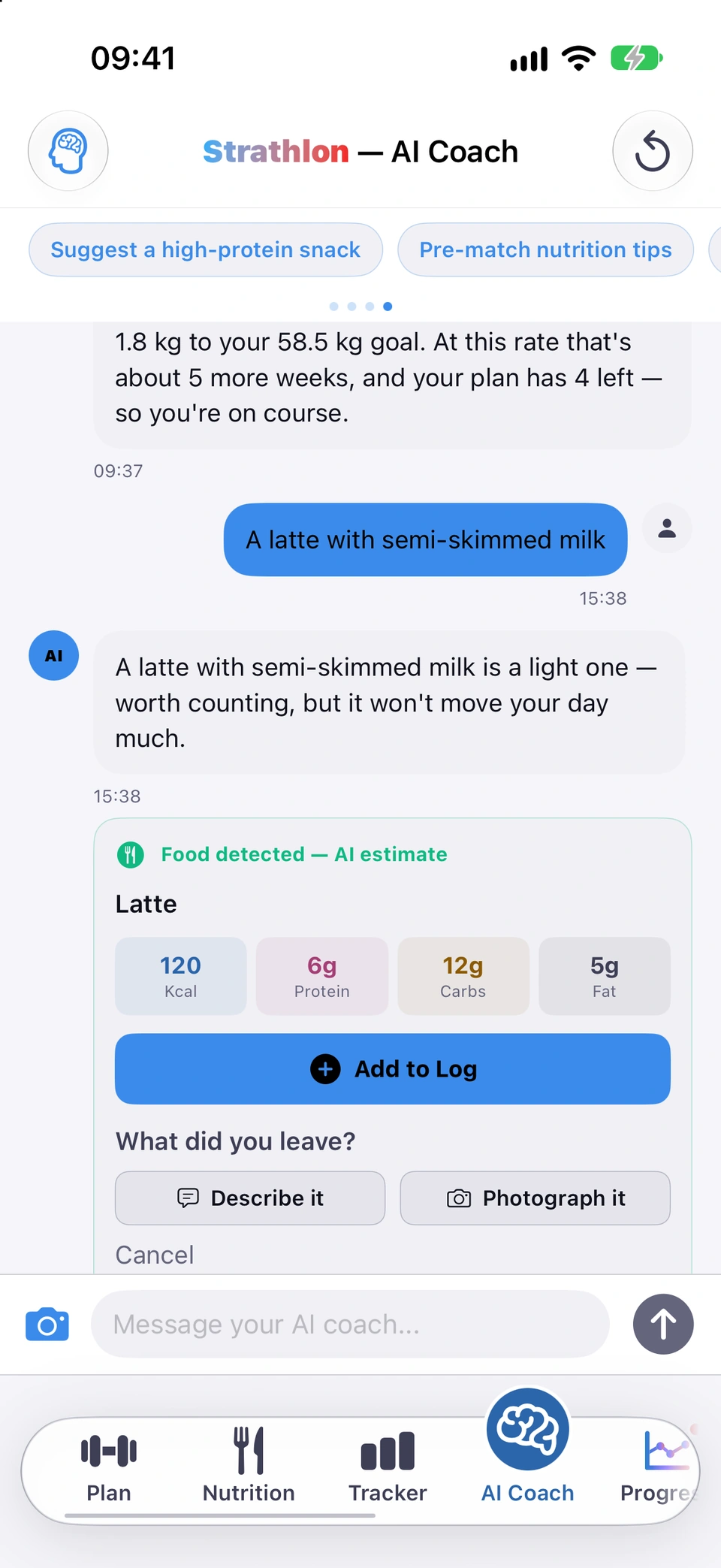
Tell the coach what you ate in plain language and add its estimate to your Tracker in one tap.
With the subscription
WhereAI Coach›type what you ate›food card›Add to Log
What it is
Type what you ate, for example "a chicken curry with rice", and the coach replies with a card showing calories and macros — broken into parts for a mixed meal — with an Add to Log button.
Why it helps
You can log a meal from memory, without searching a food database, and see the estimate before it's added.
How to use it
In Message your AI coach...\, describe what you ate and send it.
Read the food card's Kcal, Protein, Carbs and Fat pills, and each part of the meal if it lists more than one.
Tap Add to Log and choose the day (the last 14 days) and meal slot.
Tips
You can save the same card to a meal plan or as a regular meal instead of, or as well as, logging it.
Got some of it wrong, or ate less than shown? Tap I didn't finish this before you add it.
Each part of a meal shows its full name on the card: a long name wraps onto more lines instead of being cut off.
Good to know
A meal you logged recently can offer to replace that row instead of adding a second one — the card asks which you mean rather than guessing.
Photograph a meal and the coach reads its calories and macros, ready to add to your Tracker.
With the subscription
WhereAI Coach›camera icon›Analyse Photo
What it is
Tap the camera icon on the AI Coach tab, take or choose a photo of your meal, optionally add a short description, then tap Analyse Photo. The coach returns a food card you add with Add to Log.
Why it helps
It's the fastest way to log a meal — a photo instead of typing everything out — and a short description sharpens the estimate.
How to use it
On the AI Coach tab, tap the camera icon next to the message box and take or choose a photo.
Optionally describe the dish, for example "Sri Lankan beef curry with coconut milk", then tap Analyse Photo.
Read the food card the coach returns and tap Add to Log, choosing the day and meal slot.
Tips
If the picker opens without a photo being taken, nothing is logged — you can try again any time.
A pack with a barcode or nutrition label works better through the barcode and label route, reached from the same camera icon.
Photo tip for non-subscribers
After typing a meal in yourself, a dismissible note points non-subscribers at photo logging.
WhereTracker›Today card›after a Quick Add
What it is
After you Quick-Add food manually, non-subscribers can see a note: Snap a photo next time — your AI coach reads the calories & macros and adds them for you.\
Why it helps
It shows what the subscription would save you the moment you'd have used it.
When it happens
Now and then, after a manual Quick-Add, for a non-subscriber who hasn't dismissed it for good.
Tips
Tapping the note opens the subscription plans; tapping ✕ dismisses it for good, on any day.
Good to know
Shown only now and then, and never again once dismissed.
Photograph a pack's barcode for its own figures, or its label if the barcode doesn't match anything.
With the subscription
WhereAI Coach›camera icon›food card›pack figures\ / Photograph the label
What it is
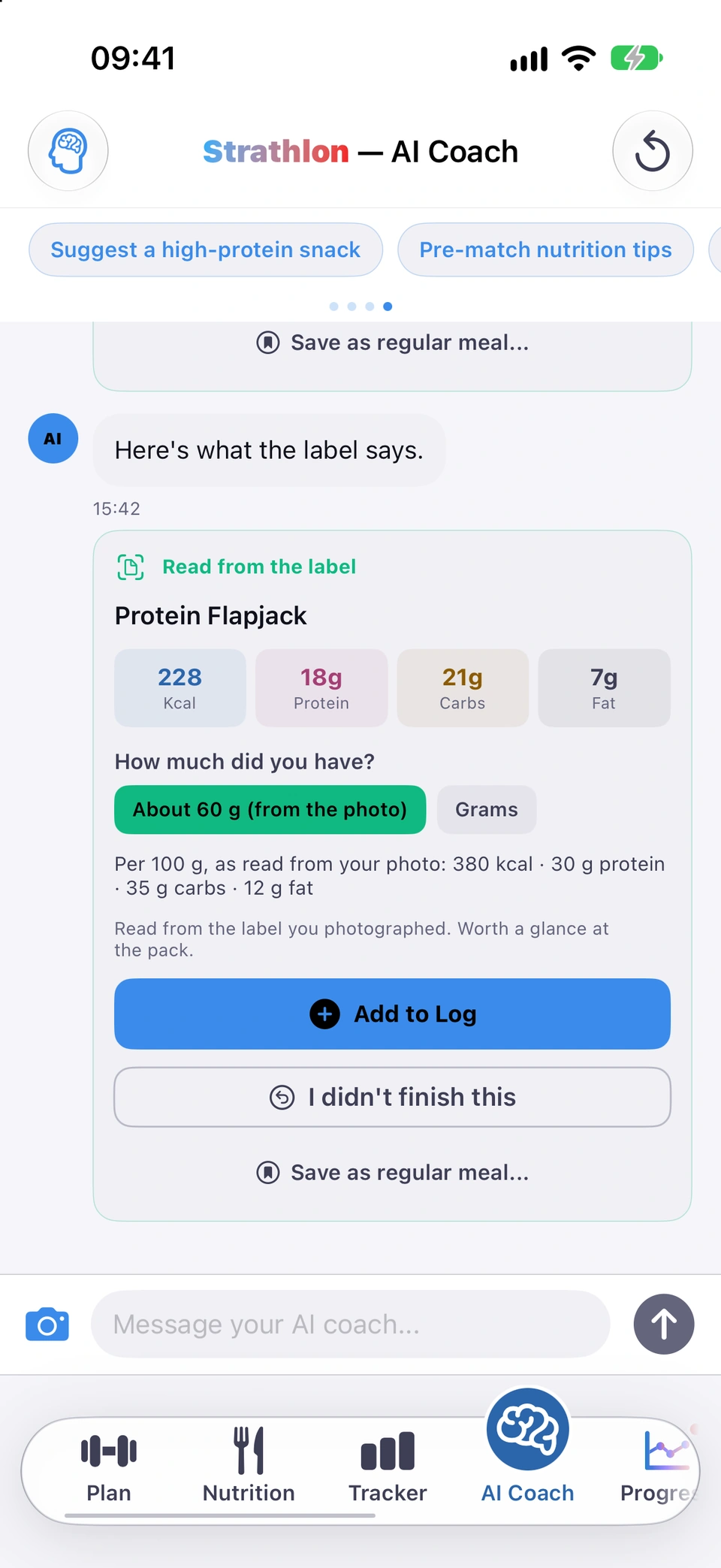
A photo that includes a barcode is read on your phone and looked up for that product's own nutrition figures — marked Food detected — pack figures on the card — rather than the coach's usual estimate from the picture alone. If nothing matches, three buttons appear under the card: Photograph the label, Describe it and Another photo. The label route reads the printed nutrition panel and marks the resulting card Read from the label.
Why it helps
A pack's own printed figures are more accurate than a visual estimate, especially for foods you can't easily judge by eye.
A pack's own figures, with a question about how much you had.
How to use it
Photograph the food so the barcode is in shot, the same way you would for any photo.
If the card reads Food detected — pack figures or Read from the label, say How much did you have?\ using the quantity chips it offers, or type your own amount in grams.
If nothing matches, tap Photograph the label to read the printed panel, Describe it to tell the coach in words, or Another photo to try again.
Tips
The quantity chips default to one unit, never the whole pack, so a multipack doesn't get logged as though you ate all of it.
Good to know
A pack's macros are recalculated from its own per-100 g figures and the amount you say you had, not simply copied from the label.
Say what you left on the plate and the coach corrects its estimate, updating the meal you already logged.
With the subscription
WhereAI Coach›food card›I didn't finish this
What it is
On a food card, I didn't finish this lets you say what was left — by describing it or photographing the plate — so the coach can work out what you actually ate.
Why it helps
You get an accurate figure without deleting and re-logging the whole meal, and if it's already on your Tracker, the correction updates that row rather than adding a second one.
How to use it
On a food card, before it's added to your log, tap I didn't finish this.
Say what you left, in words or a photo.Choose Describe it to type roughly how much you left, or Photograph it to take a second photo of the plate.
Read the corrected estimate and tap Add to Log — or, if the meal is already logged, the button that replaces it.
Tips
A banner above the message box names the meal you're correcting — Correcting meal\ — with an ✕ to cancel it if you didn't mean to.
Good to know
Once a card has been added to your log, I didn't finish this no longer appears on it — correcting an already-logged meal from there would create a second entry for the same food.
Save a scanned or described meal into one or more of your day-type meal plans, not just today's log.
With the subscription
WhereAI Coach›food card›Save as regular meal...\
What it is
On a food card, Save as regular meal...\ opens a picker for which day types (tap multiple) and meal slot the meal should sit in.
Why it helps
A meal you photograph or describe once can become part of your regular meal plan, instead of only today's log.
How to use it
On a food card, tap Save as regular meal...\.
Tap each day type this meal belongs in (you can pick more than one), then a meal slot.
Tap Add to day type Meal Plan\ and confirm Add Anyway on the calorie-total warning.
Tips
You can add a photo to the saved meal from the same picker, either the one already on the card or a new one.
Good to know
Saving replaces whatever was already in that slot for the day type(s) you picked, and may change that day's calorie total against your auto-calculated targets — the app warns you before you confirm.
A meal you're happy with becomes part of your ordinary meal plan, not just a one-off log entry, so it's ready again on the days it applies to without asking the coach a second time.
How to use it
On a food card in the chat, tap Save as regular meal...\.
Ask for a full day's meals and the coach returns a card you can add or use to replace your meal plan for that day type.
With the subscription
WhereAI Coach›Full Day Meal Plan card
What it is
Ask the coach for a meal plan, for example "build me a three-day training-week meal plan", and it replies with a Full Day Meal Plan · day type Day\ card listing each meal, its calories and its protein.
Why it helps
You get a whole day's meals worked out for you, matched to your targets, ready to drop straight into your plan.
How to use it
Ask the coach to build you a meal plan for a day type, for example a training day or a rest day.
Read the Full Day Meal Plan card's meals, then tap Add to day type Meal Plan\ to fill only the empty slots, or Replace entire meal plan to overwrite everything for that day type.
Confirm Save Anyway on the calorie-total warning.
Tips
"Add" only fills slots that are currently empty; "Replace" overwrites the whole day type's plan — the card states this difference above the buttons.
Meal names on the card are shown in full too: a long name wraps onto more lines instead of being cut off.
Good to know
Saving may change that day type's calorie total against your auto-calculated targets — the app warns you before you confirm.
Meal suggestion card
Ask for one meal instead of a whole day, and add it straight to a slot in one or more meal plans.
With the subscription
WhereAI Coach›Meal Suggestion card
What it is
Ask the coach for a single meal — a snack, a dinner idea — and it replies with a Meal Suggestion card showing the meal, its macros, and pickers for which day types and meal slot to add it to.
Why it helps
Lets you fill one gap in your meal plan without asking for, or overwriting, a whole day.
How to use it
Ask the coach for one meal, for example "suggest a high-protein snack".
On the Meal Suggestion card, tap each day type this meal is for (you can pick more than one), then a meal slot.
Tap Add to day type Meal Plan as slot\ and confirm Add Anyway on the calorie-total warning.
Good to know
Adding replaces whatever was already in that slot for the day type(s) you picked.
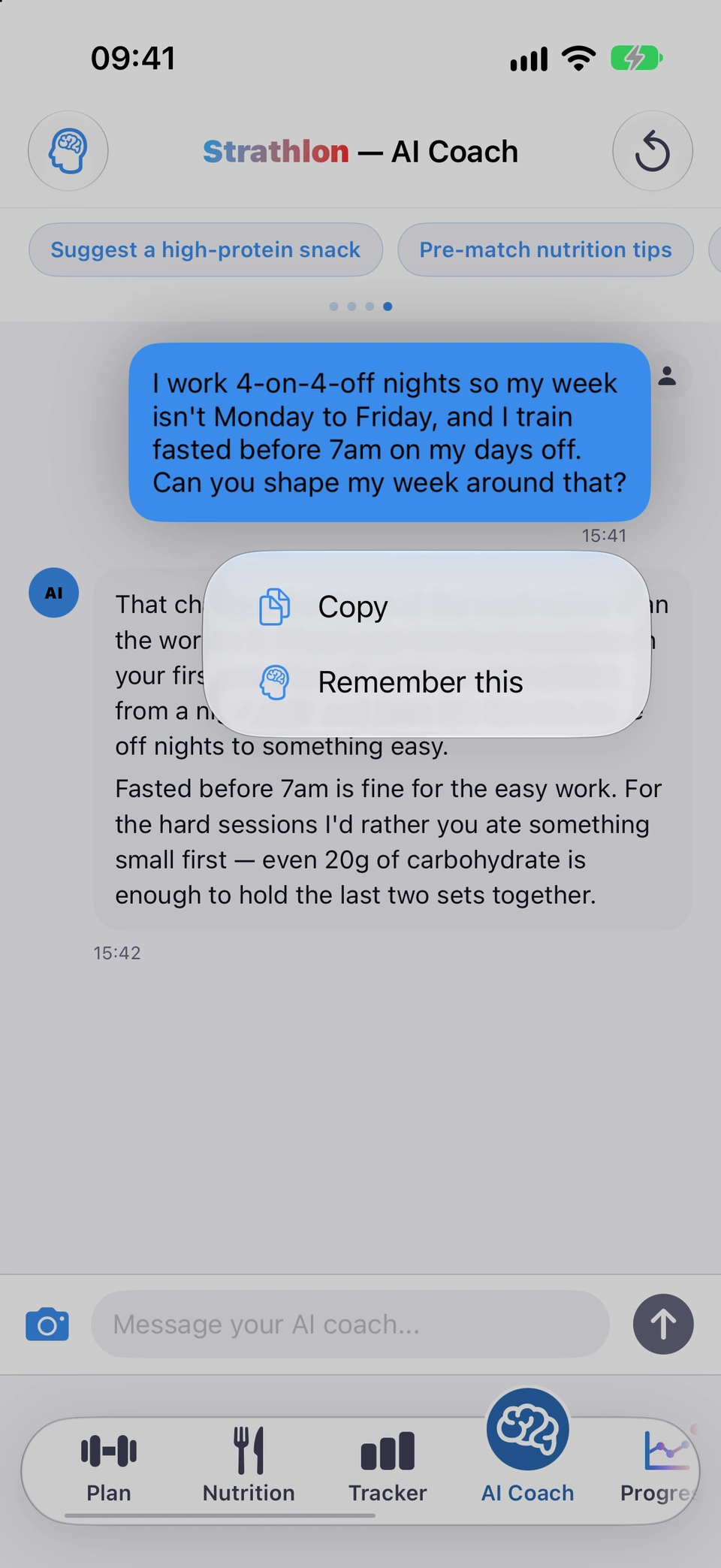
Press and hold any message to copy its text, or hold your own message to have the coach keep it in mind.
With the subscription
WhereAI Coach›press and hold a message
What it is
Press and hold a message in the chat for a menu with Copy. On your own message only, it also offers Remember this, which keeps that exact sentence in what your coach remembers from your next message onwards.
Why it helps
Copy lets you reuse an answer elsewhere; Remember this lets you decide, in the moment, that something you just said is worth the coach keeping.
Copy or remember a message.
How to use it
Press and hold any message bubble in the chat.
Tap Copy to copy its text, or, on a message you sent yourself, tap Remember this.
Tips
Remember this only ever appears on your own typed messages, never on a question the app sent on your behalf (a quick-question chip, a readiness or tile hand-off) — so what gets remembered is always something you actually wrote.
Good to know
What you keep with Remember this is saved exactly as you wrote it, and takes effect from your very next message.
Your chat clears every morning — this is the one thing that carries over, and you can read, edit or delete every word of it.
With the subscription
WhereAI Coach›brain icon›or›Settings›App settings›PRIVACY & YOUR DATA›What your coach remembers
What it is
The What your coach remembers screen has three parts: your own notes, up to 40 things the coach has learned about you (each shown with the message it came from), and a footer that shows exactly what's sent to the coach.
Why it helps
It's the only part of your conversations that persists day to day, and it's yours — you can see precisely what your coach knows about you, correct it, or remove any of it.
How to use it
On the AI Coach tab, once you've sent a message, tap the brain icon at the top left. Or go to Settings > App settings > What your coach remembers under PRIVACY & YOUR DATA.
Under What your coach has learned about you, read each item with the message it came from. Tap the ✕ on any row to forget it.
Tap Exactly what your coach is sent to expand the precise text sent with every message.
Tips
Items you learn about wait until tomorrow before they're sent — see the Saving tomorrow section — but anything you keep yourself with Remember this counts from your very next message.
Once your notes and learned items are full, the ones you haven't mentioned for longest make room for new ones; some categories (preferences, how you respond, your rhythm) are dropped after about six months unless you say them again.
Good to know
Up to 40 learned items in total, and your own notes are capped at 2,400 characters, shown as a live counter while you edit.
Your coach picked this up
A note under a reply tells you when your coach has learned something new about you.
With the subscription
WhereAI Coach›under your message
What it is
Under a coach reply, Your coach picked this up appears with a line naming what was learned, and a tap opens What your coach remembers.
Why it helps
It tells you at the moment it happens, rather than leaving you to discover a change to your coach's memory later.
When it happens
At the end of a reply where the coach has learned something new — not after every reply.
Good to know
Nothing it learns this way is sent to the coach the same day — it waits until tomorrow unless you remove it first from What your coach remembers.
Write a short note about your week, your gym, or anything the coach can't work out from your logs — changed only by you.
With the subscription
WhereWhat your coach remembers›Tell your coach something about you
What it is
On What your coach remembers, Tell your coach something about you opens a plain text box for anything no log can tell your coach — your schedule, what you avoid, your gym's equipment.
Why it helps
Some things about how you train and eat aren't in any log, and this is the one way to give the coach that context directly, in your own words.
Type your note. If it's empty, three greyed examples show the kind of thing to write — my hours don't run Mon–Fri, when I train fasted, what my gym's heaviest dumbbells are.
Tap Save in the top-right corner.
Tips
Watch the character counter as you type — anything past the cap won't be saved.
Good to know
Up to 2,400 characters. Only you can write or change it; the coach cannot add to your notes on its own.
Wipe the current chat and start fresh, right now, rather than waiting for it to clear itself tomorrow morning.
With the subscription
WhereAI Coach›clear icon›Clear conversation
What it is
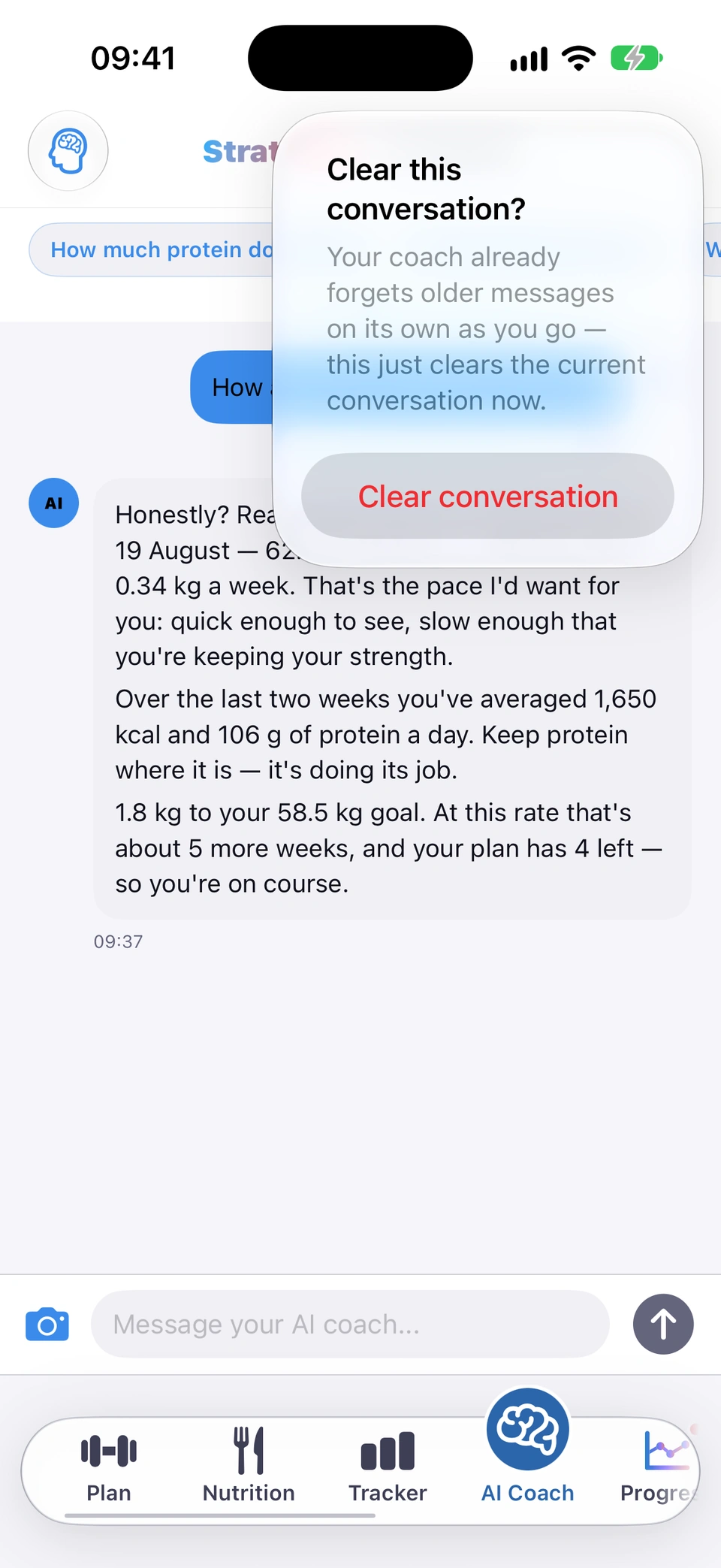
The clear icon at the top right of the AI Coach tab opens Clear this conversation?\, and confirming with Clear conversation empties the chat immediately.
Why it helps
Handy for privacy, or when you're switching topics completely and don't want the coach referring back to what you were just discussing.
Clear conversation.
How to use it
On the AI Coach tab, once you've sent a message, tap the clear icon (⟲) at the top right.
Confirm Clear conversation on the Clear this conversation?\ prompt.
Good to know
Your coach already forgets older messages on its own as you go — this only clears the current conversation now, it isn't a memory-management step. See What your coach remembers for what actually persists.
A daily limit on messages, with a counter that appears once you're close and a reset every midnight.
With the subscription
WhereAI Coach›next to send
What it is
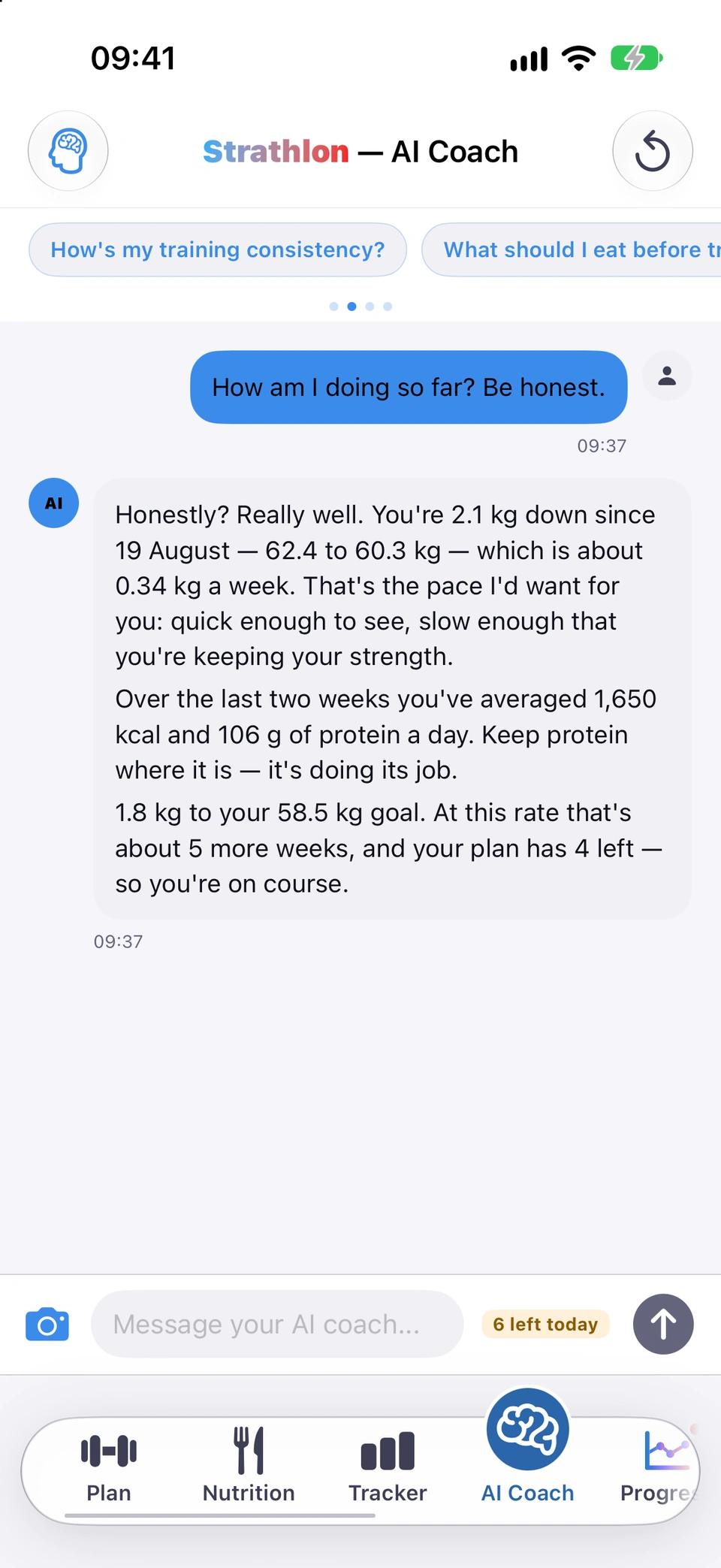
When you're close to today's limit, a chip next to the send button shows N left today\. Reach the limit and a banner reads Daily limit reached\, with the message box disabled until Resets at midnight.
Why it helps
It lets you know before you run out, rather than being cut off mid-conversation with no warning.
A heads-up once you're close to today's limit.
When it happens
Continuously while you chat — the counter appears once you're close to the day's allowance.
Good to know
The allowance resets at midnight. The exact number of messages included can change over time; the counter on screen always shows the current one.
Cancel a reply that's taking too long, see a note if it's running slow, and continue an answer that stopped part-way.
With the subscription
WhereAI Coach›during a reply
What it is
While the coach is replying, a ✕ button lets you cancel; if a reply is slow, a note says roughly how long a typical reply takes, turning into a stronger warning if it keeps going. If a reply stops because it hit its length limit, This answer stopped early — it reached its length limit.\ appears with a Continue the answer button.
Why it helps
You're never left wondering whether the coach is still thinking, and a long answer that gets cut off can still be finished rather than lost.
How to use it
While a reply is in progress, tap ✕ to cancel it at any point.
If it's running long, read the timing note beside the ✕.
If a reply ends with This answer stopped early — it reached its length limit.\, tap Continue the answer to pick up where it left off.
Good to know
Continue the answer only appears on the most recent message, and only while nothing else is in progress.
A card on the AI Coach tab opens your written weekly review as soon as there's enough logged to say something.
WhereAI Coach›Your week's ready 👀\
What it is
When there's something worth reporting, Your week's ready 👀\ appears at the top of the AI Coach tab with a one-line teaser drawn from your own data, for example a change in your rest or your weight trend.
Why it helps
It's a free, no-tap way to know your review is ready, wherever you happen to open the app.
How to use it
Open the AI Coach tab and look for Your week's ready 👀\ near the top.
One tap on an exercise card sends the coach a question about it for you — form, common mistakes, how it fits your goals.
With the subscription
WherePlan›exercise card›Ask Coach
What it is
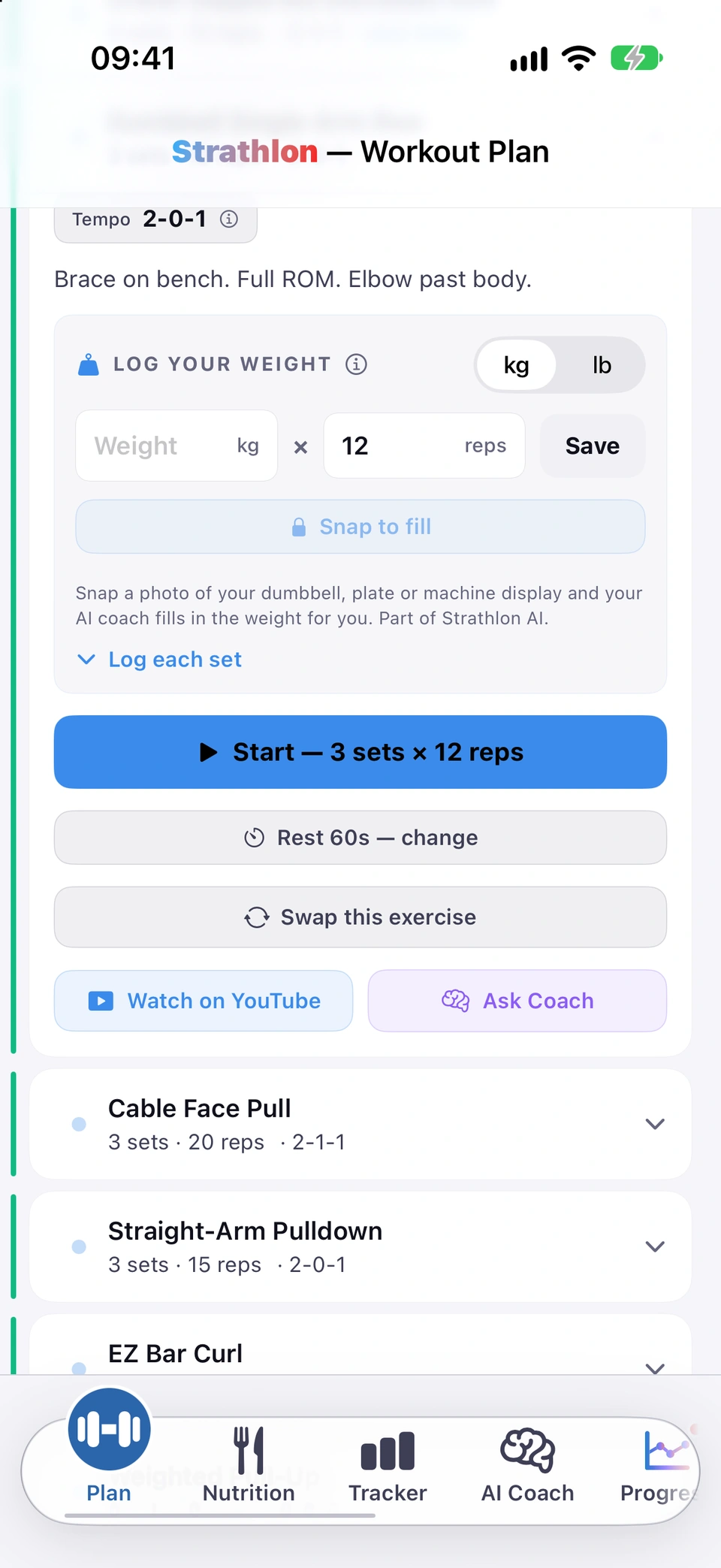
Expand an exercise card and tap Ask Coach. Strathlon switches to the AI Coach tab and sends a question about that exact exercise — its sets, reps, tempo and your plan's tip — without you typing anything.
Why it helps
You get coaching on the exact move you're about to do, with the details already filled in, instead of typing it all out yourself.
How to use it
On the Plan tab, expand an exercise card — during a session, or while reading a locked phase ahead.
One tap sends a ready-made question about this exercise.Tap Ask Coach beside Watch on YouTube.
Strathlon switches to AI Coach and sends the question for you. Read the answer and keep the conversation going, or head back to your session.
Tips
It works the same way on a locked, upcoming phase you're reading — you don't need to be mid-session.
One button, on almost every Progress tile and chart, that sends your coach the exact figures on screen and answers right there.
With the subscription
WhereProgress›a tile or chart›Ask the coach about this
What it is
Most Progress tiles, charts and reports carry an Ask the coach about this button. Tap it and the coach answers underneath, using the numbers that tile is showing — no separate chat to start.
Why it helps
You get an answer grounded in the figures you're actually looking at, without leaving the screen or retyping what you can already see.
How to use it
Open a tile or chart on the Progress tab, or a workout report.
Tap Ask the coach about this.
Read the answer as it appears under the chart. Tap Continue in the coach to carry the conversation on.
Tips
The same button and answer style is used everywhere it appears, so it always looks and behaves the same way, whichever tile you're on.
Good to know
Tiles built from Apple Health data (readiness, sleep, resting heart rate, cardio fitness, activities) need health sharing turned on for a full answer; app-logged tiles (consistency, sessions, strength, rest, energy, weight) don't.
Continue in the coach
Carry an inline tile answer on as a normal, continuable chat on the AI Coach tab.
With the subscription
WhereProgress›tile›coach answer›Continue in the coach
What it is
After an inline Ask the coach about this answer, Continue in the coach switches you to the AI Coach tab on that same conversation.
Why it helps
If you want to ask a follow-up question, this takes you straight into the full chat rather than leaving the answer stranded on the tile.
You land on the AI Coach tab with that conversation already there — carry on typing as normal.
Good to know
If the tile's answer failed to arrive (for example a lapsed subscription you've since fixed), tapping this asks the question again rather than opening an empty chat.
If a tile's answer needs your health data and sharing is off, a button takes you straight to the switch.
With the subscription
WhereProgress›Ask the coach about this›Turn it on
What it is
When Ask the coach about this answers with health sharing off, a note explains the answer is thinner than it could be, with a Turn it on button that opens the Share my health data with the AI coach switch.
Why it helps
It tells you why the answer is limited and gives you a direct route to change it, rather than leaving you to hunt for the setting yourself.
Read the note above the answer explaining it's without your health figures.
Tap Turn it on to open the Share my health data with the AI coach switch in Settings, or leave it as is — the answer still comes through, just thinner.
Good to know
The question is still asked and answered even if you don't turn sharing on — you're never blocked from an answer, only told it's incomplete.