
- Home
- User guide
- Progress photos
Progress photos
Checked against build 266.
Progress photos
Add a photo every week or two — each keeps its date and that day's weight, kept private on your device.
WherePhotos+
What it is
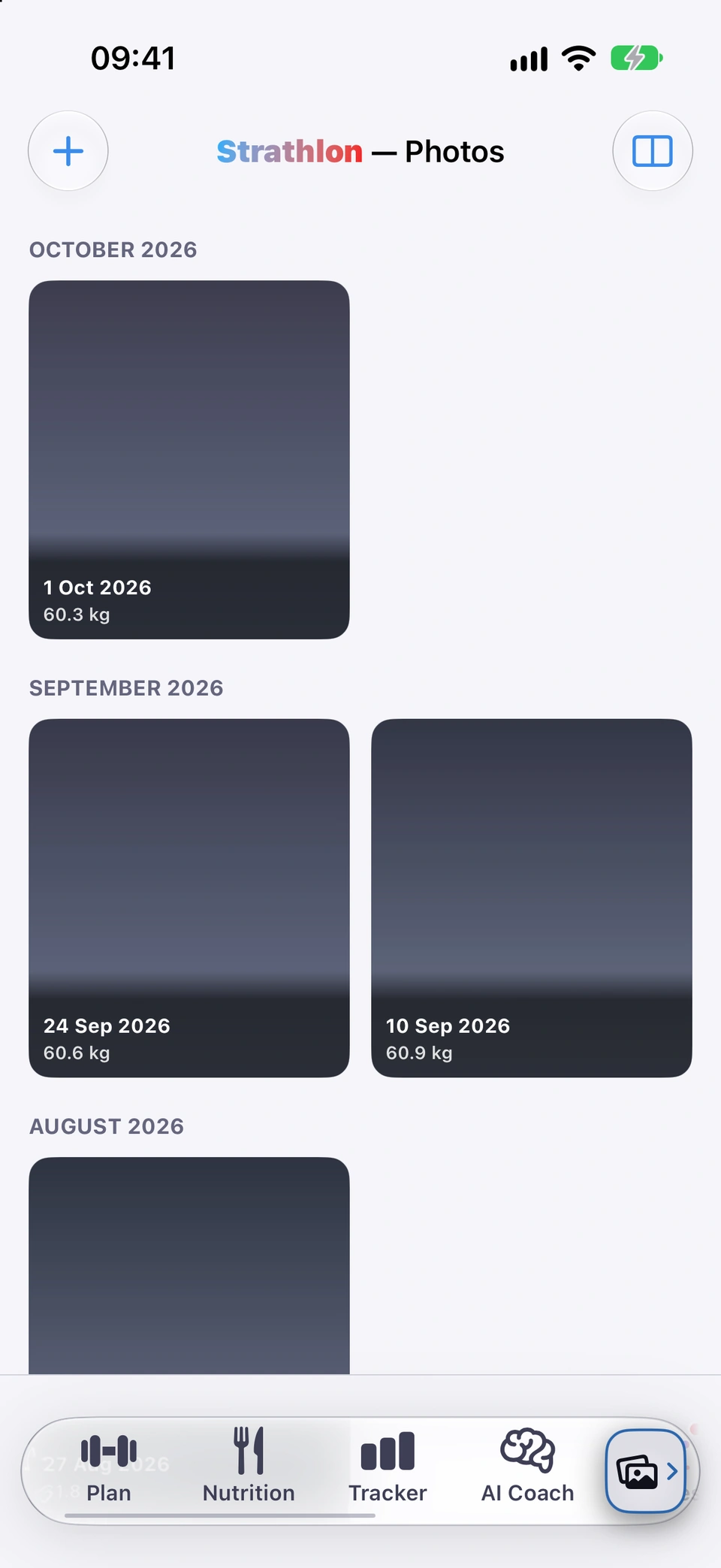
The Photos tab is a private gallery. Tapping + adds a photo (camera or your library); each is tagged with its date and that day's logged weight.
Why it helps
A photo record alongside the scale shows change the numbers alone can miss — and it stays on your device unless you choose to back it up.
How to use it
- Open the Photos tab.
- Tap +.
- Take a new photo, or pick one from your library — a library photo keeps its real date.
Tips
- Add a note to a photo by opening it and typing in Add a note (optional).
Good to know
- Strathlon never sends progress photos to a Strathlon server, to the AI or into a data export. The only thing that can move them off your device is the off-by-default Sync progress photos to iCloud switch, which copies them to your own private iCloud.
Added in build 33 · What's new
↑ Back to topCompare
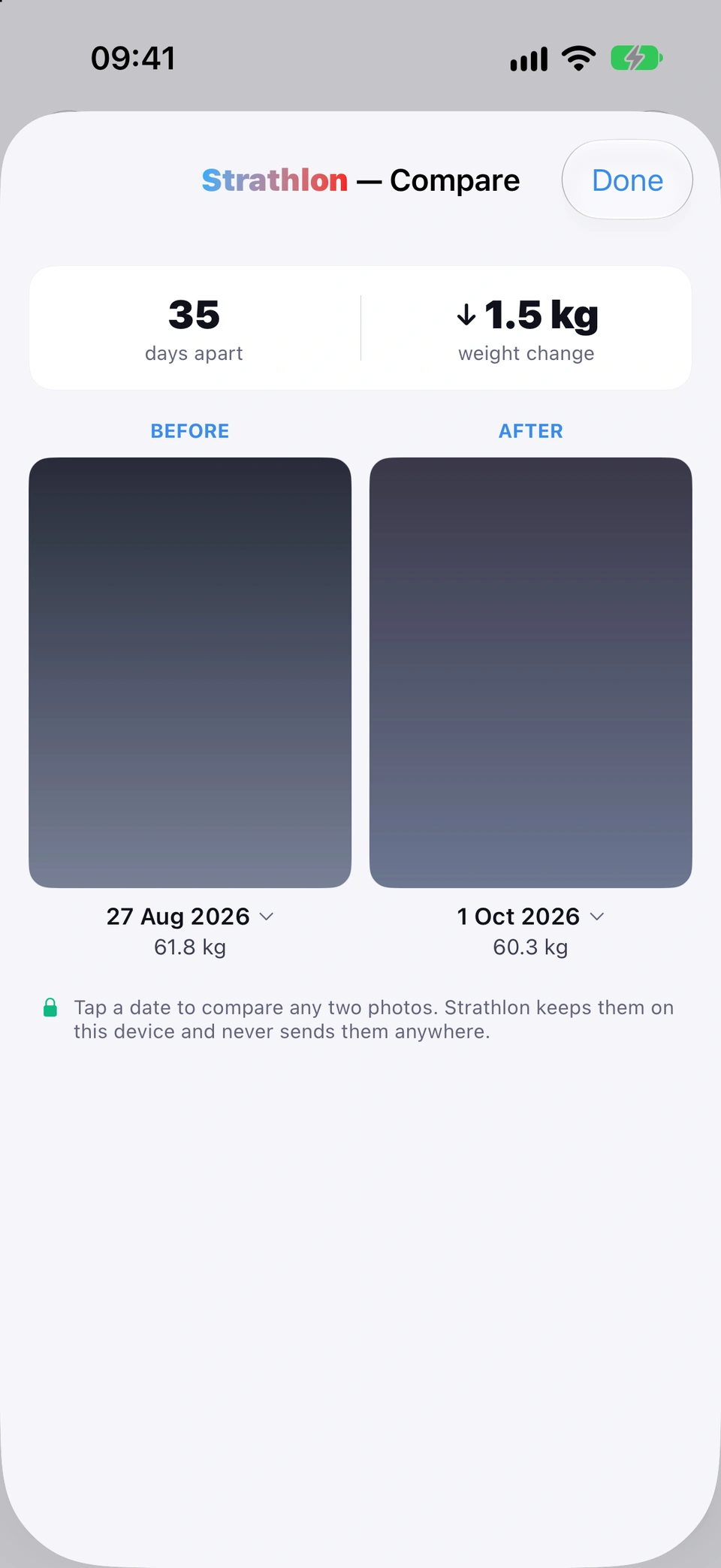
Put any two photos side by side as a dated before-and-after, with the weight change between them.
WherePhotossplit-screen icon
What it is
The split-screen icon at the top of the Photos tab (labelled Compare two photos for VoiceOver) opens a BEFORE / AFTER side-by-side of any two photos, with the days between them and the weight change.
Why it helps
It turns two separate photos into one before-and-after, without you laying them out yourself.
How to use it
- Open the Photos tab (with at least two photos added).
- Tap the split-screen icon in the top-right.
- Tap either date to swap in a different photo for that side.
Good to know
- The icon stays on screen but greyed out until you have two photos.
Added in build 34 · Updated in build 240 · What's new
↑ Back to topDelete a photo
Remove a photo from your device — this can't be undone.
WherePhotosphototrash icon
What it is
Opening a photo and tapping its trash icon (labelled Delete photo for VoiceOver) asks Delete this photo? before removing it from your device.
Why it helps
Sometimes a photo just needs to go — a straightforward way to remove one.
How to use it
- Open the Photos tab and tap a photo.
- Tap the trash icon at the bottom of the photo.
- Tap Delete to confirm.
Good to know
- This removes the photo from your device and it can't be undone.
Added in build 33 · What's new
↑ Back to top