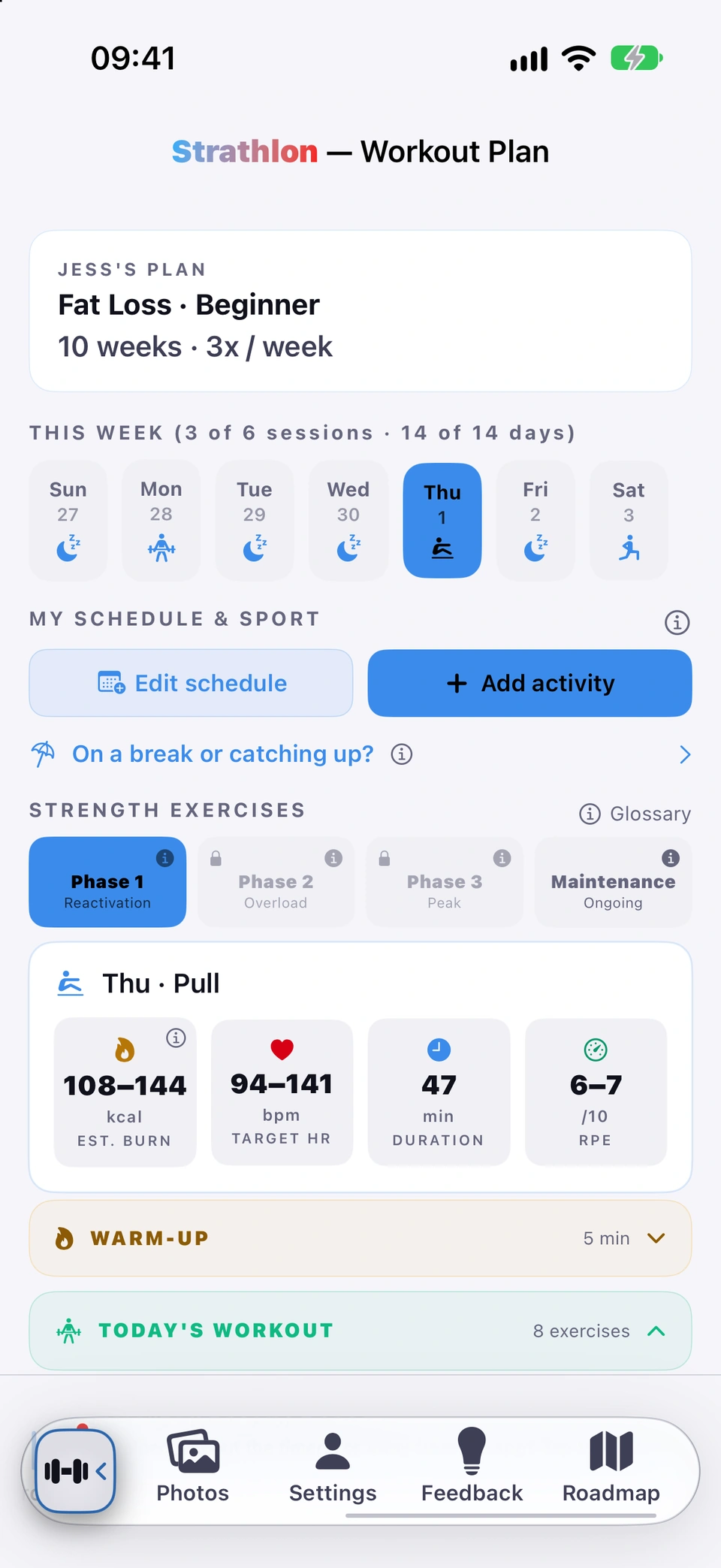
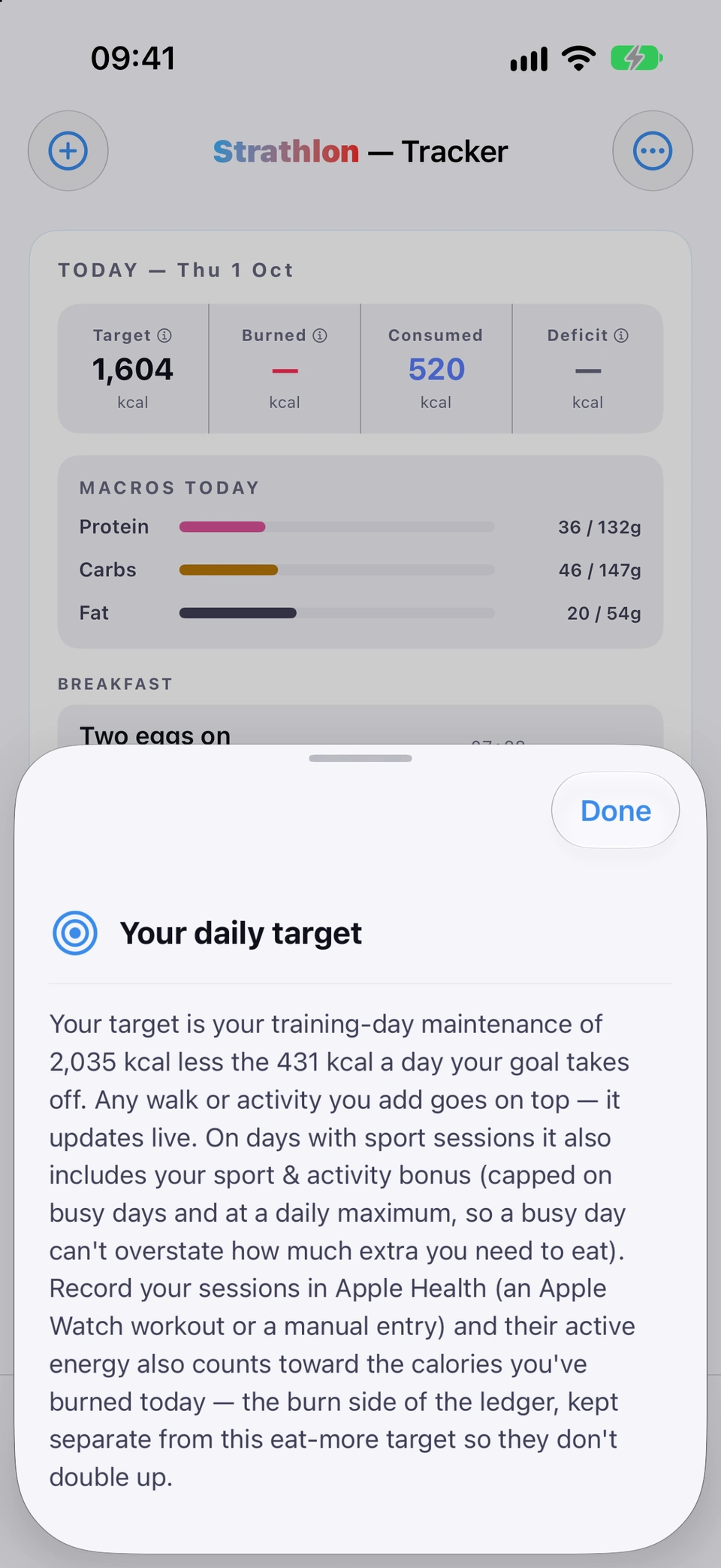
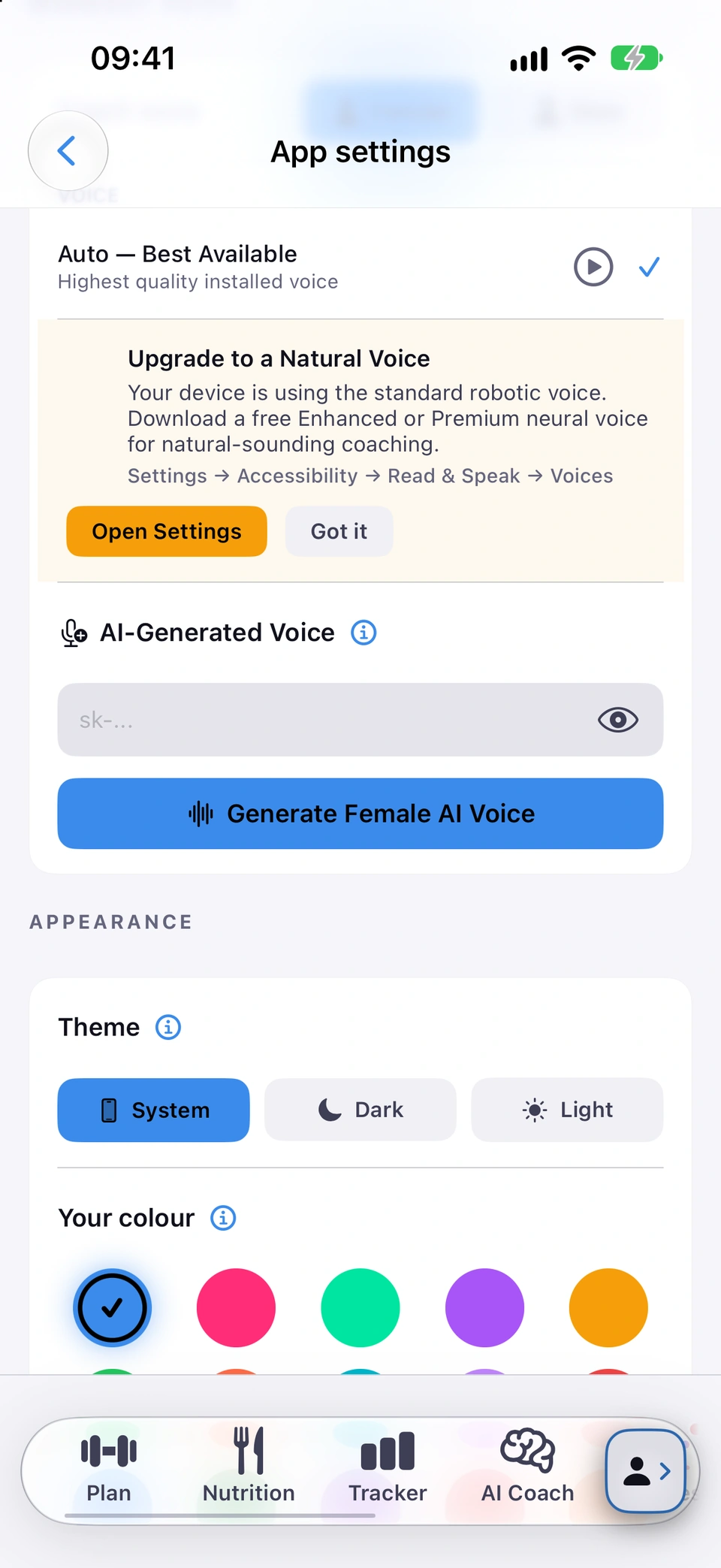
Nine tabs sit on a bar at the bottom that scrolls sideways to fit them all.
WhereBottom of every screen
What it is
The bottom tab bar holds nine destinations, in this order: Plan, Nutrition, Tracker, AI Coach, Progress, Photos, Settings, Feedback, Roadmap. It's wider than the screen, so it scrolls sideways.
Why it helps
Fits nine destinations on screen without cramming every icon in at once.
The scrolling tab bar.
How to use it
Swipe the bar sideways to reach tabs past the edge.
Tap any visible tab to switch to it.
Tips
The first time you scroll it, a hint shows the bar can move sideways — you'll only see that once per install.
Back-to-current-tab chip
When your current tab has scrolled out of view on the bar, a small chip at the end takes you back to it.
WhereTab bar›end chip
What it is
A small docked chip showing your current tab's icon, appearing at whichever end of the bar you've scrolled towards, with a chevron pointing back to it.
Why it helps
Lets you get back to the tab you're actually on without scrolling the bar back by hand.
How to use it
Tap the docked chip to return the bar to your current tab.
Tap a tab again to jump to the top
Tapping the tab you're already on scrolls that screen back to the top (and first backs out of anything you've drilled into).
WhereAny tab›tap its tab again
What it is
Tapping your current tab a second time scrolls its screen back to the top. If you've navigated deeper into that tab (for example opened a detail screen), the first tap instead backs you out to the tab's root — a second tap then scrolls to top.
Why it helps
A quick way back to the top of a long screen, matching the way iOS tab bars normally behave.
While a session is running and you're on another tab, a ribbon shows what's in progress — tap it to return.
WhereTop of other tabs during a session›Tap to return
What it is
A coloured ribbon reading Warm-up/HIIT/Workout in progress with Tap to return, shown at the top of other tabs while a warm-up, HIIT or strength session is running.
Why it helps
Lets you check something on another tab mid-session without losing your way back.
How to use it
Tap the ribbon to return straight to your session.
Good to know
Doesn't show on the Plan tab itself during a strength session — the Plan tab's own Start button already does that job there.
Small info buttons throughout the app open plain-English explainers for tiles, figures and settings — some link to fuller articles.
WhereNext to figures across the app
What it is
A small ⓘ next to a figure, tile or setting opens a short sheet explaining it, with an icon, a title and a paragraph. Some also carry a Read more in the user guide link to a fuller article on the website.
Why it helps
Explains what a figure or setting means, right where you see it, without leaving the screen.
Info buttons (ⓘ).
How to use it
Tap an ⓘ.
Tap Read more in the user guide if it's shown, or Done to close the sheet.