
- Home
- User guide
- Privacy, data & your subscription
Privacy, data & your subscription
What the AI coach is sent, your iCloud backups, exporting and resetting your data, the subscription, and sending feedback. Checked against build 266.
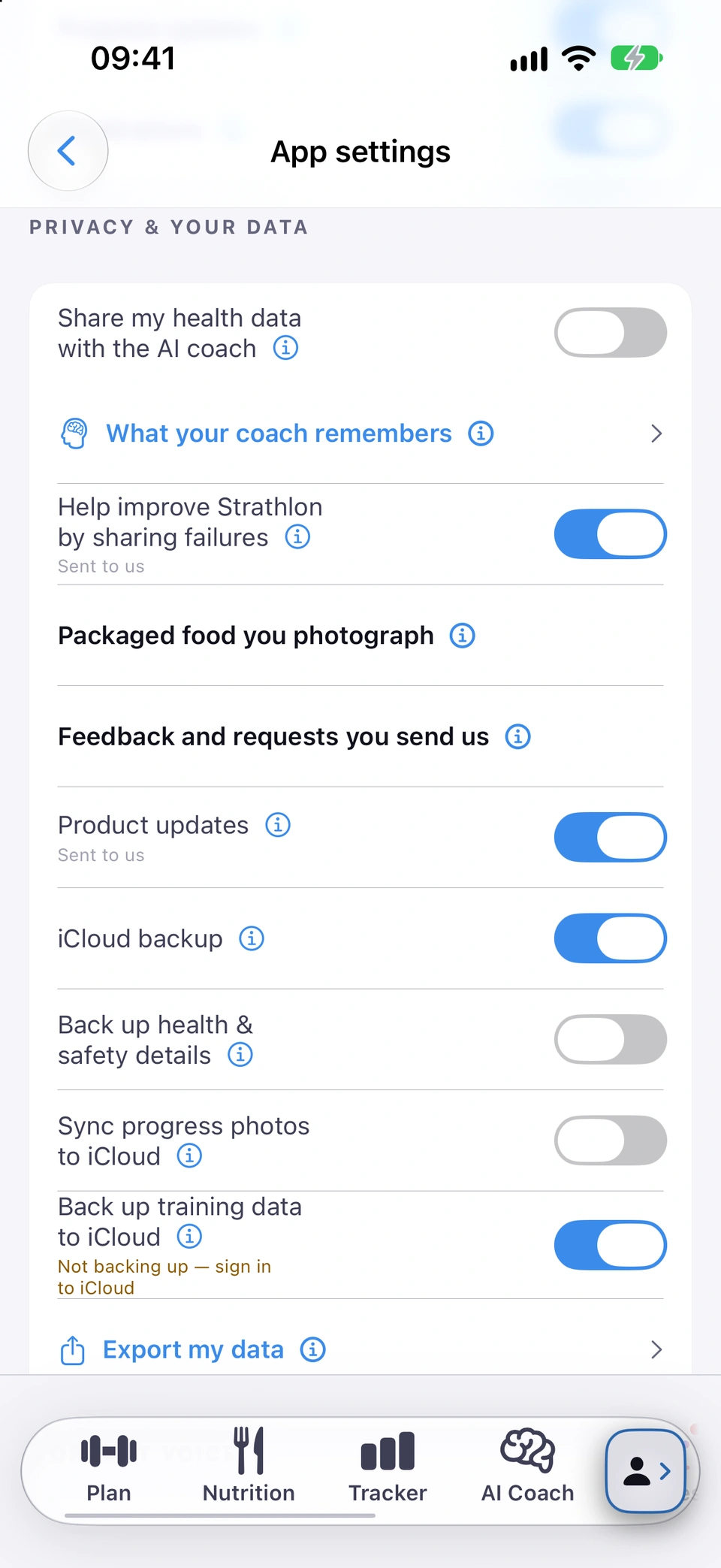
Share my health data with the AI coach
The switch, off by default, that decides whether your Apple Health figures (weight, sleep, heart rate and more) are sent to the AI coach.
WhereSettingsApp settingsPRIVACY & YOUR DATAShare my health data with the AI coach
What it is
Share my health data with the AI coach is the one switch that controls whether Apple Health figures — weight, resting heart rate, sleep, VO2 max, workouts and more — are sent to the AI coach.
Why it helps
Lets the coach give advice grounded in your actual health data (readiness, recovery, trends) rather than guessing, while keeping that sharing under one switch you control.
How to use it
- On Settings, tap App settings.
- Under PRIVACY & YOUR DATA, turn Share my health data with the AI coach on or off.
- Tap the ⓘ next to it to open What your AI coach can see for the full list of what's sent.
Good to know
- Whatever this switch says, the coach is sent the profile you set up: your name, age, sex and height, your goals, experience, training days, equipment and sports, any injuries, your food preferences and allergies, and your health & safety details, so its advice is safe for you.
- Your calorie targets for every day type also go with every message, including the floor your calories won't go below and how far below or above maintenance your daily target sits.
Updated in build 265 · What's new
↑ Back to topWhat your AI coach can see
The full list of everything the AI coach is sent, opened from the ⓘ on the health-sharing switch.
WhereSettingsApp settingsPRIVACY & YOUR DATAⓘ next to Share my health data with the AI coach
What it is
What your AI coach can see is a screen, opened from the ⓘ on the health-sharing switch, that lists everything the AI coach is sent, group by group: your Apple Health figures, the profile you typed in, your safety details and more.
Why it helps
It gives you the complete, specific picture behind the one switch: each entry says what is sent and when.
How to use it
- On Settings, tap App settings.
- Under PRIVACY & YOUR DATA, tap the ⓘ next to Share my health data with the AI coach to open What your AI coach can see.
Updated in build 266 · What's new
↑ Back to topiCloud backups
Four switches decide what Strathlon copies to your own iCloud: profile and tracker data, training history, safety details and photos.
WhereSettingsApp settingsPRIVACY & YOUR DATAiCloud backup
What it is
Under PRIVACY & YOUR DATA in App settings, iCloud backup and Back up training data to iCloud are on by default; Back up health & safety details and Sync progress photos to iCloud are off by default.
Why it helps
A reinstall or a new iPhone can restore your data from your own iCloud, while your most sensitive details stay out of the backup unless you choose to include them.
How to use it
- On Settings, tap App settings and scroll to PRIVACY & YOUR DATA.
- Leave iCloud backup on to back up your profile (details, goals, plan progress and food preferences) and your tracker data (daily totals, saved foods, breaks and meal plans).
- Leave Back up training data to iCloud on to back up your weigh-ins, lifting history and declared breaks.
- Turn on Back up health & safety details if you want those details in the backup too.
- Tap the ⓘ on any row to see exactly what it includes.
Good to know
- With Back up health & safety details off, those details are not in the backup, so a reinstall asks you to enter them again.
- These copies go only to your personal iCloud account, never to a Strathlon server and never to your AI coach.
- Anything Strathlon keeps on your phone is also part of your phone's own encrypted Apple backup, like every other app's data.
Updated in build 265 · What's new
↑ Back to topFailure reports
A switch, on by default, that sends Strathlon a short record of which step of the app failed, never anything you logged or typed.
WhereSettingsApp settingsPRIVACY & YOUR DATAHelp improve Strathlon by sharing failures
What it is
Help improve Strathlon by sharing failures sends Strathlon a short record when part of the app fails to do its job: which step failed, a short label naming the operation, one word for the kind of failure, the time and your build number. About once a day it also sends the same short record to say the reporting itself is still working.
Why it helps
Failures such as Apple Health refusing a read or your watch dropping out are hard to reproduce, and these records show what is breaking so it can be fixed.
How to use it
- On Settings, tap App settings.
- Under PRIVACY & YOUR DATA, turn Help improve Strathlon by sharing failures on or off.
- Tap its ⓘ, then What a failure report contains, to see exactly what is sent.
Good to know
- Turning it off also discards any report that is waiting to be sent.
Updated in build 248 · What's new
↑ Back to topWhat leaves your phone
Two rows without a switch explain what is sent only when you do something: a barcode you photograph and feedback you send.
WhereSettingsApp settingsPRIVACY & YOUR DATA
What it is
Alongside the switches under PRIVACY & YOUR DATA, Packaged food you photograph and Feedback and requests you send us explain two things that have no switch because they only happen when you act: your phone asks a public food database about a barcode in a food photo you take, and a feedback form you send goes to Strathlon's own database, with your email address if you choose to give one.
Why it helps
You can see every route your data can take, including the ones you can't switch off.
How to use it
- On Settings, tap App settings.
- Under PRIVACY & YOUR DATA, tap the ⓘ on Packaged food you photograph or Feedback and requests you send us to read exactly what is sent and to whom.
Good to know
- There is nothing to switch off: taking the photo or sending the form is what sends it.
Added in build 227 · What's new
↑ Back to topProgress photos stay private
A switch, off by default, that also copies your progress photos to your own private iCloud.
WhereSettingsApp settingsPRIVACY & YOUR DATASync progress photos to iCloud
What it is
Sync progress photos to iCloud copies your progress photos to your own private iCloud, so they appear on your other devices and restore on a new phone.
Why it helps
Your progress photos stay on this iPhone unless you choose otherwise; this switch adds a copy in your own iCloud.
How to use it
- On Settings, tap App settings.
- Under PRIVACY & YOUR DATA, turn Sync progress photos to iCloud on or off.
Good to know
- Strathlon never sends your progress photos to a Strathlon server, to the AI or into a data export, and copies them to iCloud only if you switch on Sync progress photos to iCloud.
- With the switch off, your photos are still part of your phone's own encrypted Apple backup, like your other app data, so a device restore brings them back.
- Turning the switch off asks whether to also delete the copies already stored in your private iCloud.
Added in build 33 · What's new
↑ Back to topExport my data
Download a CSV and JSON copy of your data, reachable from the Settings root and from Reset & Data.
WhereSettingsExport my data
What it is
Export my data generates a shareable CSV and JSON copy of your data and opens the share sheet so you can save or send it.
Why it helps
Gives you a portable copy of your own data, and it's the safety net offered right before any clearing or deletion.
How to use it
- On Settings, tap Export my data.
- Choose where to save or send the files from the share sheet.
Good to know
- Strathlon doesn't keep a copy of an export on your phone once you've saved or shared it.
Added in build 259 · What's new
↑ Back to topReset & Data
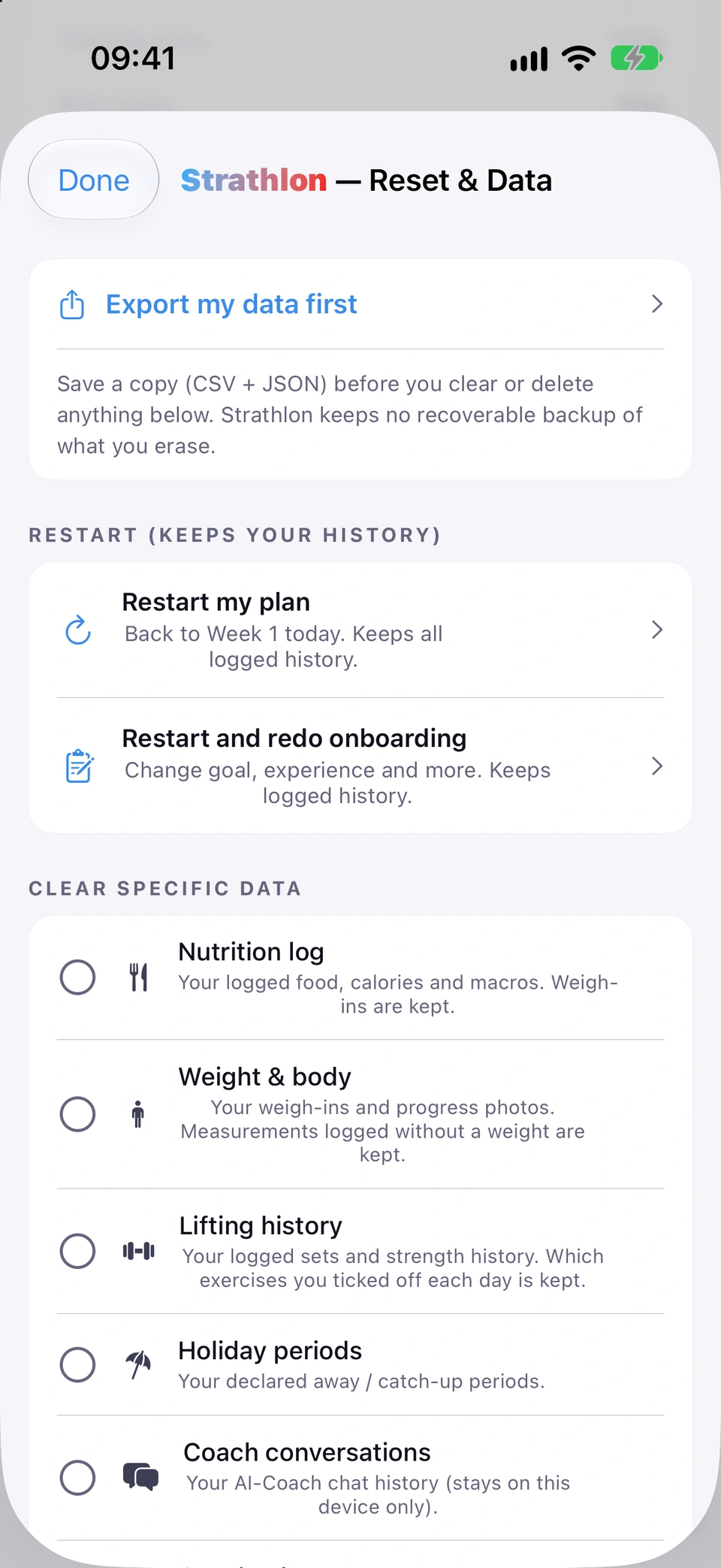
One screen with three tiers — restart your plan, clear specific data, or delete everything — each clearly separated by how much it removes.
WhereSettingsReset & Data
What it is
Reset & Data is one screen with three tiers: restart (which keeps your logged history), clear specific data, and delete everything.
Why it helps
Separating these into clearly labelled tiers means you can't reach for a full wipe by mistake when you only meant to restart your plan.
How to use it
- On Settings, tap Reset & Data.
- Choose how much to remove: Restart my plan or Restart and redo onboarding under RESTART, Clear specific data, or Delete everything.
Export before you erase
A safety net offered right at the top of Reset & Data — export a copy before you clear or delete anything.
WhereSettingsReset & DataExport my data first
What it is
Export my data first sits at the top of the Reset & Data screen, offering a CSV + JSON export before you clear or delete anything below it.
Why it helps
Strathlon keeps no recoverable backup of what you erase, so this is offered as the last chance to keep a copy.
How to use it
- On Settings, open Reset & Data.
- Tap Export my data first before using any of the tiers below it.
Good to know
- If there's nothing logged yet, the card says so rather than producing an empty export.
Added in build 153 · What's new
↑ Back to topRestart my plan
Go back to Week 1 today, keeping all your logged history.
WhereSettingsReset & DataRestart my plan
What it is
Restart my plan takes your training back to Week 1 starting today, without touching your logged history.
Why it helps
Useful after a long break or a change in circumstances, when you want your plan's phases to start over without losing what you've already tracked.
How to use it
- On Settings, open Reset & Data.
- Tap Restart my plan and confirm.
Tips
- Your progress re-anchors to the weight you restart at.
Updated in build 242 · What's new
↑ Back to topClear specific data
Pick exactly which buckets of data to erase, with every bucket off by default.
WhereSettingsReset & DataCLEAR SPECIFIC DATA
What it is
CLEAR SPECIFIC DATA lets you select individual buckets of data to erase — everything defaults to off, so you choose exactly what goes.
Why it helps
Gives fine control when you want to clear, say, food logs without touching your training history or profile.
How to use it
- On Settings, open Reset & Data.
- Tap each bucket you want to include under CLEAR SPECIFIC DATA.
- Tap Clear selected data and confirm.
Good to know
- Each selected bucket is erased both on this device and in your private iCloud.
- Nutrition log clears the food you logged in Strathlon. Food Strathlon already saved to Apple Health stays there.
Added in build 153 · Updated in build 268 · What's new
↑ Back to topDelete everything
Permanently erase all your data on this device and your iCloud backup, then restart onboarding — typing DELETE required.
WhereSettingsReset & DataDELETE EVERYTHING
What it is
Delete everything permanently erases all your Strathlon data on this device and your iCloud backup, then restarts onboarding. It requires typing DELETE to confirm before the button is active.
Why it helps
A full, deliberate reset for starting completely over, guarded by a typed confirmation so it can't happen by a stray tap.
How to use it
- On Settings, open Reset & Data.
- Scroll to DELETE EVERYTHING and type DELETE in the field.
- Tap Delete everything and confirm.
Good to know
- This cannot be undone. Workouts and food Strathlon saved to Apple Health stay in Apple's Health app, and so do any weigh-ins Health holds, so your weight chart fills back in from Health. Weigh-ins you typed into Strathlon are deleted for good.
- To remove something from Apple Health itself, delete it in the Health app.
Updated in build 268 · What's new
↑ Back to topStrathlon AI subscription
The upgrade screen — what the subscription unlocks, monthly or annual plans, and the purchase button.
WhereSettingsSTRATHLON AIUnlock AI features
What it is
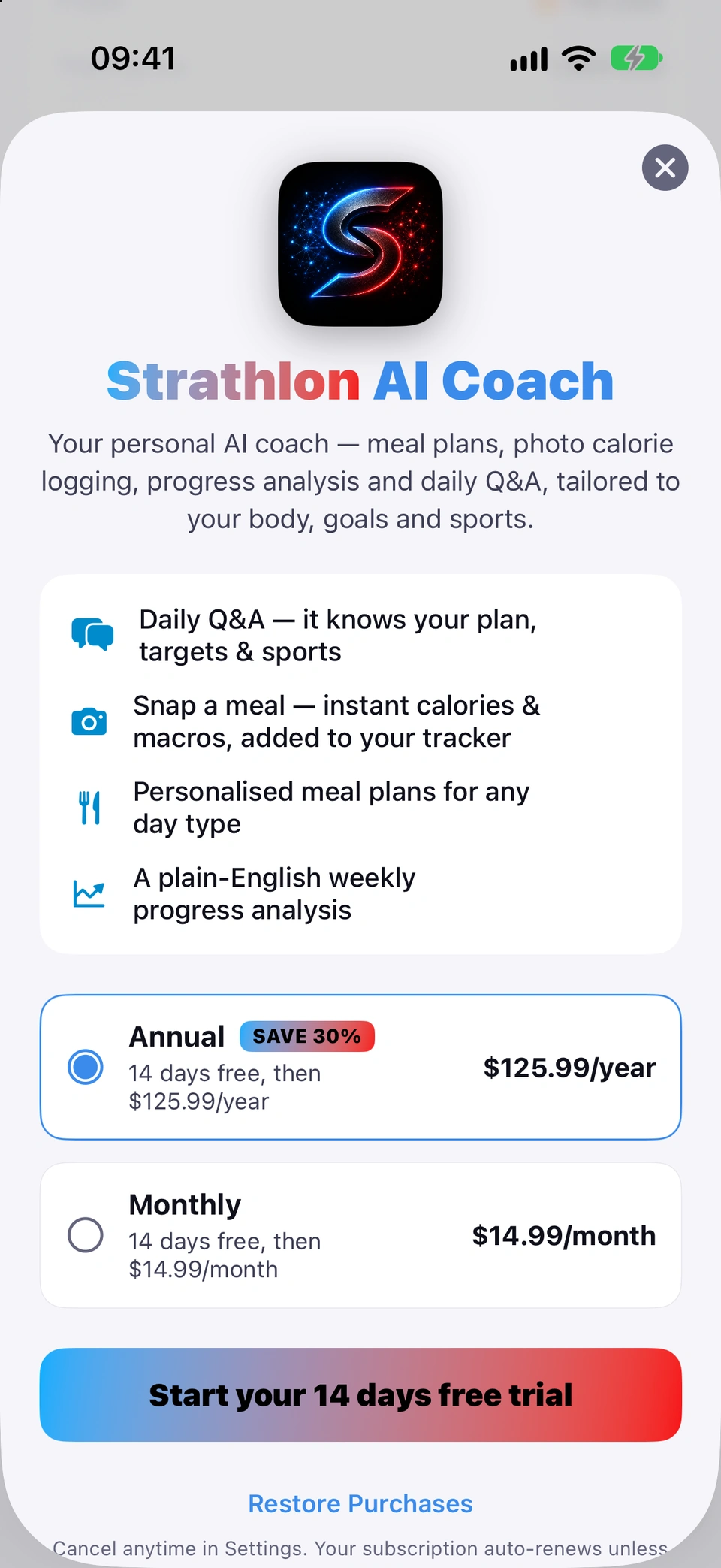
The Strathlon AI Coach screen lists what the subscription unlocks — daily Q&A, photo meal logging, personalised meal plans and a weekly progress analysis — with monthly and annual plan cards to choose from.
Why it helps
This is where you subscribe to unlock the AI coach's features.
How to use it
- On Settings, under STRATHLON AI, tap Unlock AI features, or tap any locked AI coach prompt.
- Choose Annual or Monthly.
- Tap the purchase button and confirm the payment with Apple.
When your subscription is being confirmed
A quiet status row shown on the AI Coach tab while your subscription can't yet be confirmed, with a Re-check button.
WhereAI Coach tabConfirming your subscription
What it is
Confirming your subscription is a quiet status row on the AI Coach tab shown when Strathlon cannot yet confirm your subscription is active, with a Re-check button (and, if a period looks ended, a Resubscribe button).
Why it helps
If Apple's confirmation is delayed (for example after restoring on a new device or coming back online), your access stays open for a short window rather than being cut off immediately, and this row tells you honestly what's happening.
How to use it
- On the AI Coach tab, if you see Confirming your subscription, tap Re-check to ask again.
- If Resubscribe appears instead, tap it to reopen the subscription screen.
Good to know
- It's a temporary state: your access stays open while Strathlon waits for Apple to confirm your subscription.
Restore Purchases
Restore a subscription you already bought, for example after a reinstall or on a new device.
WhereSettingsSTRATHLON AIUnlock AI featuresRestore Purchases
What it is
Restore Purchases, on the upgrade screen, restores a subscription already bought on your Apple ID.
Why it helps
Needed after reinstalling the app or setting up a new device, so you don't pay twice for a subscription you already hold.
How to use it
- On Settings, under STRATHLON AI, tap Unlock AI features.
- Tap Restore Purchases at the bottom of the upgrade screen.
Manage subscription
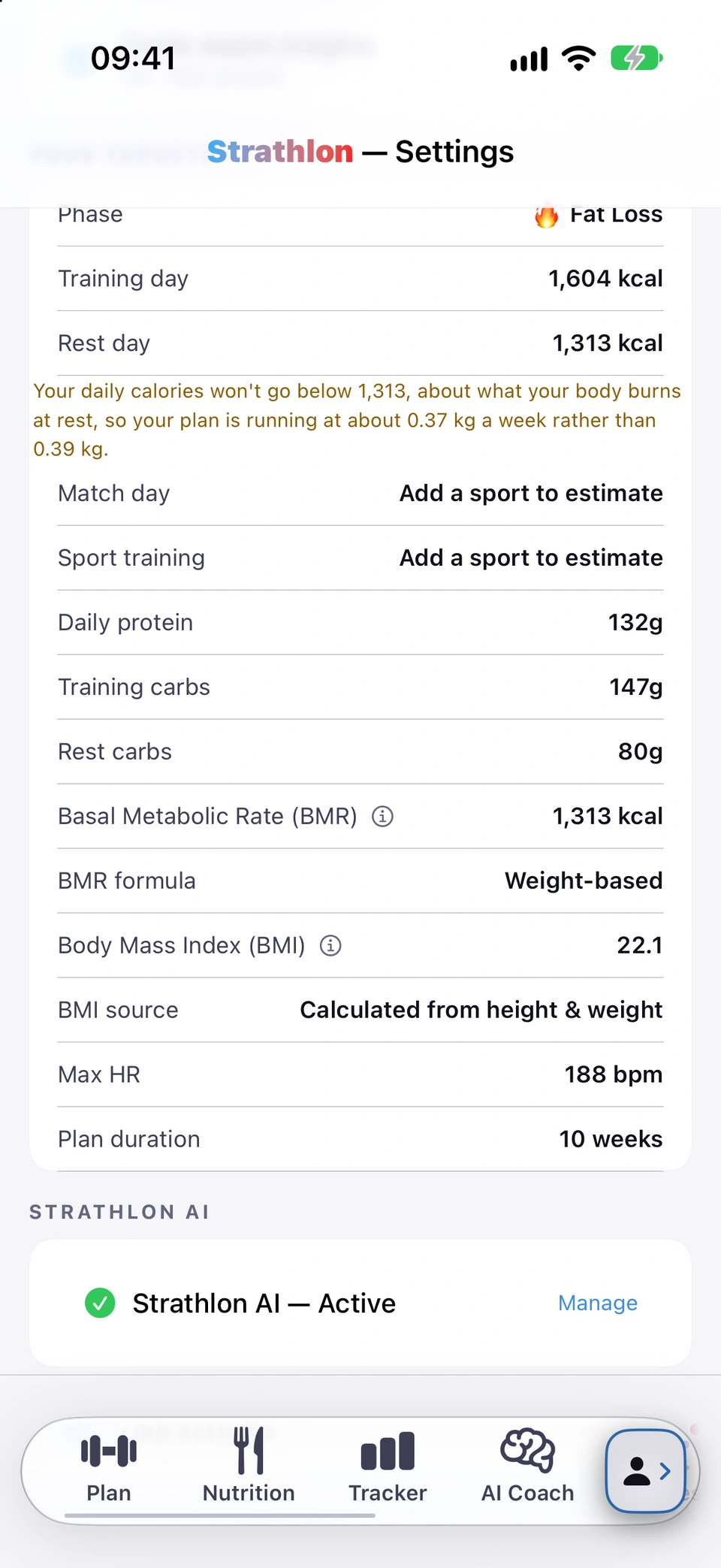
A status card on the Settings root — Active, confirming, or none — with a Manage button through to the App Store.
WhereSettingsSTRATHLON AIManage
What it is
A status card near the bottom of Settings shows your subscription state — Strathlon AI — Active, Strathlon AI — confirming, or none — with a Manage button that opens Apple's own subscription management.
Why it helps
This is the app's one authoritative statement about your billing status, and the fastest route to changing or cancelling it through Apple.
How to use it
- On Settings, find the subscription status card.
- Tap Manage to open Apple's subscription management.
Updated in build 218 · What's new
↑ Back to topFree trial when eligible
The upgrade screen offers a free trial only to a customer Apple confirms is actually eligible for one.
WhereSettingsSTRATHLON AIUnlock AI features
What it is
The purchase button on the upgrade screen states a free trial only when Apple's own eligibility check confirms this Apple ID is eligible for an introductory offer.
Why it helps
Avoids offering a trial to someone who has already had one (or isn't eligible for another reason), which the App Store wouldn't honour anyway.
How to use it
- On Settings, under STRATHLON AI, tap Unlock AI features. If Apple says you're eligible, the purchase button mentions the free trial; if not, it doesn't.
Good to know
- Eligibility is Apple's own answer, asked fresh each time the upgrade screen loads; Strathlon does not decide it.
Updated in build 258 · What's new
↑ Back to topFeedback
Send a feature idea, an improvement suggestion, a bug report or something else, from its own tab.
WhereFeedback tab
What it is
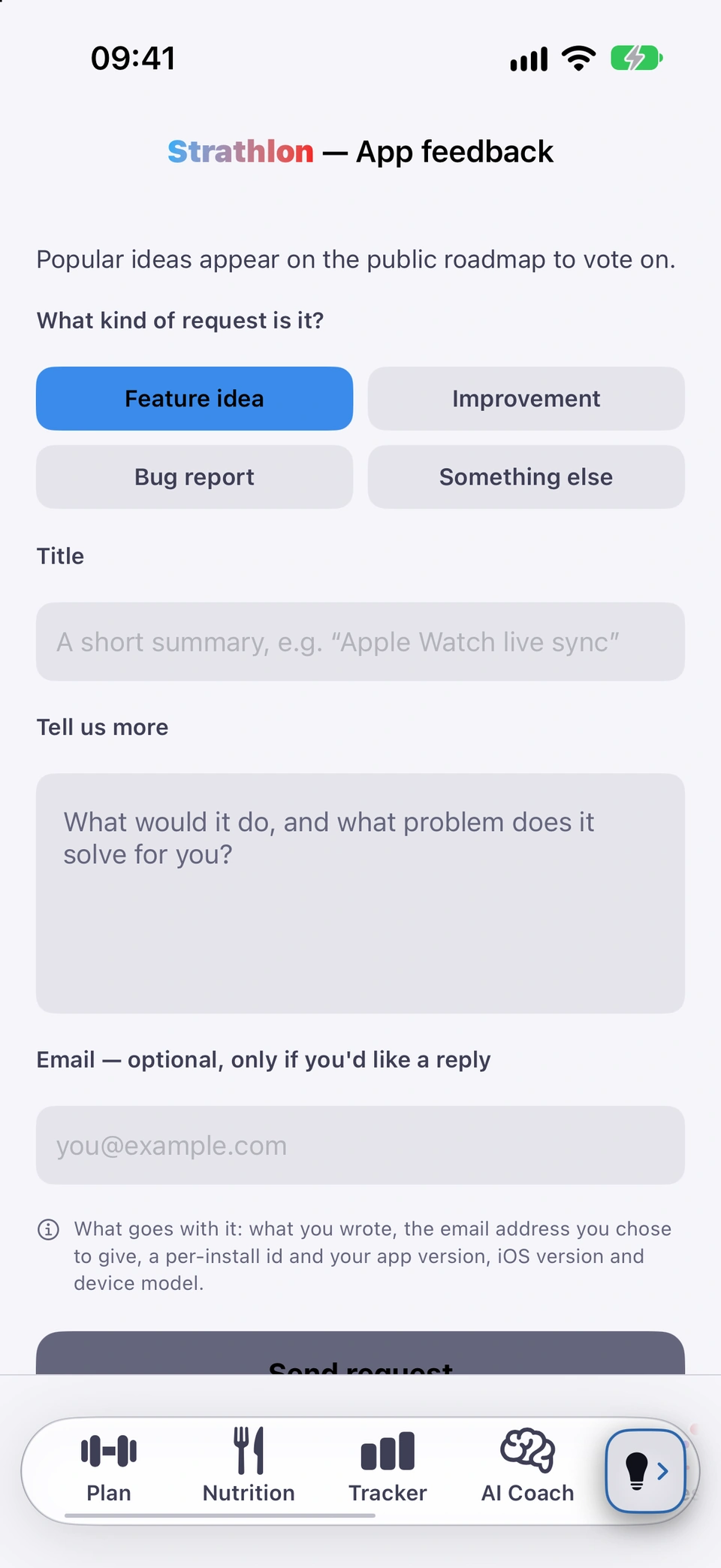
The Feedback tab is a short form — pick a type (Feature idea, Improvement, Bug report, Something else), write a title and details, and optionally leave an email.
Why it helps
The most direct way to reach Strathlon with an idea or a problem, and it's how roadmap items get proposed.
How to use it
- Open the Feedback tab.
- Choose a type: Feature idea, Improvement, Bug report or Something else.
- Fill in a title and details (at least three characters each) and, if you like, your email.
- Tap Send request.
Updated in build 241 · What's new
↑ Back to topRoadmap
A public, votable roadmap of feature requests, shown in its own tab.
WhereRoadmap tab
What it is
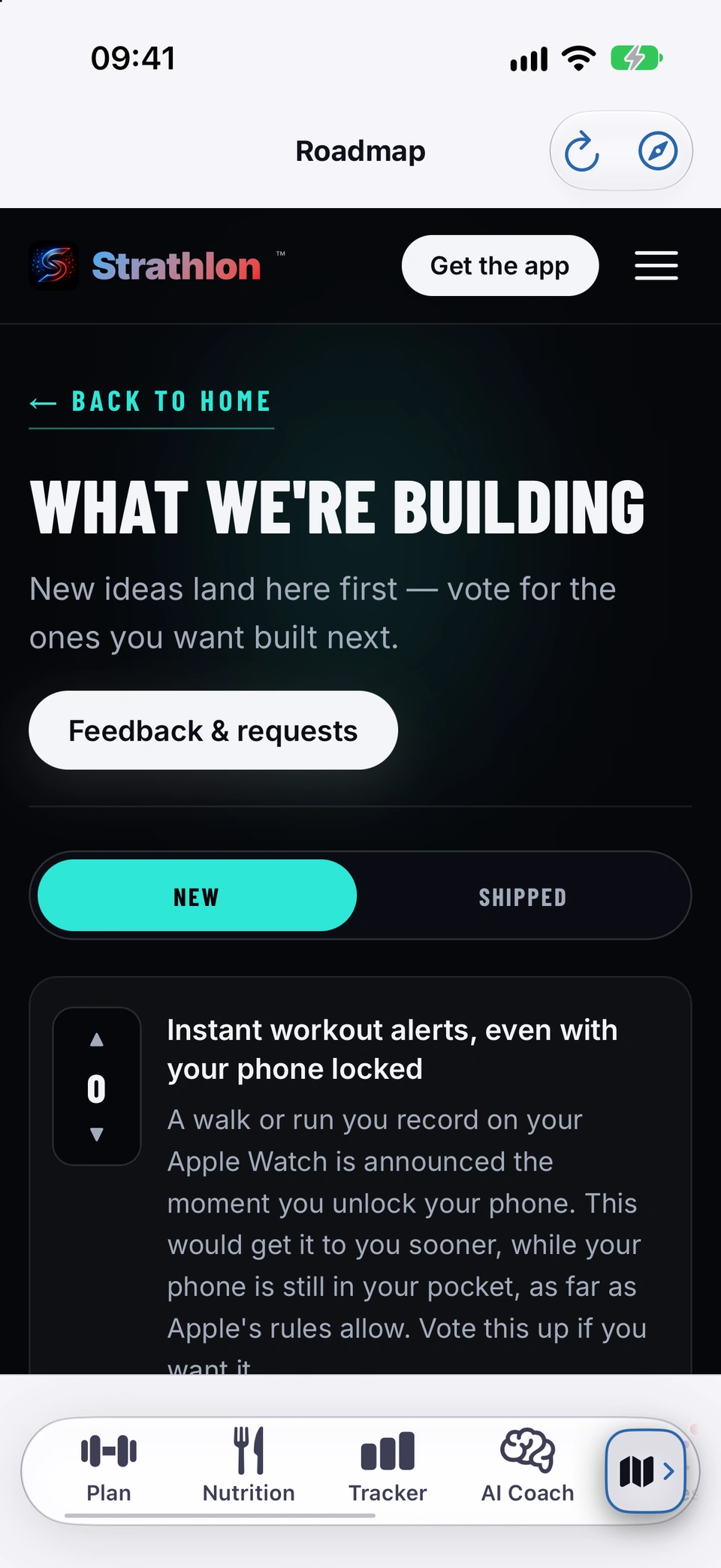
The Roadmap tab shows a public page of proposed features you can browse and vote on, with Back, Reload and Open in Safari controls.
Why it helps
Lets you see what's being considered and add your voice to what should be built next.
How to use it
- Open the Roadmap tab to browse and vote on proposed features.
Added in build 30 · What's new
↑ Back to top