
- Home
- User guide
- Your first days
Your first days
Consents, the tour, restoring and your starting point. Checked against build 266.
Meet your AI coach screen
After setup, if you're not already subscribed, Strathlon offers the AI coach once — with an easy way to skip.
WhereSetupendMeet your personal AI coach
What it is
A one-time screen shown right after 'Start Strathlon', to non-subscribers only. It explains what the AI coach does — chat that knows your plan, photo calorie logging, personalised meal plans, and weekly progress analysis — with a button that opens the subscription screen, and Maybe later to skip.
Why it helps
Lets you see what the AI coach offers before deciding whether to subscribe.
How to use it
- Read what the coach does.
- Tap the button to open the subscription screen, or tap Maybe later to continue into the app without it.
Good to know
- Only shown to non-subscribers — if you're already subscribed, onboarding skips straight past this screen.
- Skipping it doesn't block anything else; you reach the app either way.
Starting fresh or continuing a programme
Asks whether you're starting new or continuing a programme, and if so how many weeks ago, so you resume at the right week and phase.
WhereSetupOne last thing — where are you starting?
What it is
A one-time screen, shown only when Strathlon finds no existing programme start date (a genuine first run, or a reinstall with iCloud off/unavailable). Choose Starting fresh (begin at Week 1) or Continuing my programme and say how many weeks ago you started.
Why it helps
Lets a returning user who reinstalled without iCloud still resume their programme at the right week and phase, rather than restarting from Week 1.
How to use it
- Choose Starting fresh or Continuing my programme.
- If continuing, use − / + to set how many weeks ago you started.
- Tap Resume my programme or Start fresh.
Good to know
- This screen only appears once — either choice means it won't ask again.
- It only appears when Strathlon has no programme start date to fall back on (typically a reinstall without iCloud).
Share health data with the coach (consent)
Asks once whether the AI coach may see your Apple Health figures — off unless you choose 'Enable & continue', and changeable later.
WhereSetupShare your health data with your AI coach?
What it is
A one-time, un-numbered screen after the numbered setup steps. It asks whether the AI coach may see Apple-Health-derived body measurements — weight, body composition, calorie burn, heart rate, cardio fitness, sleep, weight history and readiness. Off by default.
Why it helps
Your coach gives much better advice when it can see your real sleep, activity, weight and heart rate, so its targets, recovery tips and progress reads are about you, not an average.
How to use it
- Read what's shared and what's shared either way.
- Tap Enable & continue to turn it on, or Not now to keep it off.
Good to know
- Your health & safety details (allergies, pregnancy, conditions, medications), your calorie targets, and any flags from the readiness or relationship-with-food questions always reach your coach regardless of this switch — it only governs Apple-Health-derived figures and figures worked out from them.
- You can change this anytime in Settings.
Updated in build 227 · What's new
↑ Back to topNotifications permission
Explains the daily tip, nightly wind-down and Progress notifications, then asks iOS permission once.
WhereSetupStay on track with a few well-timed reminders?
What it is
A one-time screen explaining three notification channels — a daily tip each morning, a nightly wind-down reminder, and Progress notifications (your weekly review, readiness, a workout landing in Apple Health, a streak, a new working weight) — then fires the iOS permission prompt.
Why it helps
Lets you understand what you're agreeing to before the one-shot iOS permission prompt appears (iOS never re-shows its own prompt once you've answered it).
How to use it
- Read the three notification types listed.
- Tap Enable notifications to answer the iOS prompt, or Not now to skip it.
Tips
- All three are on by default (in-app), and each can be turned off on its own anytime in Settings — enabling here just decides whether iOS is allowed to actually deliver them.
Good to know
- This is the only chance to trigger the iOS system prompt directly from onboarding — decline it here and you'll need to grant notification access from iOS Settings, or wait for the one-time re-ask (see Notification re-ask for existing users).
Notification re-ask for existing users
If your notification features are on but iOS was never actually asked, you'll see the same permission screen again once, later.
WhereAnywhereapp foregroundsheet
What it is
The identical onboarding notifications screen, shown once as a sheet to an existing user whose OS notification permission was never actually determined — for example an upgrader who set up the app before this screen existed.
Why it helps
Gives existing users the same chance to grant notification permission that a new setup gets, without repeatedly nagging.
When it happens
On a later app open, if you've completed setup, your notification features (daily tip or bedtime reminder) are switched on, iOS reports your notification permission as not yet determined, and you haven't already seen this re-ask.
Good to know
- Shown at most once per install — answering it either way (or dismissing it) marks it as seen.
Failure reports choice
Asks whether the app may send short reports when something inside it fails — on by default, with an easy 'No thanks' to turn it off.
WhereSetupHelp improve Strathlon by sharing failures?
What it is
A one-time screen asking whether Strathlon may record and send a short note when a step inside the app fails (for example Apple Health refusing a read, or your watch dropping out) — a step name, one word for why, a time and a build number. On by default.
Why it helps
Helps identify and fix failures inside the app.
How to use it
- Read what's in a failure report.
- Tap Keep sharing failures to leave it on, or No thanks to turn it off.
Good to know
- Nothing in a failure report is about you — no name, no account, no device id, nothing you've logged or typed, and nothing Apple Health holds.
- Turning it off stops Strathlon recording these reports at all, not just sending them.
- You can change this anytime in Settings.
Added in build 240 · What's new
↑ Back to topGuided tour
A short interactive tour spotlights real controls one at a time: your plan, a session, Apple Watch, the AI coach, targets, tips and photos.
WhereFirst open after setupor Take the tour
What it is
An automatic, interactive tour that runs the first time you open the app after setup. Each step spotlights a real control with a short explanation; some steps ask you to actually tap the spotlit control to advance.
Why it helps
Shows off the app's real controls hands-on, so you remember them, rather than just reading about them.
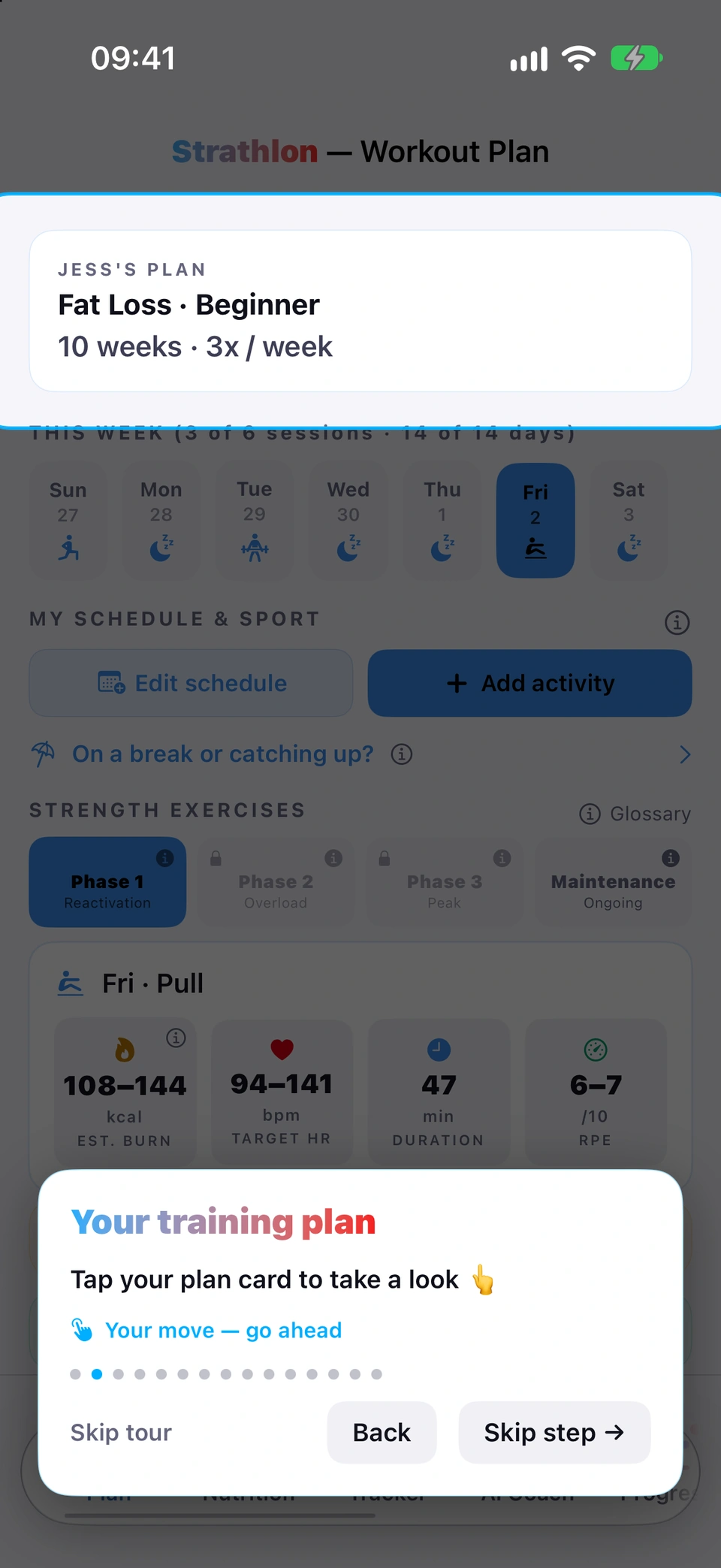
When it happens
Automatically, the first time you open the app after finishing setup. You can also start it again anytime (see Replay the tour) or from the Take-the-tour hint banner.
How to use it
- Follow each step's card — some just explain, some ask you to tap the spotlit control.
- Tap Skip step → to skip a single interactive step, or Skip tour (always available) to leave the whole tour early.
Tips
- A persistent Skip tour control is always available, so you can never get stuck partway through.
Take-the-tour hint
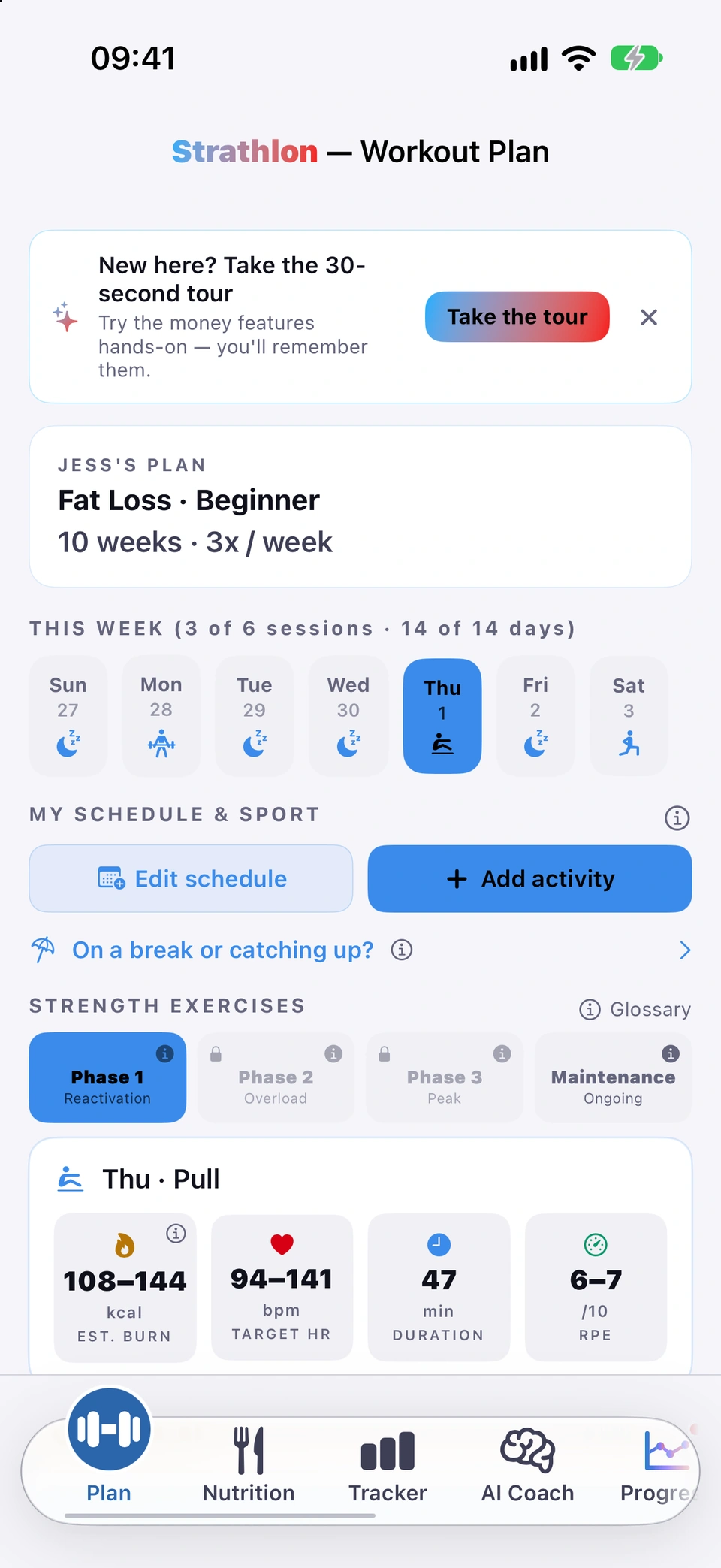
A dismissible banner on the Plan tab offering a second way back into the tour, for anyone who skipped or already finished it.
WherePlantop of the tab
What it is
A small banner reading New here? Take the 30-second tour with a Take the tour button and a close (×) to dismiss it.
Why it helps
Gives a second, obvious way back into the tour if you skipped it or want to see it again, without repeatedly nagging you.
How to use it
- Tap Take the tour to start it, or the × to dismiss the banner.
Good to know
- Only shows once you've already completed or skipped the tour, and only until you dismiss it — a future tour update can bring it back once.
Updated in build 246 · What's new
↑ Back to topReplay the tour
Runs the guided tour again whenever you like, from Settings.
WhereSettingsReplay App Tour
What it is
A row in Settings that restarts the interactive guided tour from the beginning.
Why it helps
Lets you revisit the tour anytime, not just around setup.
How to use it
- On the Settings tab, tap Replay App Tour.
Coach demo
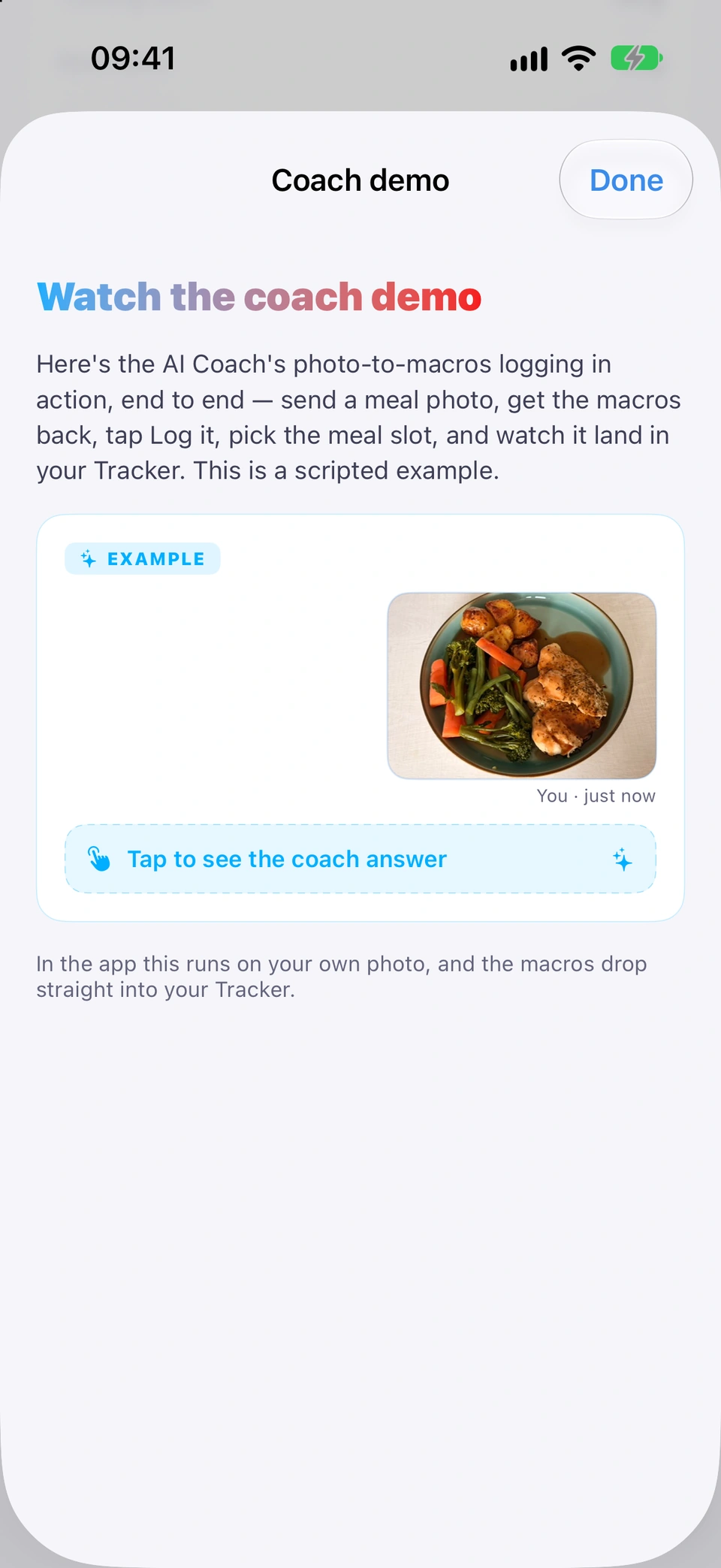
A scripted, example-only walkthrough of logging a meal from a photo with the AI coach — nothing is actually logged.
WhereSettingsWatch the coach demo
What it is
A standalone, replayable demo (also embedded as one step of the guided tour) that walks through sending a meal photo, the coach reading back macros, and logging it — entirely scripted, using no real camera, AI call or network request.
Why it helps
Shows exactly how photo-based meal logging works, safely, without needing a real subscription or a real photo.
How to use it
- On the Settings tab, tap Watch the coach demo.
- Tap through the scripted exchange to see how a photo becomes a logged meal.
Good to know
- Entirely scripted — no real photo is analysed and nothing is logged to your Tracker.
Added in build 245 · What's new
↑ Back to topRestore from iCloud after reinstall
If a backup is found in your own iCloud, 'Welcome back' offers to restore your profile, progress, weights and meal plans — or start fresh.
WhereFirst launch on a new or reinstalled phoneWelcome back to Strathlon
What it is
On first launch after a reinstall, if Strathlon finds a backup in your own iCloud, a 'Welcome back to Strathlon' screen offers Restore my data (brings back your profile, plan progress, logged weights and daily totals, saved meal plans, schedule and breaks) or Start fresh.
Why it helps
Saves you setting the app up again from scratch after a reinstall or a new phone.
How to use it
- Read the summary of what was found and when it was last backed up.
- Tap Restore my data to bring everything back, or Start fresh to set up as a new user.
Good to know
- Health & safety details (allergies, injuries, conditions, medications) aren't included in this backup by default — see Re-enter health & safety details after restore.
- The restore is fills-empty-only: it never overwrites data already present on the device.
Re-enter health & safety details after restore
Health & safety details aren't in the iCloud backup by default, so a restore tells you upfront you'll need to re-enter them.
WhereRestore screenamber warning
What it is
When the iCloud backup you're restoring doesn't include your health & safety details (allergies, injuries, conditions, medications), the restore screen says so clearly, before you tap Restore.
Why it helps
Tells you upfront rather than letting you find out later — for example by being served a meal containing an allergen you'd already told the app about on your old phone.
How to use it
- Read the warning if it appears, then continue with Restore my data — you'll be asked to re-enter these details afterwards.
Good to know
- This is because backing up health & safety details is off by default — it's a separate, opt-in switch (Settings → 'Back up health & safety details').
Added in build 146 · What's new
↑ Back to topNo account needed
There's no sign-up or password — your profile and history live on your phone, with optional iCloud backup.
WhereApp-wide
What it is
Strathlon has no sign-up flow and no password. Your profile, logs and full history live on your device.
Why it helps
Nothing to remember and nothing to lose to a forgotten password.
When it happens
Always true — there's no screen to look at, because there's no account to create anywhere in the app.
Good to know
- Your private iCloud backup is optional but on by default (see Restore from iCloud after reinstall) — it's how your data survives a reinstall without an account to sign back into.