Workouts from other apps, sleep, resting heart rate, Apple Health. Checked against build 266.
Resting heart rate and Cardio fitness
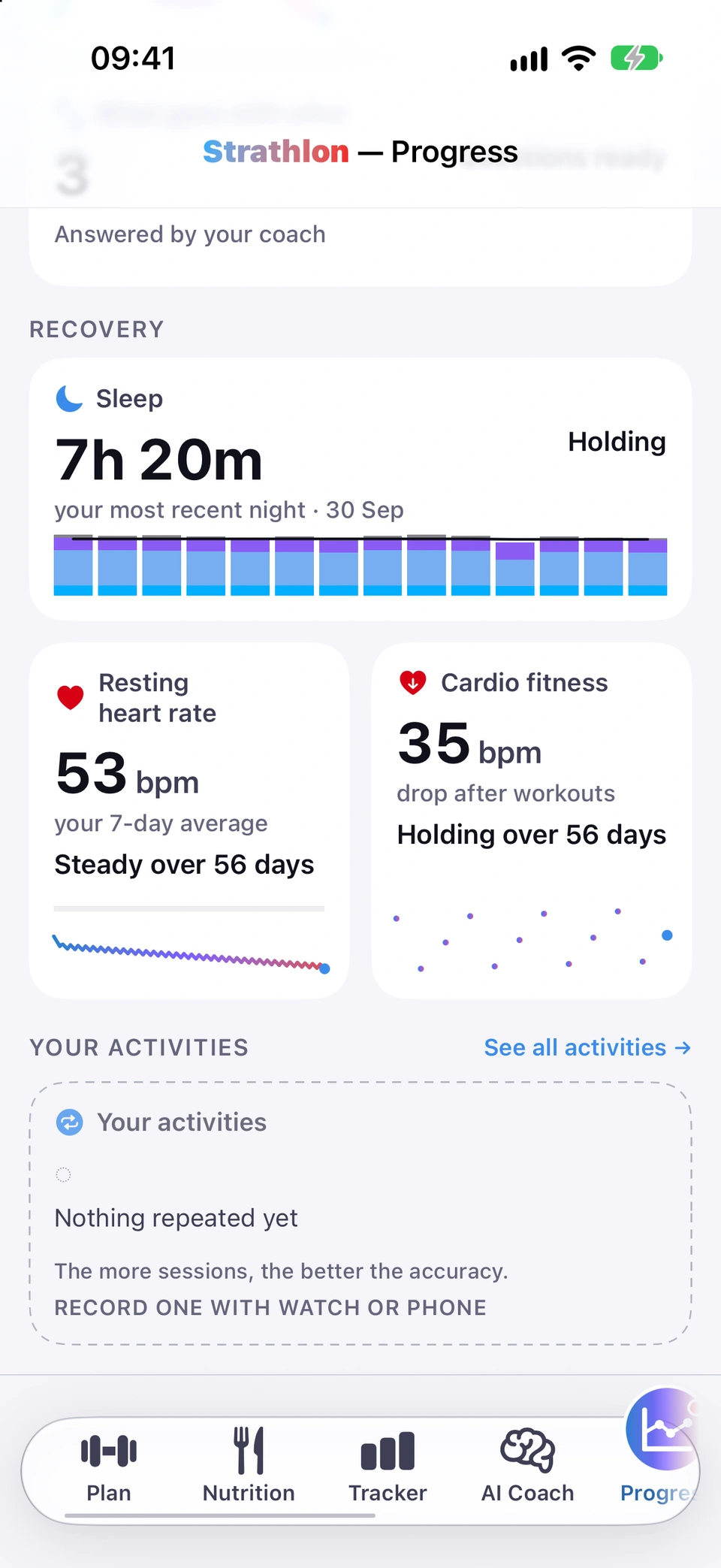
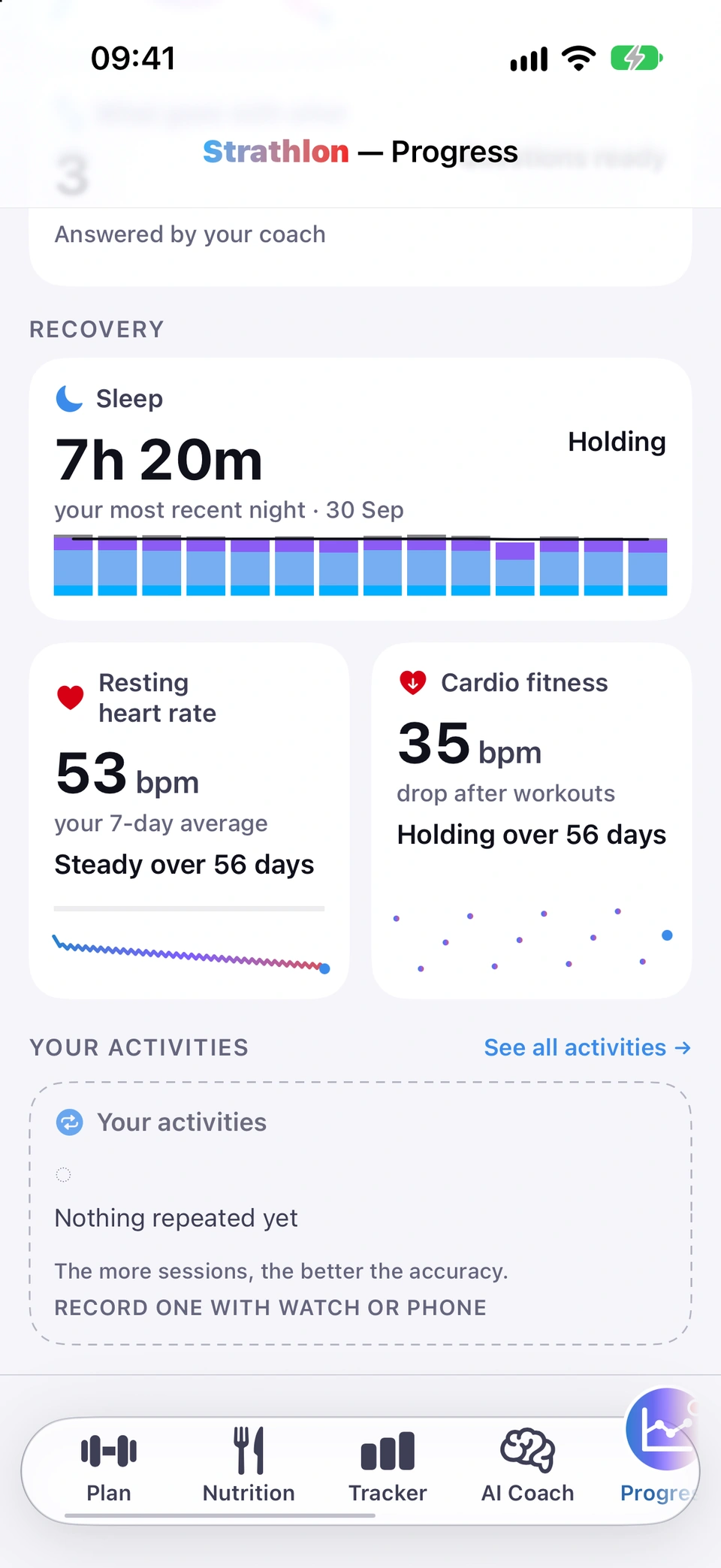
Two tiles under Recovery: your resting heart rate against your own average, and how fast your heart rate recovers after training.
Uses Apple Health
WhereProgress›Recovery
What it is
Resting heart rate shows your 7-day average in bpm against your own trend, from Apple Health. Cardio fitness shows the drop in your heart rate in the minute after workouts, also against your own trend.
Why it helps
Both track how your body is coping over time — a rising resting heart rate or a shrinking recovery drop can be an early sign you need more rest, before it shows up anywhere else.
Two recovery signals, each against your own trend.
Neither tile grades you against anyone else — every verdict compares only against your own average, never a population figure.
When the newest reading behind either tile is more than two weeks old, the tile and its chart name the reading's date, for example Latest reading 9 Aug, so you can see how fresh the figure is.
Good to know
Reads No readings yet until Apple Health has enough of the underlying measurements.
Your own blood-pressure readings from Apple Health, averaged and compared with the 30 days before.
Uses Apple Health
WhereProgress›Recovery›Blood pressure
What it is
The Blood pressure tile shows the average of the blood-pressure readings in Apple Health, from a cuff that saves to Apple Health or readings you add yourself, alongside how it compares with the 30 days before.
Why it helps
It shows how your own readings move over the weeks, next to your training and weight. Strathlon shows your numbers as they are, and a clinician is the right person to say what they mean.
How to use it
Allow Strathlon to read blood pressure when Apple's Health sheet asks, or later in Settings > Privacy & Security > Health > Strathlon.
Open the Progress tab and scroll to Recovery. Blood pressure sits after Cardio fitness once Apple Health holds a recent reading.
Tips
Your week adds Avg blood pressure for the period when it holds readings, next to your Move ring, Stand hours, Mindful minutes and Flights climbed.
Good to know
The comparison with the 30 days before appears once both periods hold enough readings; until then the tile says Your trend builds as you add readings.
Readings come from a cuff that saves to Apple Health or from ones you add in the Health app.
Every workout Apple Health has for you, Strathlon's own and from other apps, with trend comparisons for the ones you repeat.
Uses Apple Health
WhereProgress›Your activities
What it is
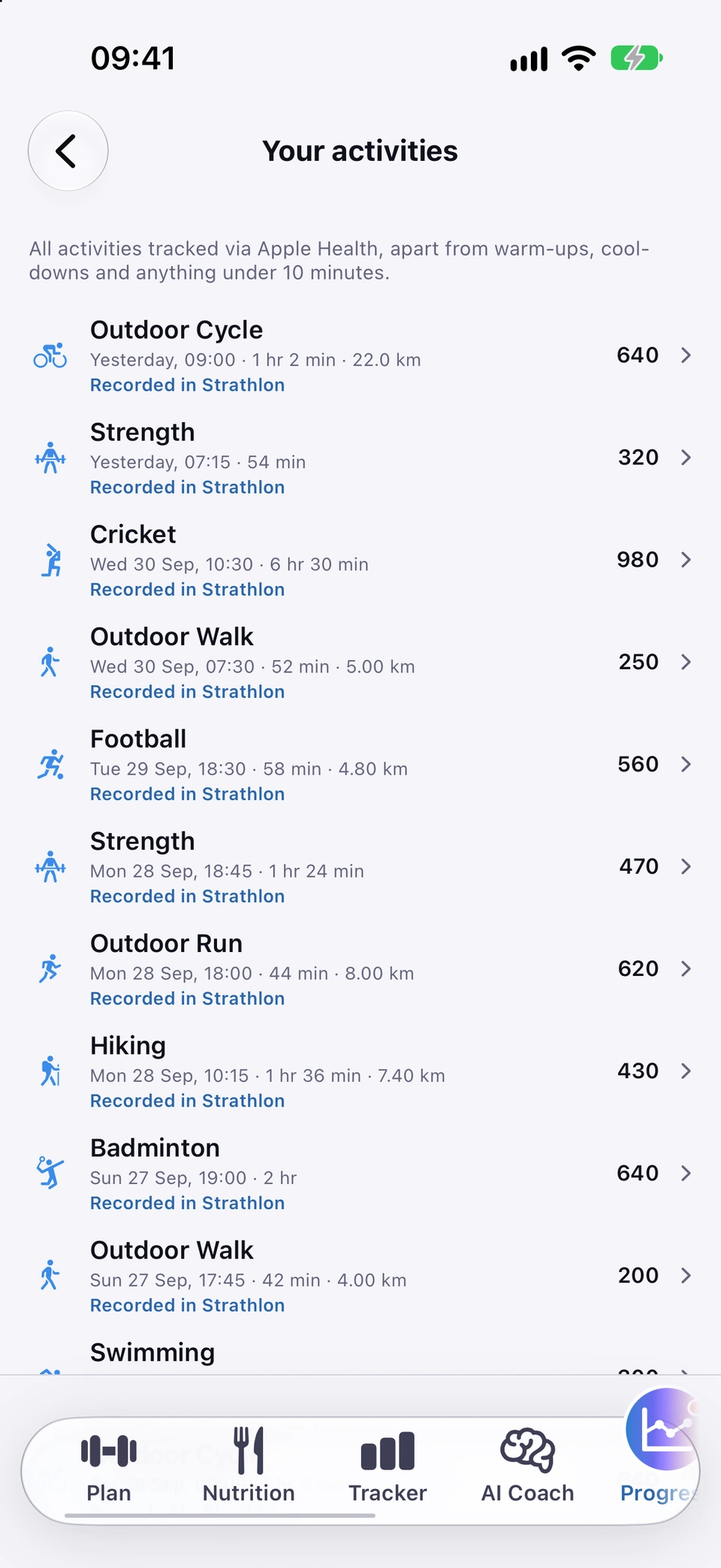
Your activities lists every workout recorded in Apple Health — sessions you did in Strathlon and ones from other apps or devices — newest first. Activities you repeat (the same walk, run or ride) get a comparison against your earlier ones, for example a faster pace at the same effort.
Why it helps
You see your whole training picture in one place, not just what you logged in Strathlon, and the app can tell you when a regular activity is genuinely getting easier.
How to use it
Open the Progress tab and find Your activities.
Every workout Apple Health has, in one place.Tap a most-repeated activity tile for its comparison, or See all activities for the full list.
Strathlon turns a workout's GPS track into a few numbers on your phone and drops the coordinates as it reads them, so no route, location or map is shown, stored or sent.
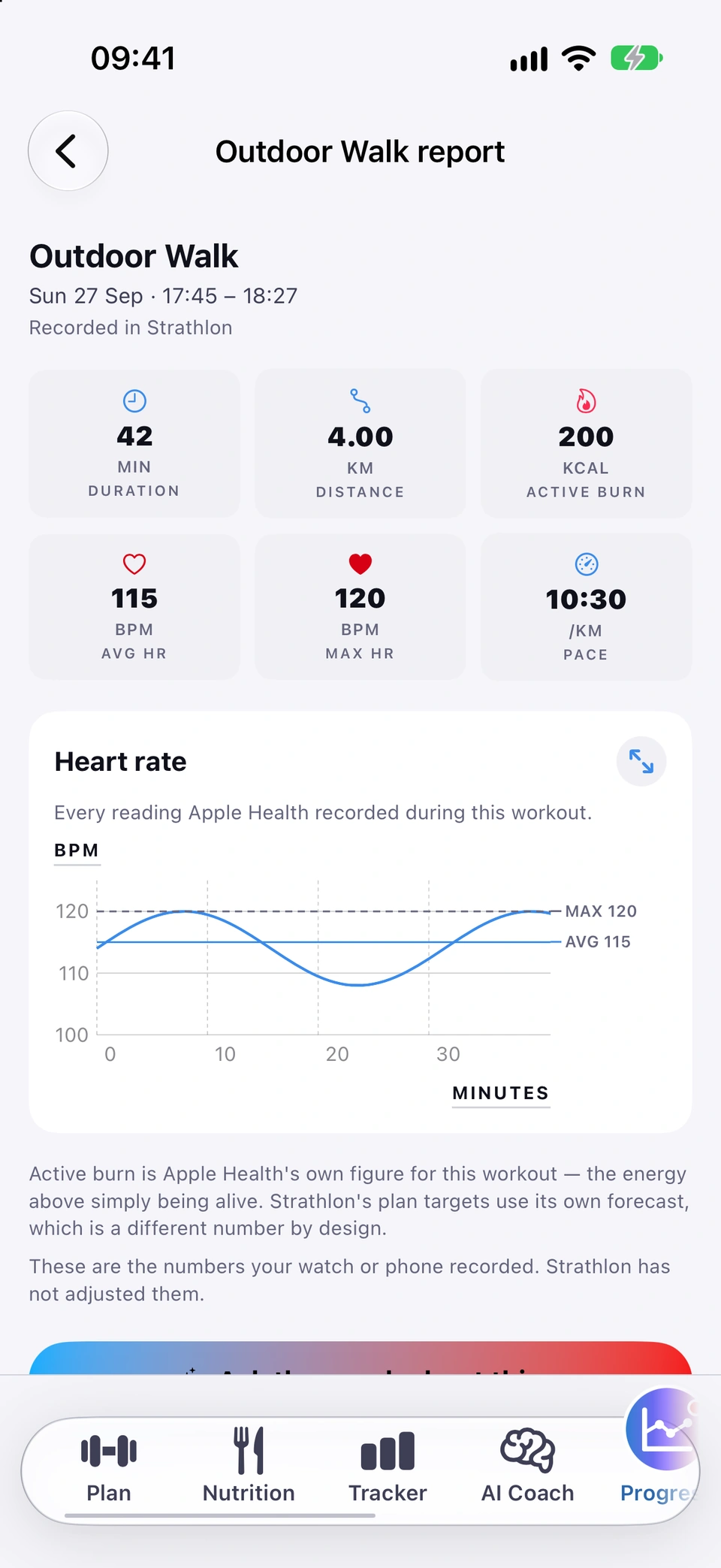
Tap any workout in Your activities for its full detail: time, distance, burn, heart rate and how it compares with your earlier ones.
Uses Apple Health
WhereProgress›Your activities›a workout
What it is
A workout's report shows tiles for time, distance, active burn, average and max heart rate and pace where they apply, a heart-rate chart, and HOW THIS COMPARES against your earlier, similar activities.
Why it helps
It's the full detail behind any one session, plus the context of how it stacks up against your own history of that same kind of activity.
Read its tiles and heart-rate chart, then use Ask the coach about this at the foot for how it compares with your earlier ones.
Tips
Opened from elsewhere in the app (for example a workout notification), the comparison shows directly on screen as HOW THIS COMPARES instead of behind the coach button.
Good to know
A figure Apple Health never recorded shows as an em-dash, never a zero or a guess — a denied permission and a quiet day look the same to the app, so neither is presented as a number.
Workouts you record in other apps, like Apple's Workout app, appear in Your activities once you let Strathlon read them.
Uses Apple Health
WhereProgress›the card at the top›Allow Workouts
What it is
Strathlon reads workouts other apps have saved to Apple Health, from Apple's own Workout app or any third-party app, and lists them in Your activities next to sessions recorded in Strathlon itself. While something is stopping that, a card at the top of the Progress tab says what it is and how to sort it out.
Why it helps
You don't have to log the same session twice: whatever another app already saved to Apple Health, Strathlon can show and count without you doing anything.
How to use it
Open the Progress tab. If you haven't yet told Apple Health whether Strathlon may read your workouts, a card at the very top says so.
Tap Allow Workouts. Apple's Health permission sheet opens.
Turn on Workouts and tap Allow. The card goes, and Strathlon checks for workouts from other apps straight away.
Left the sheet without answering? The card stays. Tap Allow Workouts again and the sheet comes back, every time, until you've answered.
Tips
The card never brings Apple's sheet up by itself; only your tap does. Apple's sheet can also appear once when you first open a new version of Strathlon, if Apple Health still has a question for you (see Apple Health reading).
Good to know
If you've answered but Apple Health still isn't sharing workouts from other apps with Strathlon, the card shows where to change it instead: Settings > Privacy & Security > Health > Strathlon, then turn on Workouts. There's no button for this, because it's Apple's switch.
If Background App Refresh is off for Strathlon, the card says that new workouts from other apps only arrive when you open Strathlon. To have them arrive without opening the app, go to Settings > General > Background App Refresh and turn on Strathlon. That's Apple's setting, not Strathlon's.
You can also check in the Health app: Browse > Activity > Workouts > Data Sources & Access, and make sure Strathlon is allowed to read workouts there. That's a separate switch from the one that lets your Apple Watch save Strathlon's own sessions to Apple Health, so turning one on does not turn on the other.
With permission, Strathlon reads your workouts, heart rate, sleep, weight and more from Apple Health to power Progress and readiness.
WherePermission at setup›or›Settings\›Privacy & Security\›Health\›Strathlon
What it is
Strathlon asks to read a set of Apple Health figures — calorie burn, heart rate and its recovery and variability, resting heart rate, respiratory rate, blood oxygen, wrist temperature, blood pressure, body temperature, weight, height, body composition, sleep and its stages, steps, flights climbed, distance, exercise minutes, mindful minutes, your Activity rings, the beat-to-beat timings behind HRV, the food calories other apps save, and your workouts. If you turn on Cycle-aware insights, it also asks, separately, to read your menstrual flow. Strathlon also asks to save the food you log: see Food saved to Apple Health.
Why it helps
This is what lets the Progress tab, readiness and your targets work from your real measurements instead of asking you to type them in yourself.
Grant the permission once and Strathlon can fill in your starting figures.
When it happens
The system permission sheet appears during setup. After that it comes up again only when you first open a new version of Strathlon and Apple Health still has a figure you haven't answered, such as a new one the update adds. When more than one question is waiting, Strathlon asks them one after the other, so one sheet is on screen at a time. For workouts from other apps, the card at the top of the Progress tab can also bring it back: see Workouts from other apps.
Tips
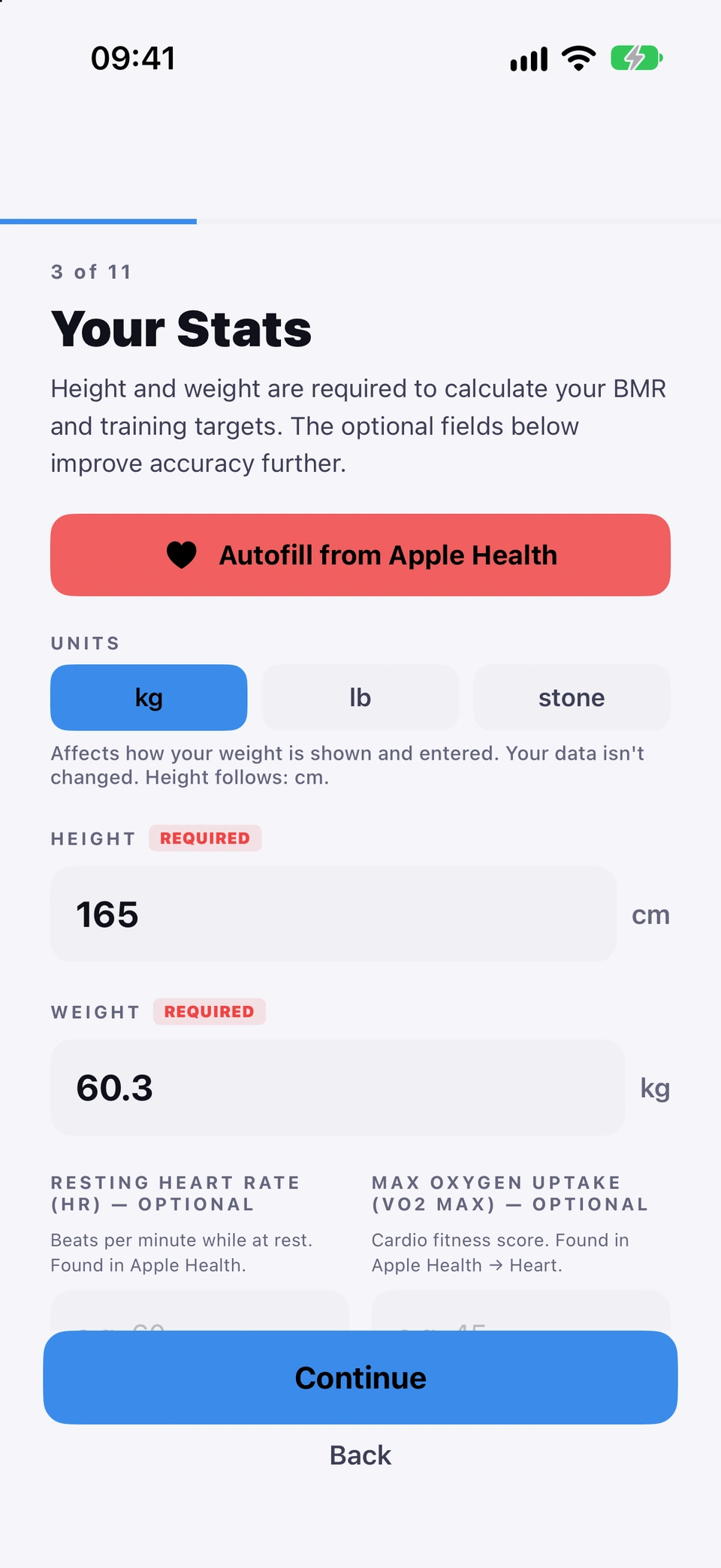
During setup, Autofill from Apple Health uses this same permission to fill in your height, weight, age, sex, resting heart rate and other starting figures for you.
You can review or change exactly what Strathlon can read at any time in your iPhone's own Settings\ > Privacy & Security\ > Health\ > Strathlon.
With Health sharing on, your coach reads an HRV worked out from your Apple Watch's beat-to-beat timings on nights that have enough of them, and Apple Health's own HRV on other nights. Your readiness score stays as it was.
Good to know
If you decline or later turn a type off, Strathlon simply omits whatever depends on it rather than guessing — Apple doesn't tell an app which types were refused, so an absence and "no data yet" look identical to Strathlon either way.
The food you log in Strathlon is saved to Apple Health as daily totals for calories, protein, carbs and fat.
Uses Apple Health
WherePermission at setup›or›Settings›Privacy & Security›Health›Strathlon
What it is
Strathlon saves the day totals you see in the Tracker, for calories, protein, carbs and fat, to Apple Health, as one entry per day for each. Apple Health shows Strathlon as the source.
Why it helps
Your food history sits in Apple Health beside the rest of your health data, and stays in step with what you log.
When it happens
A few moments after you add, edit or delete food while Strathlon is open, and again whenever you open it. Strathlon starts from the day you allow saving.
Tips
Edits follow: change a day's food in Strathlon and that day's entry in Apple Health is replaced, so Apple Health holds one entry per day for each figure.
You can choose which of the four figures Strathlon may save in Apple's Health sheet, or later in your iPhone's own Settings > Privacy & Security > Health > Strathlon.
Good to know
Clearing nutrition or deleting everything in Reset & Data leaves the food Strathlon already saved in Apple Health as it is. Delete it in the Health app if you want it gone.
Every day carries its own sleep target, shown on a SLEEP tile and a guidance card, with more asked for after a hard day.
WherePlan›SLEEP tile›or›sleep guidance card
What it is
Each day type has a sleep target: 8+ hours after a gym day, 7–9 on a rest or sport-practice day, 8–9 before a match or double-session day. It's shown as a SLEEP tile during a session and, on rest days, as its own guidance card.
Why it helps
The target reflects what that specific day asks of your recovery, rather than one flat number every night.
How to use it
Open the Plan tab and look at today's session header for the SLEEP tile, or the guidance card on a rest day.
Read the hours and, on the card, why that night matters — for example Sleep is non-negotiable after a double session.
Your sleep over time from Apple Health, stage by stage, including how often a night broke.
Uses Apple Health
WhereProgress›Recovery›Sleep
What it is
The Sleep tile under Recovery shows last night's length and, where it broke, how many times — Broken night — plus a stacked bar per night going back up to 14 nights, coloured by sleep stage.
Why it helps
It's more than a single duration figure — you can see the shape of each night, not just how long it lasted.
The shape of each night, not just its length.
How to use it
Open the Progress tab and find Sleep under Recovery.
Read last night's total and the stacked-bar history.
Reads No nights recorded yet until Apple Health has sleep data. It never claims "last night" for a night that isn't the most recent one — older data is labelled with its actual date instead.
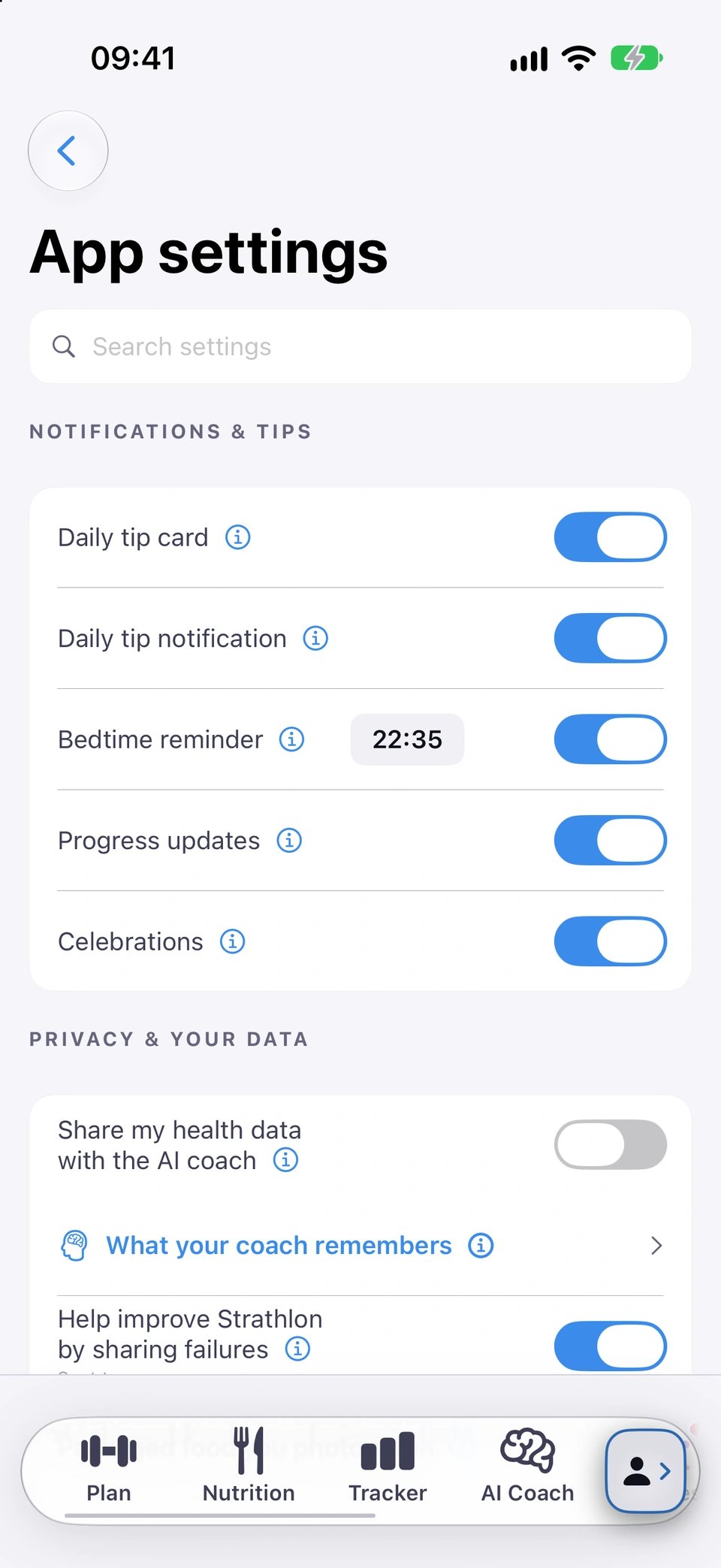
Bedtime reminder, under NOTIFICATIONS & TIPS, is a single nightly notification to start winding down, with a time you can set between 8:00pm and 11:30pm. It names what's on your schedule tomorrow (training, a sport's training or match, or recovery) and carries more emphasis on nights you trained hard.
Why it helps
Sleep is when a hard day's training actually converts to recovery, so a nudge to start winding down — with extra weight on the nights that matter most — helps protect it.
How to use it
On Settings, tap App settings.
Under NOTIFICATIONS & TIPS, turn Bedtime reminder on and allow notifications when asked.
One nightly nudge, at a time you choose.Tap the time next to the switch to set your own, or leave it to follow your recent sleep pattern.
Tips
Until you set a time yourself, Strathlon suggests one based on when you've actually been falling asleep, when there's enough sleep data to go on.
If you change tomorrow's plan before the reminder arrives, it names the updated plan.
Good to know
The time can only be set between 8:00pm and 11:30pm. Tapping the notification opens the app on your readiness card.
In the hour before bedtime, a lock-screen card shows tonight's sleep target and when to be asleep by.
Needs notifications on
WhereLock Screen in the evening, with Bedtime reminder on
What it is
With Bedtime reminder on, a lock-screen card appears in the evening showing a ring counting down to Bed by time\, tonight's sleep target, and a short line that names what's actually on your schedule tomorrow (training, a sport's training or match, or recovery) — switching to a recovery-focused message on a heavy training night.
Why it helps
A glanceable reminder on your lock screen, without opening the app, of tonight's target and when to be winding down.
When it happens
In the hour before your bedtime, once you've opened the app during that evening's wind-down window; it removes itself 45 minutes after your bedtime.
Tips
It needs Live Activities allowed for Strathlon — a separate iOS permission from notifications — and only appears once you've opened the app yourself during that evening's window. Skip the app that evening and only the notification, if it's due, reaches you.
If you change tomorrow's plan while the card is still showing — on the Plan tab, in your break dates or in Settings — the card updates to match.
Good to know
Tonight's sleep target on the card is the same one the Plan tab shows for that night — never a second, different figure.