
Getting started: your first week with Strathlon
Strathlon does the planning so you don't have to. In the first few minutes it asks a handful of questions and builds you a training and nutrition plan around your goal, and your sport if you play one. After that, most of what you need lives across the tabs along the bottom. Here's how to set yourself up and find your feet in week one.
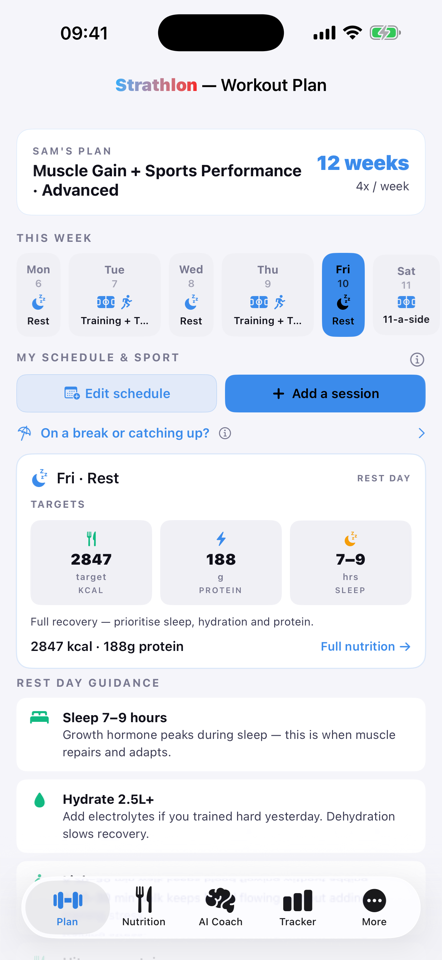
Setting up your workout plan
When you first open the app, a short setup builds your workout plan. It asks:
- Your goal: fat loss, muscle gain, general fitness or sports performance.
- Your experience level: so the programme starts from where you are.
- The sports you play, if any: the app plans around them.
- Your height and weight: the starting point for your targets.
- A quick readiness check: a few questions so the workout plan suits you.
From that it generates a personalised training and nutrition plan. Nothing here is set in stone (you can change your details later in Settings), but it's worth answering honestly, because everything downstream is built from these answers.
The tabs
Once your workout plan is ready, the app is organised into nine tabs along the bottom, which scroll sideways:
- Plan: your programme and today's session.
- Nutrition: your day-aware calorie and macro targets.
- Tracker: where you log your weight and food, day by day.
- AI Coach: chat, photo meal logging and weekly analysis, with the Strathlon subscription.
- Progress: your charts and trends over time.
- Photos: your progress photos, side by side.
- Settings: your details, goal, workout voice, privacy and backup.
- Feedback: tell us what's working, or ask for something new.
- Roadmap: see what's coming and vote for what matters to you.
You don't need to learn them all at once. Spend your first week mostly in Plan and Tracker, and the rest will make sense as you go.
The Plan tab
Plan is where each day starts. At the top you'll see this week, day by day, and your schedule. Below them are the phases of the programme, with the one you're in picked out, and then today's workout as a set of tiles. Tap a session to do it: the app walks you through a warm-up, then your exercises with set tracking, rest timers between them, and HIIT where the session calls for it. You just follow along and tick things off.
The Tracker tab
Tracker is the habit that makes everything else work. There are two things to log:
- Your weight. Type it in, or let Apple Health bring it in automatically: a scale that syncs to Health flows straight through, with nothing to tap or confirm.
- Your food. Quick-add what you eat, and the app learns your regulars so the ones you reach for most are a tap away.
As the days add up, the Body weight and Energy balance charts on the Progress tab start to fill in. That's the point: a week or two of honest logging turns into a picture you can actually read.
The Nutrition tab
Your calorie and macro targets aren't a single fixed number. They shift with the kind of day it is: a training day, a rest day, or a match or sport day each get their own targets. So when you open Nutrition, you're seeing what today specifically asks of you. Log your food in Tracker and it shows you how the day is going against those targets.
On your Lock Screen
During a workout you don't have to keep the app open to follow along. Your current step and a live countdown appear on your Lock Screen and in the Dynamic Island (a Live Activity), so a glance tells you where you are without unlocking your phone. Open Strathlon in the hour before bed and a bedtime wind-down card appears there too, with your bed-by time, tonight's sleep target and a ring that runs down to bedtime.
Where to next
That's your first week. When you're ready to go deeper, the user guide covers every screen in detail. For the two habits that matter most, read Tracking your progress and Your schedule. Between them they'll get you comfortable with logging and with reading your workout plan.
← All articles · Tracking your progress · Your schedule · User guide · Home