
Reading your charts: weight, deficit and progress photos
A chart is only useful if you can read it at a glance. Strathlon charts your weight and your calorie deficit on the Progress tab and keeps your progress photos on the Photos tab, and each one is built to answer a single honest question: is what you're doing actually working? Here's how to read them.
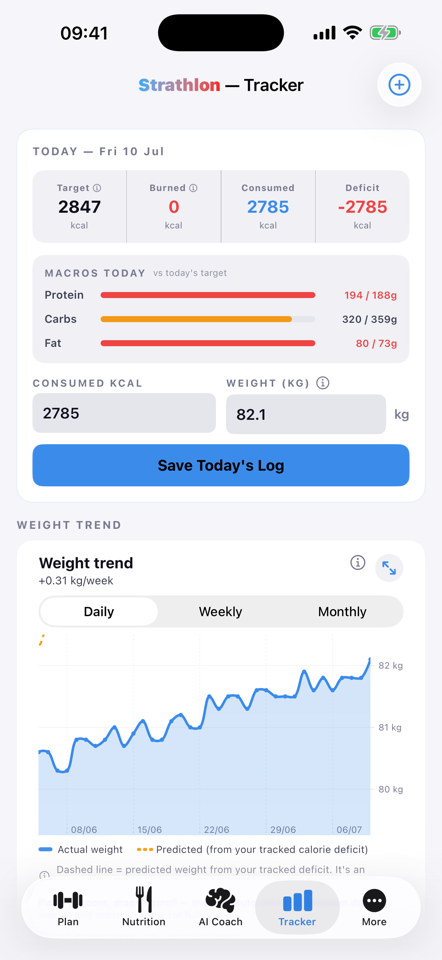
Your weight chart
The weight chart (tap the Body weight tile on the Progress tab) always opens on your most recent data, so you never land on an empty stretch of the year. Switch between Daily, Weekly and Monthly to change how much you're looking at: daily for the last few weeks, monthly for the long arc. Pinch to zoom in on any stretch you want a closer look at.
- A trend line through your weigh-ins. It shows the direction of travel without the day-to-day noise.
Day-to-day weight bounces around with water, food and time of day. The point of the trend line is to look past that and see whether the real number is moving the way you want.
Your calorie-deficit chart
The Energy balance tile on the Progress tab charts your calorie deficit over time: how much less (or more) you've eaten than you've burned. From that deficit, the Body weight chart on the Progress tab plots your predicted weight against your actual scale weight, side by side, so you can see whether the maths is matching the scale. When the two track together, your logging and your body agree. When they drift apart, that's worth a look: the Predicted vs actual figure under that chart shows how far apart they are, and "Ask the coach about this" gets the coach to explain the gap.
Two ways to log your weight
Logging should never be the reason you stop. You can:
- Type it in. The quickest way if you've just weighed yourself, and a weight you type stands until Apple Health has a newer reading.
- Let Apple Health do it. A smart scale that already syncs to Apple Health flows straight through: your weigh-ins arrive automatically, with no "update your weight?" tap to confirm. What you see on your Tracker is your latest reading, and that same reading is what your calorie and protein targets are built from.
Progress photos
The scale misses things: recomposition, posture, the way clothes fit. Progress photos catch what a number can't. They're private: they stay on your iPhone, and go to your own iCloud only if you switch on Sync progress photos to iCloud. You can line two up side by side to see the change across weeks or months. Often that comparison is more motivating than any chart, because it shows progress the scale was quietly hiding.
Your targets, explained
Under Settings → Your targets you'll find the numbers that drive everything else: your calorie target for each kind of day, your protein and carb targets, your BMR and BMI, and your maximum heart rate. BMR and BMI each have a plain-English ⓘ explainer, so you're never staring at an acronym wondering what it means or where it came from.
"Ask the coach about this", under the Body weight chart, gives you the AI coach's reading of your predicted-versus-actual weight.
← All articles · Understanding your stats · Ask the coach about predicted vs actual weight · Home